

You are watching a live stream on Twitch and suddenly the video stops. A black screen appears with a message saying there was a network error, often labeled Error #2000. Reloading the stream works for a moment, then the same error comes back. This situation frustrates many viewers, especially during live content.
This article explains what Twitch Error #2000 means, why it keeps happening, and how to fix it using simple steps. Each section focuses on real causes and tested solutions, not guesses.
What Is Twitch Network Error #2000?
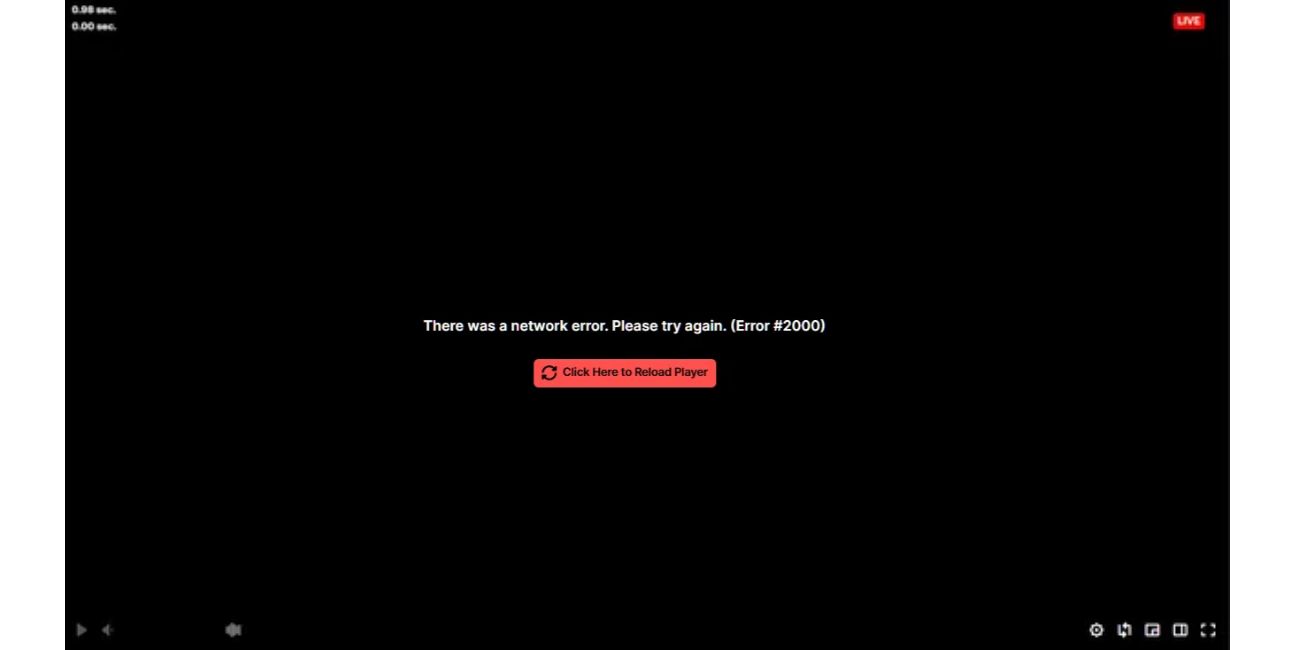
Twitch Network Error #2000 appears when the Twitch video player fails to receive stream data correctly. The player expects a steady flow of video packets, but something interrupts that flow before playback completes. When this happens, Twitch stops the stream and shows the error message instead of frozen video.
This error usually happens in web browsers like Google Chrome, Mozilla Firefox, or Microsoft Edge. It does not always mean Twitch servers are down. In many cases, the issue comes from the local browser, network path, or content filtering.
Why Twitch Keeps Showing Network Error #2000
Twitch streaming depends on fast and stable data delivery. When that delivery breaks, the error appears. Several factors can trigger it, sometimes more than one at the same time.
Common causes include:
- Unstable or slow internet connection
- Browser cache storing broken stream data
- Ad blockers blocking Twitch video scripts
- DNS delays while resolving Twitch domains
- VPN routing problems
- Security software interfering with video requests
- Twitch CDN congestion during popular live streams
Twitch uses HTTPS streams and a global CDN. If any part of that path fails, the player stops.
Is Error #2000 a Twitch Problem or a Local Issue?
This error can come from Twitch or from your side. You should test before assuming anything.
Open the same stream in another browser or on another device. If it plays fine elsewhere, the problem is local. You can also switch networks, such as moving from Wi-Fi to mobile data. If the stream works on a different network, your original connection is likely the cause.
Sometimes Twitch experiences regional delivery issues. These usually fix themselves. If the error appears only on one stream while others play normally, the issue may be stream-specific rather than platform-wide.
How to Fix Twitch Network Error #2000
If Twitch keeps showing Error #2000 on your side, you’ll need a working set of fixes you can try right now. Don’t jump around. Follow these steps one by one, and stop as soon as the stream plays normally again.
Fix 1: Reload the Player and Stream
Sometimes the error happens once due to a brief data drop. Click reload on the Twitch player or refresh the browser tab. This forces the player to request fresh stream data. If the stream loads and stays stable, no further action is needed.
Fix 2: Disable Ad Blockers and Extensions
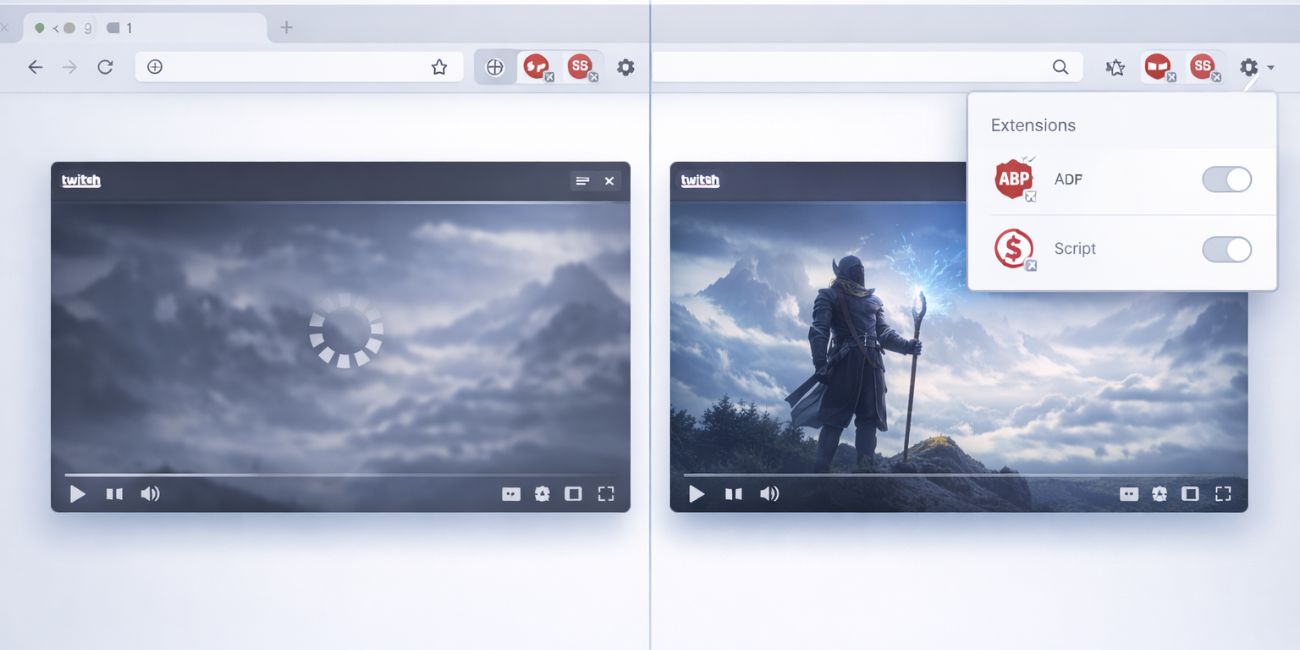
Ad blockers often break Twitch playback because Twitch ads load inside the video player.
Steps to try:
- Turn off ad blockers for Twitch
- Disable script blockers
- Reload the stream
- If it works, re-enable extensions one by one
Extensions that modify video playback or block tracking commonly trigger Error #2000.
Fix 3: Clear Browser Cache and Site Data
Corrupted cached data can cause Twitch streams to fail repeatedly.
Clear:
- Cached images and files
- Site data for twitch.tv
Restart the browser after clearing. This forces the browser to rebuild fresh streaming data.
Fix 4: Check Internet Connection and DNS
Network problems often cause this error. When Twitch cannot send continuous data, the player disconnects. Restart your router to reset the connection. Switch networks if possible to test stability. You can also try a different DNS service if your default DNS is slow. If you use a VPN, turn it off temporarily because unstable VPN routes often interrupt live streams.
Fix 5: Try a Different Browser or Device
If Twitch fails only in one browser, switch to another. Each browser handles media playback differently. Testing on another device also helps confirm whether the issue is system-specific.
If Twitch works elsewhere, reinstalling or resetting the original browser may help.
Fix 6: Turn Off VPN, Firewall, or Security Filters
VPNs and security tools sometimes block video packets by mistake. Disable VPN connections first. Then check Firewall or Antivirus software settings that inspect encrypted traffic. If disabling them fixes the stream, add Twitch as an allowed site.
Why Error #2000 Happens More on Live Streams
Live streams rely on real-time delivery. Unlike recorded videos, live streams cannot pause to buffer missing data. If packets arrive late or out of order, the player disconnects instead of waiting.
High viewer traffic also increases strain on Twitch delivery nodes. During popular events, even small network delays can trigger Error #2000. This explains why the error often appears mid-stream instead of at the start.
How to Prevent Twitch Network Errors in the Future
You cannot avoid every network issue, but these habits reduce errors:
- Use a stable wired connection when possible
- Keep browsers updated
- Avoid aggressive ad blocking
- Restart your router occasionally
- Limit VPN use during live streams
- Remove unused browser extensions
These steps improve stream stability over time.
Final Thoughts
Twitch Network Error #2000 is common and usually fixable. It often comes from browser conflicts, network instability, or blocked video scripts rather than Twitch itself. Test one fix at a time and avoid random changes. If this guide helped you get back to streaming, share it with others or leave a comment with what worked for you.

