

You’re ready for a long flight. You open Netflix. You tap Download. And… nothing happens. Annoying, right?
If you’ve ever asked, “Why can’t I download shows on Netflix?” you’re not alone. The good news? It’s usually an easy fix. Let’s break it down in simple terms and get your downloads working again.
TLDR: You can’t download Netflix shows for a few common reasons. The title may not allow downloads, your app may be outdated, or your device might not have enough storage. Sometimes it’s your subscription plan or too many downloaded devices. Try the 8 simple fixes below, and you’ll likely solve the problem in minutes.
First, How Netflix Downloads Work
Not everything on Netflix can be downloaded. That’s important to know.
Downloads are available:
- On the Netflix mobile app
- On phones and tablets (iOS and Android)
- On some Chromebooks
- On Windows app (not browser)
Downloads do not work in a normal web browser. So if you’re clicking around Chrome or Safari, that’s your first clue.
Now let’s get into the real fixes.
1. The Show Isn’t Available for Download
Yes, this happens a lot.
Some titles simply don’t allow downloads. Usually, this is because of licensing agreements. Netflix doesn’t always own the content. So they can’t always offer offline viewing.
How to check?
- Look for the Download icon (arrow pointing down)
- If there’s no icon, it can’t be downloaded
No icon means no download. Simple as that.
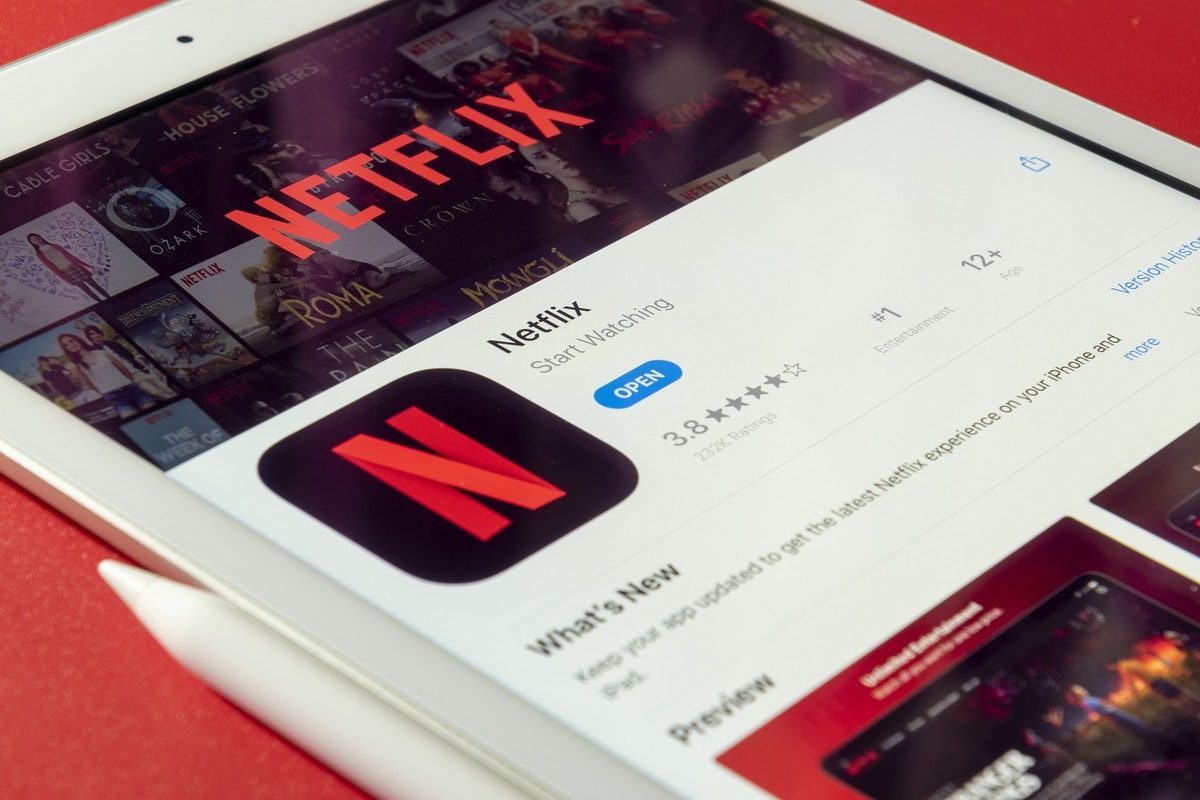
Quick Fix: Choose another show. Or browse the Available for Download category inside the app.
2. You’re Using the Wrong Device
This one surprises people.
You cannot download shows:
- On Smart TVs
- On streaming sticks (Roku, Fire Stick)
- On PlayStation or Xbox
- Inside a web browser
Downloads are mostly for mobile devices.
Quick Fix:
- Install the Netflix app on your phone or tablet
- Log in
- Try downloading again
If you’re on a laptop, make sure you’re using the official Windows Netflix app, not the browser.
3. Your App Needs an Update
Old apps cause problems. A lot of them.
If your Netflix app is outdated, download features may stop working. You might see errors like:
- “Download failed”
- “Something went wrong”
- Or nothing happens at all
Quick Fix:
- Go to the App Store or Google Play
- Search for Netflix
- Tap Update
Restart the app after updating. Then try again.
4. Your Device Doesn’t Have Enough Storage
This is a big one.
Downloads take space. HD downloads take even more.
If your phone storage is almost full, Netflix may block new downloads.
How to check storage:
- On iPhone: Settings → General → iPhone Storage
- On Android: Settings → Storage
Quick Fix:
- Delete old downloads in Netflix
- Remove unused apps
- Clear photos or videos
Tip: Lower download quality to save space.
Go to:
Netflix App → My Netflix → App Settings → Download Video Quality
5. You’ve Reached Your Device Limit
Netflix limits how many devices can download at once.
This depends on your subscription plan.
| Plan | Max Devices for Download | Ads? |
|---|---|---|
| Standard with Ads | 2 devices | Yes |
| Standard | 2 devices | No |
| Premium | 6 devices | No |
If someone else on your account downloaded content on multiple devices, you might hit the limit.
Quick Fix:
- Open Netflix in a browser
- Go to Account → Manage download devices
- Remove devices you no longer use
Then try downloading again.
6. Your Internet Connection Is Weak
Even though downloads are for offline watching, you still need internet to start them.
If your Wi-Fi is weak or unstable, downloads may fail.
Signs of a bad connection:
- Download stuck at 0%
- Download pauses randomly
- Error messages popping up
Quick Fix:
- Switch to a stronger Wi-Fi network
- Move closer to your router
- Restart your router
- Try mobile data (if your plan allows)
7. Your Device Is Too Old
Technology ages. Fast.
Older devices may not support newer versions of the Netflix app. That can stop downloads completely.
Common issues:
- Very old Android versions
- Outdated iOS versions
- Unsupported Windows versions
Quick Fix:
- Update your phone’s operating system
- If updates aren’t available, use a newer device
It’s not fun. But sometimes that’s the only solution.
8. The Download Expired
Yes, downloads expire.
Netflix downloads don’t last forever. Some expire after 7 days. Others expire 48 hours after you press play.
If you see an expiration message, don’t panic.
Quick Fix:
- Reconnect to the internet
- Tap Renew Download
In most cases, that’s all it takes.
Bonus Tip: Restart Your Device
It sounds basic. Because it is.
But restarting your phone solves many temporary glitches.
If nothing else works:
- Close Netflix completely
- Restart your device
- Open Netflix again
Simple. Effective.
Common Netflix Download Error Messages (And What They Mean)
- “Download failed” – Usually internet or storage issue
- “You have downloads on too many devices” – Device limit reached
- “This title is not available for download” – Licensing restriction
- “Storage space insufficient” – Your device is full
When you see the message, match it to the fix above.
How to Avoid Download Problems in the Future
Here are a few smart habits:
- Keep your app updated
- Regularly delete old downloads
- Download shows before travel day
- Use strong Wi-Fi for large files
- Check expiration dates before flights
A little preparation saves big frustration.
Final Thoughts
Most Netflix download problems are small. And fixable.
It’s usually one of these:
- Wrong device
- No storage
- Outdated app
- Device limit reached
- Weak internet
The good news? You don’t need to call support. You don’t need to cancel your plan. And you don’t need to give up on your show.
Try the fixes above. One by one.
Your next flight, road trip, or lazy offline Sunday is waiting.
Now go download that show. 🎬

