

SoundCloud works on more than just a phone. You can use it on Android, Android TV, Xbox, Sonos, desktop, car systems, and some wearable devices. The setup is not always the same though. Some devices let you sign in right in the app. Some may ask you to link your account through SoundCloud’s activation page. Other devices work better through casting from your phone.
That is why many users get stuck. They open SoundCloud on a TV or console and expect the same steps they use on mobile. But SoundCloud supports different login paths on different devices. Once you know which path fits your device, the setup gets much easier.
This guide shows how to activate SoundCloud on Android phones, smart TVs, consoles, and other supported devices. It also covers common fixes if the app will not sign in, the code fails, or playback stops on another screen.
What does SoundCloud activation mean?
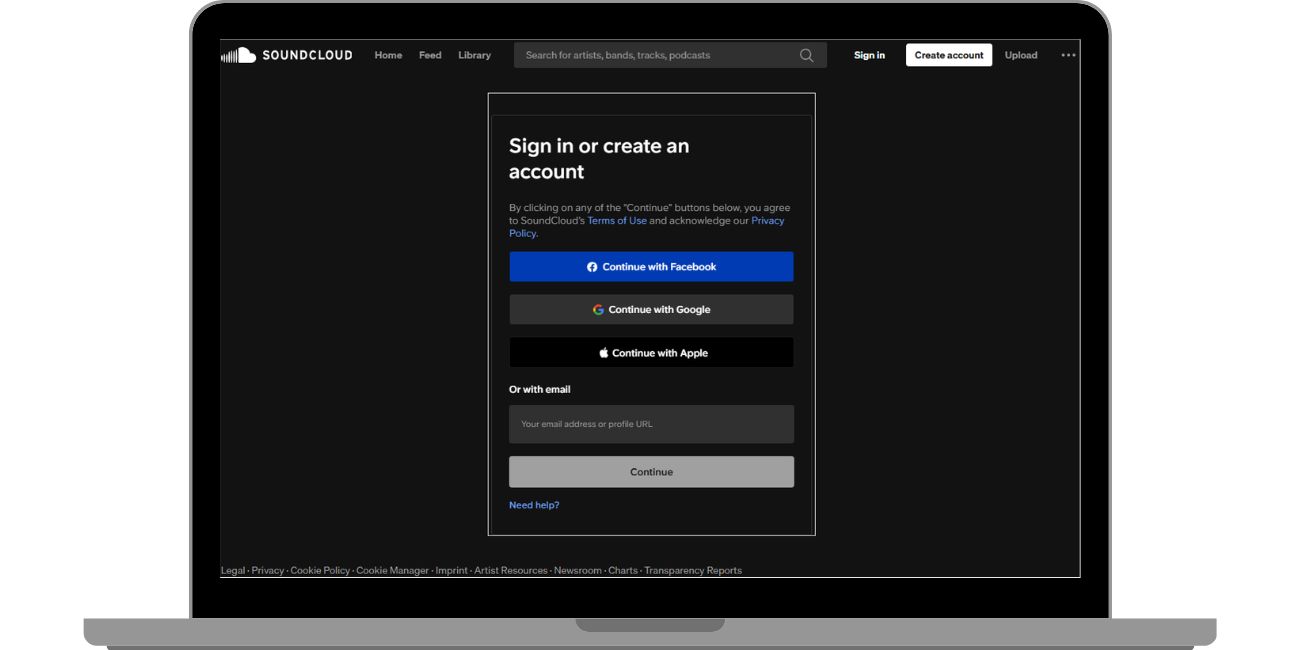
SoundCloud activation means linking your SoundCloud account to a device so you can stream music, podcasts, playlists, likes, and library content on that device. On a phone, activation is usually just a normal sign-in. On a TV or another screen device, you may see a login prompt or a code that sends you to SoundCloud’s activation page.
So the idea is simple. You are not creating a second account. You are just connecting the same SoundCloud account to a supported device. That device then gets access to your feed, search, library, and playback features based on what the app supports.
Some users also mix up activation with casting. These are not always the same thing. A native SoundCloud app on Android TV or Xbox uses its own login flow. But many smart TVs without a SoundCloud app work through Chromecast, Bluetooth, or AirPlay from your phone instead.
Activate SoundCloud on Android
If you use an Android phone or tablet, the process is easy. You do not usually need a separate activation code.
Follow these steps:
- Open the Google Play Store.
- Search for the SoundCloud app.
- Install the app or update it to the latest version.
- Open SoundCloud.
- Tap Sign in.
- Enter your SoundCloud account details.
- Start listening.
This is the standard mobile setup. Once you sign in on Android, your SoundCloud account syncs your likes, playlists, listening history, and library with the app. That makes Android the simplest way to start with SoundCloud if you are new to the platform.
Android also connects to other device types. SoundCloud supports Android Auto for in-car listening, and it also offers support for Wear OS devices in supported cases. So for many users, the Android phone becomes the main hub for SoundCloud across other screens and devices.
How to activate SoundCloud on a Smart TV
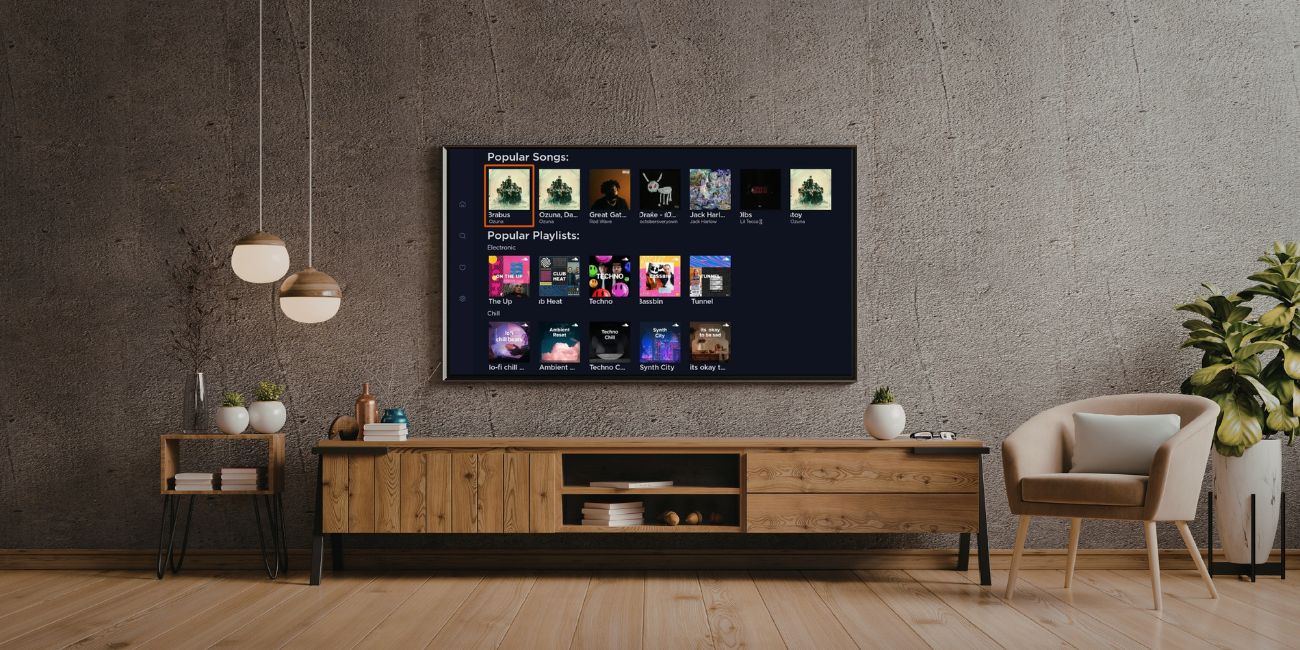
The smart TV setup depends on the kind of TV you have. This is the part that causes the most confusion.
If you have Android TV or Google TV
SoundCloud has an Android TV app. That means you can install the app right on the TV instead of casting from your phone.
Use these steps:
- Open the Google Play Store on your Android TV or Google TV.
- Search for SoundCloud.
- Install the SoundCloud app.
- Open the app.
- Sign in with your SoundCloud account details and begin playback.
That is the cleanest TV setup because it gives you a direct SoundCloud app experience on the big screen. SoundCloud’s Android TV support includes core functions such as browsing, searching, and playing your content in the TV app environment.
If your smart TV does not have a SoundCloud app
Many smart TVs do not have a native SoundCloud app. In that case, the better path is usually casting or wireless playback from your phone.
You can try one of these:
- Chromecast
- Bluetooth
- AirPlay on supported Apple-based setups
This means your phone or tablet signs in to SoundCloud first. Then your phone sends audio to the TV or speaker. For many users, this is the easiest fix when they search for SoundCloud on a smart TV and cannot find an official app.
A few things help the setup go smoothly:
- Keep the TV on Wi-Fi
- Keep the SoundCloud app updated
- Make sure the phone and TV are on the same network for casting
- Restart the app if playback fails
That short checklist fixes a lot of TV issues before they turn into bigger login problems.
How to Activate SoundCloud on the Console
When people say console, the clearest officially documented SoundCloud console app is Xbox. SoundCloud’s current support pages describe an Xbox app and how to get it from the Windows Store on Xbox.
Activate SoundCloud on Xbox
Here is the basic setup:
- Open the Windows Store on Xbox.
- Search for SoundCloud.
- Install the SoundCloud Xbox app.
- Launch the app.
- Sign in with your SoundCloud account.
- Start using features like Library, Discovery, and Search.
That gives Xbox users a direct app path instead of relying on phone casting. It also means Xbox is one of the strongest options for people who want SoundCloud on a large screen or connected home setup without using a TV browser.
What about other consoles? I don’t know about it from the official SoundCloud support pages I checked. Xbox is the console SoundCloud clearly documents right now.
How to Activate SoundCloud on Other Devices
Not every SoundCloud device fits into the phone, TV, or console group. There are a few other supported options, and each one works a little differently.
Sonos
If you use Sonos speakers, SoundCloud works as a music service inside the Sonos app. You do not install SoundCloud on the speaker itself. Instead, you open the Sonos app, add SoundCloud from the list of supported services, and sign in with your SoundCloud account. After that, you can play SoundCloud tracks and playlists through your Sonos system.
This setup is good for home listening because Sonos handles the speaker system while SoundCloud provides the account and audio content. It feels more like account linking than app installation.
Windows Desktop
SoundCloud also supports desktop listening options. Depending on your setup, you may use the browser, Desktop Player, or the Windows app. That gives users another way to sign in and listen without using a phone.
Good desktop options include:
- web browser access
- SoundCloud Desktop Player
- SoundCloud for Windows
If you mostly listen while working, the desktop route can be the easiest one because it avoids casting and does not depend on a TV app.
Car and Wearable Options
SoundCloud supports Android Auto for users who want in-car playback through a connected Android phone. That means you sign in on the phone first, then use SoundCloud through the car display when Android Auto is active.
SoundCloud also offers support for Wear OS. For Apple Watch, SoundCloud says the watch acts as a companion app rather than a fully independent streaming device, so the setup and playback limits are different there.
So yes, SoundCloud reaches a lot of device types. But the exact activation method changes with each one. That is the key point.
What to do if the SoundCloud Activation Code is not working?
Sometimes the setup looks right and still fails. The code may not work. The login page may reload. Or the app may sign you out again. That is common enough, and there are a few simple fixes to try first.
Start here:
- Update the SoundCloud app
- Reload the activation page
- Restart the device
- Check your internet connection
- Clear app cache where that option exists
- Sign out and sign in again
- Confirm that the device is officially supported
A weak connection can break login on TVs and consoles. An outdated app can also stop SoundCloud from opening the correct sign-in flow. And in some cases, the problem is not the code at all. The device may simply not support the SoundCloud app, so you need to switch to casting instead.
There is one more thing many users miss. SoundCloud says the same account can stream on only one device at a time. So if music is already playing on your phone, desktop, or speaker, another device may stop playback or act like the setup failed. That is not always an activation error. Sometimes it is just the one-device streaming limit.
Which Setup Method is Best For Your Device?
This quick guide helps you choose the right path.
- Android phone or tablet – use the main SoundCloud mobile app
- Android TV or Google TV – use the native SoundCloud TV app
- Smart TV without app – cast from your phone with Chromecast, Bluetooth, or AirPlay
- Xbox – install the SoundCloud app from the Xbox store path
- Sonos – add SoundCloud inside the Sonos app
- Car display – use Android Auto
- Desktop or laptop – use browser access or the desktop app options
This matters because people often search for one universal activation method. But SoundCloud does not work that way across every device. The best setup depends on the platform you’re using.
Final words
Activating SoundCloud is easy once you match the setup method to the device. Android phones and tablets use the normal mobile app. Android TV and Xbox use official apps. Sonos works through service linking. Some smart TVs need casting instead of a native SoundCloud install. And if a code appears, the activation page handles that account link.
So if SoundCloud is not working on your TV, console, or another screen, do not assume the service is broken. Check the device type first. Then use the right login path. In most cases, that solves the problem fast.
If this guide helped, share it with someone who is trying to set up SoundCloud on a new device. You can also comment with the device you are using and what part of the setup gave you trouble.

