

CSFloat Account Not Trustworthy error appears when your Steam account does not meet CSFloat’s trust or payment standards. You may see a warning saying your Steam account does not meet the standards to complete payments on CSFloat. It may also say you need to make your Steam profile fully public or complete KYC.
This error mostly appears when you try to deposit balance, make payment, or use a payment method on CSFloat. It does not always mean you did something wrong. In many cases, CSFloat just cannot read enough public Steam profile data, or your account needs extra verification before payments are allowed.
The fix is usually simple. First, make your Steam profile fully public. Then refresh CSFloat, log out and back in, and complete KYC only if CSFloat still asks for it.
What Does “Account Not Trustworthy” Mean on CSFloat?
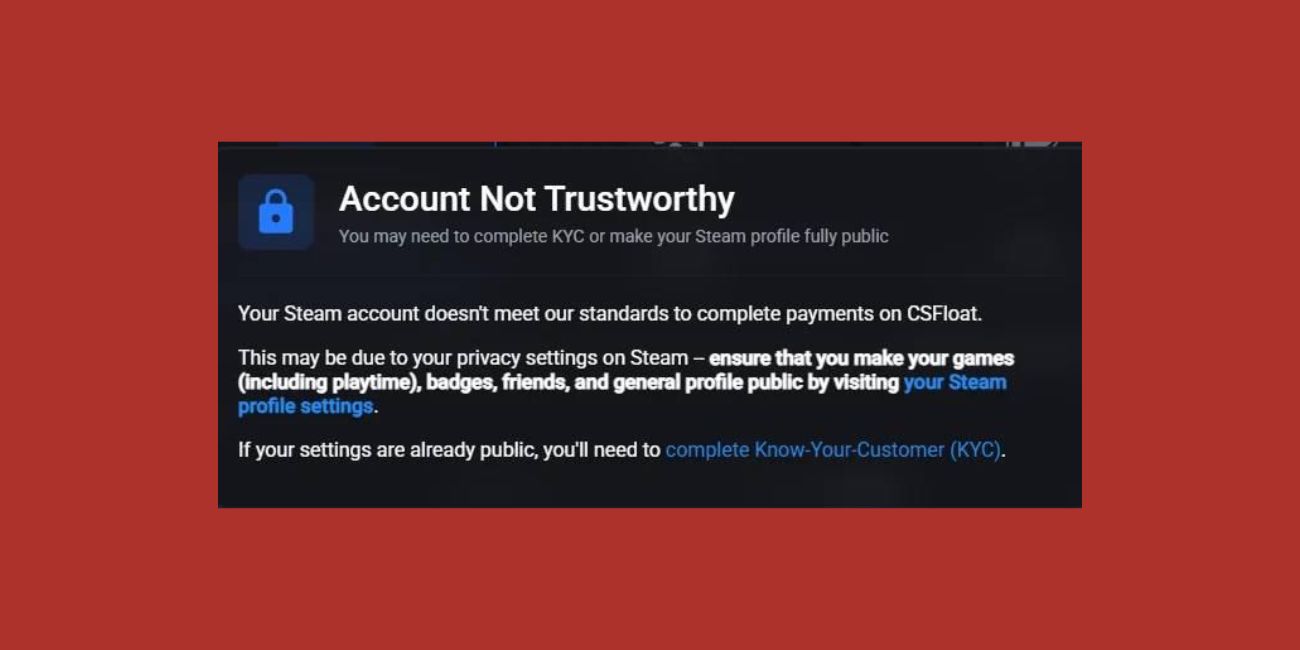
The “Account Not Trustworthy” message means CSFloat’s automated system does not have enough trust signals from your Steam account or payment activity. CSFloat says its automated systems detect the risk of users making payments, and users may need to make Steam privacy settings fully public or complete KYC to improve the account risk score.
So, this warning is mostly connected to payments and account checks. It does not always mean your Steam account is fake, banned, or unsafe. It usually means CSFloat wants more visible Steam profile data, or it needs identity verification for your payment method.
Why Does CSFloat Say Your Account Is Not Trustworthy?
There are many reasons CSFloat can show this warning, because it checks your Steam profile, account visibility, payment risk and verification status. If CSFloat cannot read enough public data from your Steam account, it may block deposits or payments.
Here are some main causes that can cause CSFloat Account Not Trustworthy error:
- Your Steam profile is private
- Game Details are hidden
- Playtime is hidden
- Friends List is private
- Inventory is private
- CSFloat cannot read enough public Steam data
- Your payment method needs stronger verification
- KYC is required for your account
- KYC is still pending or rejected
- VPN or an unusual network is making the payment look risky
- CSFloat has not refreshed your Steam account data yet
The warning in CSFloat clearly mentions Steam privacy settings. It says to make games, playtime, badges, friends, and general profile public. So your first fix should be Steam privacy, not random browser settings.
How to Fix Account Not Trustworthy on CSFloat
Fixing this CSFloat warning is not hard. You have to follow the steps below one by one until one of them works for you:
1. Make Your Steam Profile Fully Public
The most common fix is making your Steam profile public. CSFloat needs to read public Steam profile data, and if your profile is private, it may not trust the account enough for payments. Steam also explains that privacy settings are changed from your Steam profile by opening Edit Profile and then Privacy Settings.
Here is how you can do this:
- Open Steam.
- Go to your Steam profile.
- Click Edit Profile.
- Open Privacy Settings.
- Set My Profile to Public.
- Set Game Details to Public.
- Make sure playtime is not hidden.
- Set Friends List to Public.
- Set Inventory to Public.
- Save or let Steam save the changes automatically.
After changing these settings, go back to CSFloat and refresh the page. If the warning is still there, log out of CSFloat and sign in again with Steam.
2. Make Sure Game Details and Playtime Are Public
Many users make their main Steam profile public but forget Game Details. This matters because the CSFloat warning may directly mention games and playtime. If your profile is public but your games are still hidden, CSFloat may still treat the account as not trustworthy.
Go back to Steam privacy settings and check Game Details again. Set it to public and make sure the option that hides playtime is not enabled. This small setting is easy to miss, but it can be the reason the warning stays even after your profile looks public.
3. Make Friends, Badges, and Inventory Public
CSFloat may also look at other Steam profile signals, like friends, badges, general profile details, and inventory. The official CSFloat support page says Steam privacy settings should be fully public, including Game Details, Friends List and Inventory.
So do not only make one setting public. Open the full privacy page and check everything important. If your inventory is private, CSFloat may not read your trading information properly. If your friends list and general profile are hidden, your account may look less complete to their system.
4. Log Out and Log Back Into CSFloat
After changing Steam settings, CSFloat may not detect everything instantly. Your old session can still show the same warning for a short time. So log out from CSFloat, close the browser tab, and then sign in again through Steam.
This is a simple refresh step, but it helps. When you sign in again, CSFloat gets a fresh look at your Steam profile data. If your privacy settings are now public, the warning may disappear after this.
5. Clear Browser Cache or Try Another Browser
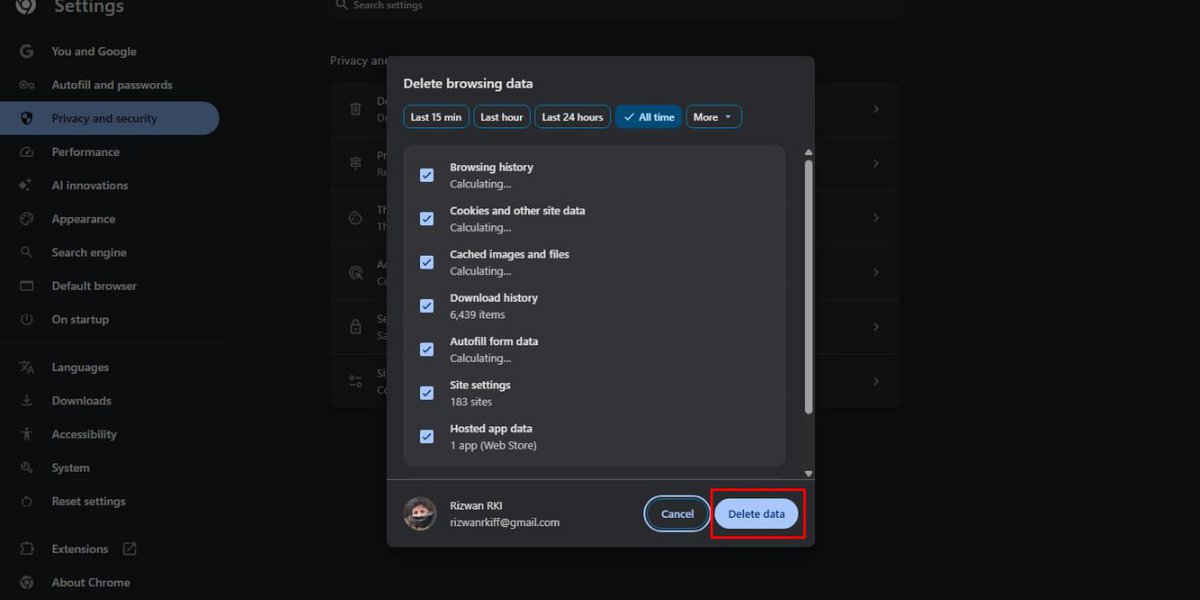
If your Steam profile is public but the warning still appears, your browser may be showing old CSFloat session data. Cache and cookies can sometimes keep old login information, and that can make the page look stuck.
Here is how you can do this:
- Open your browser settings.
- Clear cache and cookies.
- Close the browser fully.
- Open CSFloat again.
- Sign in through Steam.
- Go back to the payment or deposit page.
- Check if the warning is gone.
You can also try another browser like Chrome, Edge, Firefox, or Safari. If CSFloat works in another browser, then your first browser probably had a cache, cookie, or extension problem.
6. Complete KYC If CSFloat Still Asks for It
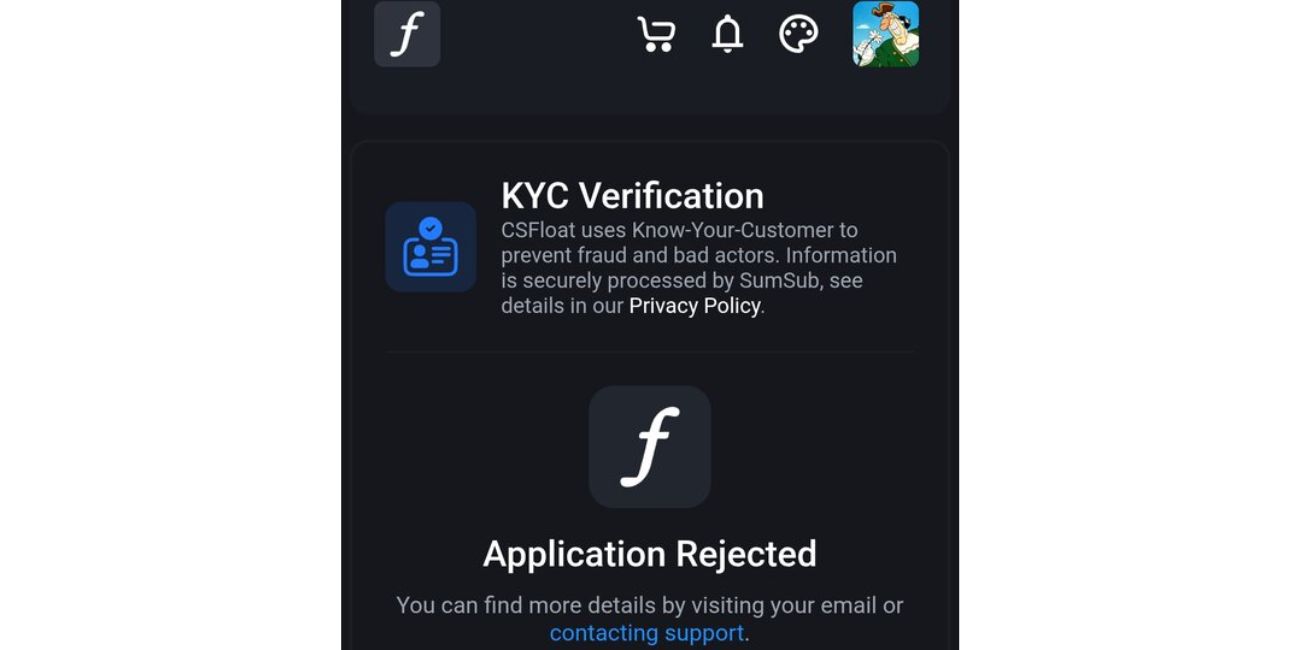
If your Steam profile is already public and CSFloat still says your account is not trustworthy, then you may need to complete KYC. KYC means Know Your Customer. It is an identity verification process used by many payment platforms and marketplaces.
CSFloat says KYC is required for some deposit methods, such as SEPA Direct Debit, and support may also request KYC for credit-card deposits on some accounts. CSFloat also says KYC is completed through its partner, and data is stored on Sumsub’s servers.
Only complete KYC from the official CSFloat flow. Do not upload documents through Discord links, random “support” accounts, or messages from strangers. If your KYC is pending or rejected, wait for the result or contact CSFloat support from the official support area.
7. Turn Off VPN Before Depositing or PayingA
VPN or proxy can make your payment activity look unusual. Your account may show one country, your payment method another, and your VPN a third location. That kind of mismatch can trigger extra risk checks on many payment platforms.
Turn off your VPN, refresh CSFloat, and try again from your normal connection. Not every VPN causes this issue, but it is worth testing if you see Account Not Trustworthy while depositing or paying.
8. Wait If You Just Changed Steam Privacy Settings
Steam privacy changes may not show on CSFloat instantly. Sometimes you change everything to public, but CSFloat still shows the old warning for a few minutes. This does not always mean the fix failed.
Wait a little, then log out and log back into CSFloat. You can also refresh your Steam profile page and confirm that other people can see your profile, game details, inventory, and friends list. After that, try the CSFloat payment page again.
9. Contact CSFloat Support If the Warning Still Stays
If you made your Steam profile public, cleared cache, logged in again, and completed KYC if required, but the warning still stays, then contact CSFloat support. At that point, the issue may be account-specific.
Before contacting support, collect these details:
- Screenshot of the Account Not Trustworthy warning
- Your Steam profile link
- Whether your Steam profile is public
- Whether Game Details and playtime are public
- Whether the Inventory and Friends List are public
- Whether KYC is completed, pending, or rejected
- The payment method you are trying to use
- Browser and device you are using
This makes support easier. If you only say “my account is not trustworthy,” they may need to ask for all these details later anyway.
What If Your Steam Profile Is Already Public?
If your Steam profile is already public but CSFloat still shows the warning, check the smaller privacy settings again. Many users set My Profile to public but leave Game Details, playtime, friends list, or inventory hidden. CSFloat may still fail the check if those details are not visible.
If everything is truly public, then the issue is probably KYC, payment risk, browser session, or account data refresh. Log out and back in, clear cache, try another browser, wait a little, and then complete KYC if CSFloat asks for it. If nothing changes, support is the right next step.
Is CSFloat KYC Safe?
CSFloat KYC is used for identity verification when certain payment methods or account checks require it. CSFloat says its KYC process can be needed for SEPA Direct Debit and some credit-card deposits, and it mentions Sumsub as the storage partner for KYC data.
Still, you should be careful with identity documents anywhere online. Use only the official CSFloat website, check the domain, and read the privacy details before submitting anything. Never send ID photos to random Discord users, fake support accounts, or links shared in chat.
How to Avoid Account Trust Issues on CSFloat in Future
To avoid this warning again, keep your Steam profile settings clean if you use CSFloat for payments. Your profile, game details, inventory, and other trust signals should stay public while you are using CSFloat. Also avoid switching VPN locations during deposits, because payment systems can see that as unusual.
Here are some simple safety habits:
- Keep your Steam profile public
- Keep Game Details and playtime visible
- Keep Inventory public if you trade skins
- Avoid VPN during deposits or payments
- Use your own payment method
- Keep Steam Guard enabled
- Do not use fake KYC links
- Keep account details consistent
- Contact support if your trust status changes again
You do not need to change these settings every day. Just remember, if CSFloat says Account Not Trustworthy, first check Steam privacy, then refresh CSFloat, then complete KYC if needed.
Final Thoughts
CSFloat Account Not Trustworthy error usually means your Steam account does not meet CSFloat’s payment or trust checks. The most common fix is to make your Steam profile fully public, including Game Details, playtime, Friends List, Inventory, badges, and general profile details. After that, log out and back into CSFloat so it can read the updated data.
If the warning still appears, clear browser cache, try another browser, turn off VPN, and complete KYC if CSFloat asks for it. If your profile is already public and KYC is done, then contact CSFloat support with a screenshot and account details.
Does your CSFloat warning mention Steam profile privacy, KYC, or both? Comment what it says on your screen, so other users can compare the same issue.

