

Seeing Canva say “An error occurred while saving your design” can feel annoying fast, especially when you’re editing a presentation, poster, resume, or social media graphic. When this happens, Canva may stop saving your latest changes, uploaded images, video clips, text boxes, or design layers. That can leave you worried about lost work.
This guide explains what the error means, why it happens, how to fix it, and what you can do to stop it from coming back.
What Is “Canva an error occurred while saving your design”?
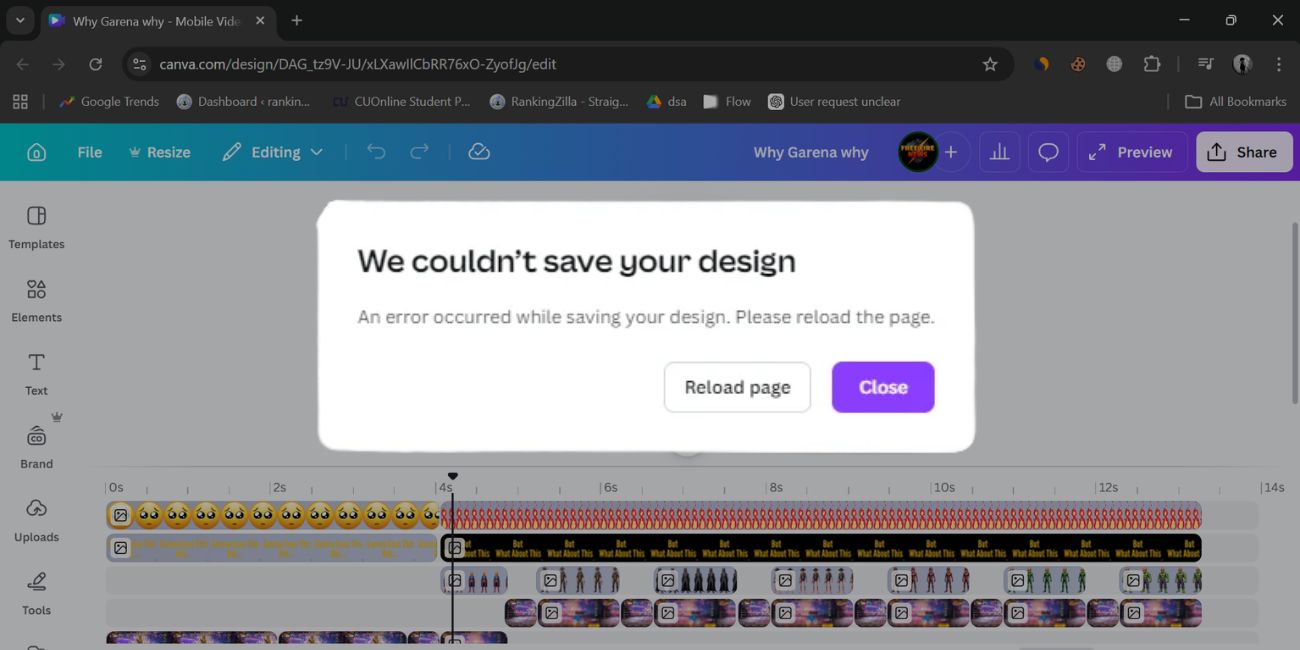
This Canva save error means the Canva editor could not save the latest version of your design file. In simple words, the platform failed to complete the save process. Sometimes Canva autosave stops working for a moment. Sometimes the browser session does not stay in sync with Canva servers. So the message appears to warn you that your new edits, page changes, or media updates may not be stored correctly.
You’ll usually see this message inside the Canva web editor or app while working on a presentation, flyer, poster, document, whiteboard, resume, or video project. It often appears after adding uploaded images, video elements, animations, audio clips, or many layered objects on a page. Some users also notice it while switching tabs, editing shared designs, or working on a heavy project with many pages.
Common Causes of “Canva an error occurred while saving your design”
This error can happen for different reasons. The cause may come from your browser, your network, the Canva platform, or the design itself.
- An unstable internet connection can interrupt the sync between the Canva editor and Canva servers.
- Old browser cache and cookies can break how Canva loads, stores, and saves design data.
- An outdated browser like Chrome, Firefox, Edge, or Safari may not work well with newer Canva features.
- Browser extensions such as ad blockers, privacy tools, script blockers, and VPN add-ons can interfere with editor functions.
- A large Canva project with many pages, videos, animations, and media assets may become too heavy to save smoothly.
- A corrupted uploaded image, video file, audio clip, or graphic element can trigger a save failure.
- A temporary Canva outage, server problem, or service issue can stop designs from saving even when your device works fine.
How to Fix “An Error Occurred While Saving Your Design” in Canva?
This error often clears up after a few checks. Start with the simple fixes first, then move to the ones that need a few steps.
Fix #1: Check your internet connection
Canva needs a stable internet connection to save your work in real time. If your Wi-Fi keeps dropping, or if your mobile data becomes weak, Canva may stop syncing new edits. That can affect text boxes, images, page layouts, and uploaded media. Try switching to a stronger network, reconnecting to Wi-Fi, or waiting a minute for the connection to settle. When the network becomes steady again, Canva may resume autosave on its own.
Fix #2: Check if Canva is down
Sometimes the problem is not on your side. Canva can have a platform issue, a server problem, or a short outage that affects saving, loading, exporting, or shared project access. In that case, your browser, laptop, or app may be fine. Check the Canva status page to see if other users are facing the same problem. If Canva is down, waiting for the service to recover is usually the right move.
Fix #3: Clear your browser cache and cookies
Old cache files and cookies can confuse the browser and break how Canva stores session data. When that happens, the editor may load badly, freeze, or fail to save changes.
Follow the steps below to easily clear your browser cache and cookies.
- Open the browser you use for Canva.
- Go to the Settings menu.
- Open Privacy, Security, or Browsing Data.
- Click the option to clear browsing data.
- Select cookies and cached images or files.
- Choose a time range, then confirm the action.
- Reopen Canva and test your design again.
Fix #4: Disable browser extensions
Browser extensions can cause quiet problems in the background. Ad blockers, privacy tools, script blockers, and VPN extensions may block some Canva editor scripts or page requests. Then saving stops, even though the design still looks open and active.
Try these simple steps to quickly disable browser extensions that may affect Canva.
- Open your browser menu.
- Go to Extensions or Manage Extensions.
- Look for ad blockers, VPN tools, privacy add-ons, or script blockers.
- Turn them off one by one.
- Refresh Canva after disabling them.
- Edit the design and see if saving works.
- Re-enable the extensions later to find the one causing the issue.
Fix #5: Update or switch your browser
Canva works best on updated browsers. If you use an older version of Chrome, Firefox, Edge, or Safari, some Canva features may not load or save correctly. Browser compatibility matters more when you work with video, animation, large presentations, and shared team designs. Update your current browser first. If the problem stays, open the same design in a different browser. If Canva saves there, the first browser is likely the issue.
Fix #6: Refresh Canva after saving what you can
A stuck browser tab or frozen editor session can block saving for a while. A careful refresh may clear that session and reconnect Canva to the design. Still, don’t refresh too quickly. If you can still select text, copy page content, or note down recent changes, do that first. A refresh can help, but it can also remove unsaved edits. So use it with care, especially on an important presentation, document, or client project.
Fix #7: Remove the problem element from the design
A broken or unsupported file can stop the whole design from saving. This often happens after uploading a new image, adding a video clip, inserting audio, or applying a heavy animation to one page.
Below are the steps that will guide you to remove the problem element from your Canva design.
- Open the design that shows the save error.
- Find the most recent image, video, audio clip, or animation you added.
- Select that element on the page.
- Delete it from the design.
- Wait a few seconds for Canva to sync again.
- Try editing or saving the design one more time.
- Reupload the file later only if needed.
Fix #8: Copy your work into a new Canva design
Sometimes the original design file becomes unstable. The project may be too heavy, partly corrupted, or stuck because of layered elements, uploaded media, page duplication, or a sync issue. Moving your work into a new file can remove that broken structure. It’s not perfect, sure, but it often works when other fixes don’t.
The following steps will show you how to move your Canva content into a new design properly.
- Open the Canva design with the saving error.
- Select the text, elements, or pages you want to keep.
- Copy the selected content.
- Create a new blank Canva design in the same size or format.
- Paste the copied content into the new file.
- Rearrange anything that shifts after pasting.
- Continue working and test whether the new design saves properly.
Prevention Tips to Avoid This Canva Saving Error in Future
A few small habits can lower the chance of this problem coming back. They also help protect your work during longer editing sessions.
- Keep Chrome, Firefox, Edge, or Safari updated so Canva stays compatible with new editor features.
- Use a stable Wi-Fi or internet connection when working on presentations, videos, and large multi-page projects.
- Avoid uploading too many large media files at once, especially high-resolution video clips and audio assets.
- Duplicate important Canva designs before making big changes to layouts, animations, or page order.
- Clear browser cache from time to time so old session data does not affect the Canva editor.
- Turn off unnecessary browser extensions while using Canva, mainly ad blockers and VPN add-ons.
- Check the Canva status page when saving, loading, or exporting starts failing without a clear reason.
Conclusion
To summarize, the “Canva an error occurred while saving your design” message usually means Canva cannot save your latest edits because of a browser problem, network issue, outdated cache, extension conflict, corrupted media file, heavy design project, or a server-side problem. The error looks serious, and yeah, sometimes it is stressful, but it often has a simple fix. Checking your internet connection, browser, uploaded elements, and Canva service status solves the issue for many users.
Try the fixes one by one and don’t rush the refresh button. If the problem still does not go away, contact Canva Support or use the Canva Help Center for more help. And if this guide helped you, share it with someone else or drop a comment with the fix that worked for you.

