

You open a page and instead of content you see a strange address that starts with chrome-error://chromewebdata/. The page looks empty or broken. This usually happens inside Google Chrome, not on other browsers. The error feels confusing, but it is common and often easy to fix.
This guide explains what the error means, why Chrome shows it, and what steps help most people. The goal is simple. Help you get the page working again without stress.
What does chrome-error://chromewebdata/ mean?
chrome-error://chromewebdata/ is an internal Chrome error page. Chrome shows it when a website request fails and the browser cannot render the page.
The error does not come from the website itself. It comes from the browser engine, which is based on Chromium. When Chrome cannot process data from a site, it falls back to this internal page.
In simple words:
- Chrome tried to load a page
- Something broke during loading
- Chrome replaced the page with its own error screen
Why does Google Chrome show this error?
Several things can cause this behavior. Some come from your browser. Others come from the network or the website.
Common causes include:
- Corrupted browser cache or stored site data
- A broken or outdated Chrome extension
- A failed request over HTTP or HTTPS
- DNS lookup problems
- A website sending invalid or incomplete data
- A sudden network drop during page load
Chrome does not always show a clear message. Instead, it displays chrome-error://chromewebdata/ as a fallback.
Is this a website issue or a browser problem?
This error can be either. You can test it with a few quick checks.
Try these steps:
- Open the same site in a private or incognito window
- Open the site in another browser
- Open the site on another device using the same internet
If the site works elsewhere, the issue is local to Chrome. If it fails everywhere, the website may be down or misconfigured.
This test helps you avoid guessing and saves time.
How to fix chrome-error://chromewebdata/
Below are solutions that work in most cases. Try them in sequence and stop once the page loads properly.
Fix 1. Reload the page and check the address
Sometimes chrome-error://chromewebdata/ appears due to a temporary loading glitch. Reload the page in Google Chrome, check the web address for typing mistakes, and remove any extra symbols or spaces in the URL. If the error still shows after a refresh, continue to the next fix.
Fix 2. Clear Chrome cache and cookies
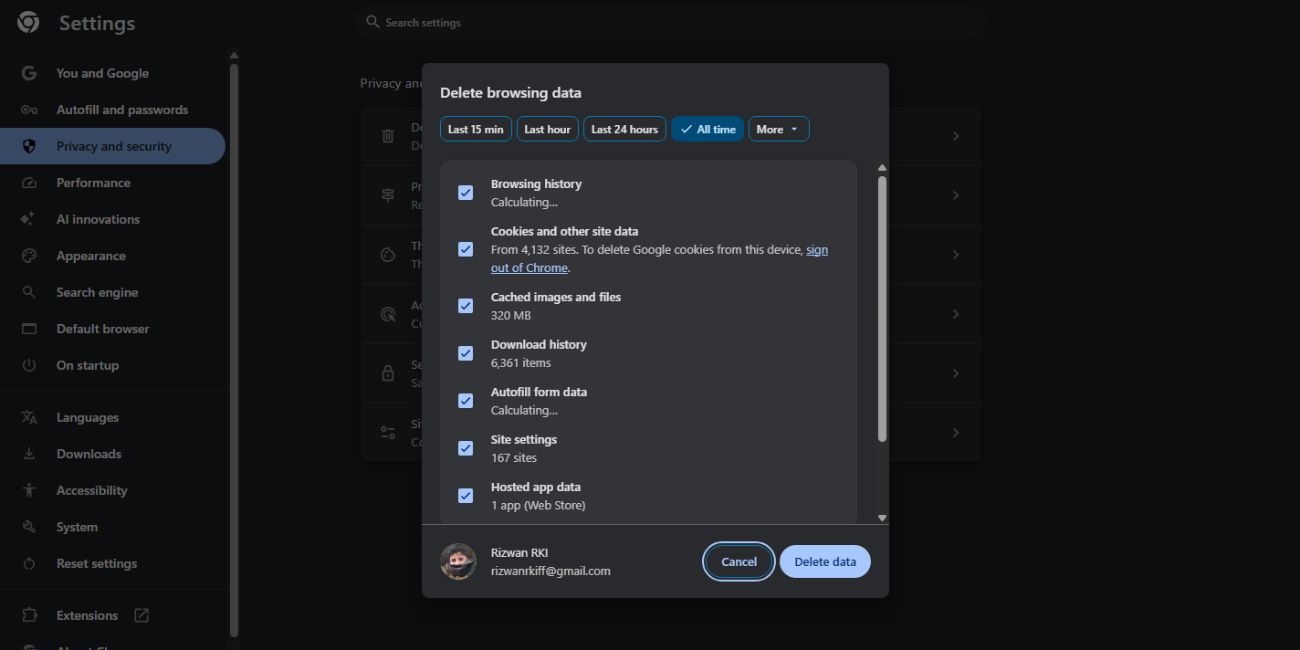
Corrupted stored data is a top cause. You should follow these steps to clear these caches.
- Open Chrome settings
- Go to Privacy and security
- Clear browsing data
- Select cached files and cookies
- Restart Chrome
This resets stored site data without touching saved passwords.
Fix 3. Disable Chrome extensions
Extensions may prevent scripts or requests from running. Try this:
- Open Chrome extensions page
- Turn off all extensions
- Reload the page
If the page loads, enable extensions one by one. Remove the one that breaks the page. Many users find ad blockers or script blockers cause this error.
Fix 4. Check your internet and DNS
Network problems often cause chrome-error://chromewebdata/ to appear. When Google Chrome cannot receive full data from a website, it stops loading and shows this internal error page. A weak or unstable connection can interrupt the request before the page finishes loading.
Restart your router to clear temporary network issues. If possible, switch from Wi-Fi to mobile data to see if the problem is local. You can also try a different DNS service if your default DNS is slow or unreliable. If you use a VPN, turn it off briefly, as unstable VPN routes often block or delay web requests.
Fix 5. Update or restart Google Chrome
Outdated browser files can fail silently.
- Restart Chrome fully
- Check for updates
- Install the latest version
- Relaunch the browser
Chrome updates often fix internal loading bugs.
Fix 6. Reset Chrome settings
Use this only if nothing else works.
Resetting Chrome:
- Disables all extensions
- Resets startup pages
- Clears temporary data
It does not remove bookmarks or saved passwords. After reset, test the page again.
Does chrome-error://chromewebdata/ mean malware or hacking?
In most situations, the answer is no. The chrome-error://chromewebdata/ message does not automatically mean your system is hacked or infected. This error usually appears when Google Chrome fails to load or process website data correctly. Common reasons include broken page scripts, damaged browser cache, unstable internet connections, or conflicts caused by browser extensions. Chrome shows this internal error page when it cannot safely display the requested content.
That said, it is normal for users to feel worried when a browser shows an unfamiliar error address. Some malicious websites can behave badly, but this specific error alone is not proof of malware. Chrome displays the same error for many technical failures that have nothing to do with security threats. Browser engines often block or stop loading pages when data looks incomplete or inconsistent.
Basic safety checks are still a good idea, especially if the error appears often. You can scan your system with trusted Antivirus software, review firewall settings if you changed them recently, and remove unknown or unused extensions from Chrome. If security scans report no threats and Chrome works normally on other sites, the issue is almost always technical rather than dangerous. If this explanation helped, consider sharing it or leaving a comment with your experience.
How to prevent this error in the future
You cannot avoid all browser errors, but these habits reduce risk:
- Keep Chrome updated
- Remove unused extensions
- Clear cache once in a while
- Avoid unstable VPNs
- Use trusted websites
- Restart the browser when it acts slow
Small habits keep Chrome stable.
Final thoughts
chrome-error://chromewebdata/ looks scary, but it is a browser-level failure, not a disaster. Most cases fix with cache clearing, extension checks, or a restart. Take it step by step. Avoid random fixes without testing.
If this guide helped you, share it with others who hit the same error. If you found a fix that worked differently, leave a comment and help improve the page for everyone.

