

Quick Answer: Discord RTC Connecting means Discord is attempting to connect you to a voice call or voice channel, but the connection is not completing. To resolve this, try restarting Discord, verifying internet connections, disabling VPN, adjusting voice region, resetting voice settings, clearing cache, flushing DNS, and granting Discord access to the firewall.
Introduction
Discord text messaging might work just fine, but as soon as you enter a voice channel it hangs on RTC Connecting. You are waiting there, but your microphone doesn’t connect, you cannot hear others and the call is not fully connected. Yeah, it’s annoying.
This issue usually happens when Discord can’t make a proper real-time voice connection. It is possible to be caused by your internet, VPN, DNS, firewall, Discord cache, voice settings or even by the Discord voice server itself. Sometimes, the issue isn’t your PC or your cell phone.
First, let’s tackle the easy fixes in this guide. Next, we’ll worry about network issues such as DNS, firewall, VPN and router problems. Test Discord voice after each one, following those in order.
So, What Is RTC Connecting in Discord?
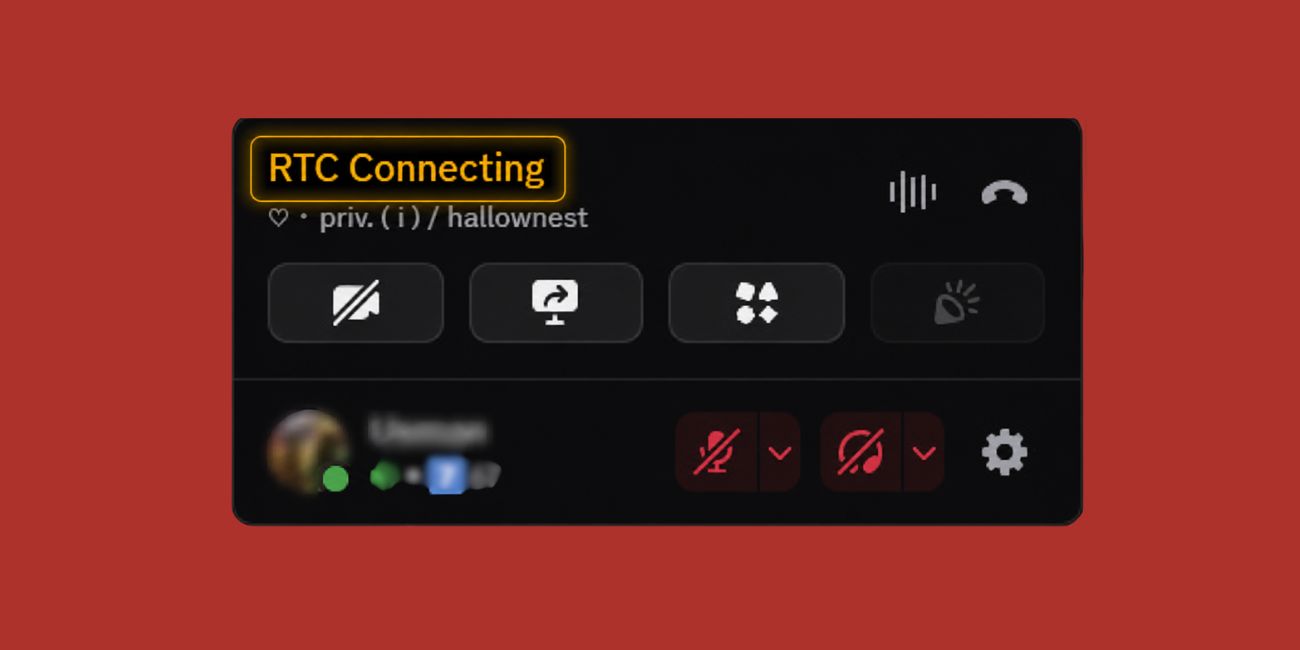
RTC means real-time communication. In other terms, Discord is attempting to join your device to a voice server to chat in a voice call or voice channel. If it does not complete the voice connection, then it is not completing correctly.
This issue primarily impacts voice calls, voice channels, and in some situations screen sharing. You can still send your messages normally as text chat doesn’t require the same kind of live connection. Voice is different. It requires a more stable channel between your device, your network and Discord’s voice server.
Why Does Discord Get Stuck on RTC Connecting?
When voice connection is blocked or being delayed, Discord stalls when trying to connect. It may be a problem on your end, such as weak Wi-Fi or VPN. It may also be a server side problem due to Discord voice servers being down. Don’t take for granted that one solution is going to fit all.
Common causes include:
- Less than ideal internet service
- Discord voice server problem
- VPN or proxy conflict
- DNS server issue
- Discord is blocked by firewall or antivirus
- Restriction of access to school, office, hostel or public Wi-Fi
- Corrupted Discord cache
- Outdated Discord app
- Wrong voice region
- Microphone or website permission problem
- Temporary Discord outage
But the problem is that Discord can block out messages even if voice doesn’t. The app can appear to be online, but the voice connection still doesn’t work.
Quick Cause and Fixes to try
| Possible Cause | What to Try |
|---|---|
| Weak internet | Restart router, use Ethernet, or test another network |
| VPN or proxy conflict | Disable VPN/proxy and try again |
| Discord voice server issue | Check if others are also affected |
| Wrong voice region | Change voice region or ask admin |
| Bad voice settings | Reset Discord voice settings |
| Corrupted cache | Clear Discord cache |
| DNS issue | Flush DNS or use trusted DNS server |
| Firewall blocking Discord | Allow Discord through firewall |
| Outdated Discord app | Update or reinstall Discord |
| Restricted Wi-Fi | Try mobile data or another network |
How to Fix Discord RTC Connecting
Tackle them individually, using the listed remedies below. Repeat this process after each fix, checking to see if RTC Connecting has gone away after each join. Do not alter 10 things at once, otherwise you do not know what has solved the problem.
1. Restart the Discord App and Reenter the Voice Channel
Begin the simplest solution. Exit the voice channel and close Discord and reopen it. If you’re on Windows, be sure Discord is not still minimized in the system tray. If it is, right click on the Discord icon and close it.
Next, reboot Discord and re-enter the voice channel. Sometimes a minor application fault can cause the connection to freeze. Not every case can be remedied with this, however, it is quick and secure and should be your initial remedy.
2. Restart Your Device and Router
If restarting Discord is not working, restart your device. This can resolve issues such as network services, background apps and minor system errors. It’s a plain vanilla patch, but it works more times than most folks think.
If Discord still can’t connect to RTC, restart your router as well. Switch it off, unplug it from the mains, wait about 30 seconds and then plug it back in again. Wait a minute or two for it to come back, then reopen Discord and try voice again.
This will help as Discord voice requires a stable live connection. If your router starts to act strange, you might still be able to use text chat, but voice will not function or reconnect.
3. Test Your Internet Connection
Discord voice requires more stability than regular surfing. You may be able to see a page load or send a message, but if your ping is up or the Wi-Fi connection keeps dropping, you can still fail to chat via voice communication.
Consider these fast tips:
- Get closer to the WiFi router
- If you’re on a PC use Ethernet
- Use mobile data instead of WiFi on your mobile phone
- Stop simultaneous downloads, uploads or game updates
- Check if another user on the same network has slow internet service
- If you can, test Discord on another network to ensure it works there
If Discord is working on the mobile data but not on your home WiFi, the problem may be your home router, ISP or network settings. If it doesn’t work anywhere, the issue could be related to Discord, your device or the application.
4. Check to See If Discord Is Down
But it’s not always the internet or your device. There may be temporary issues with voice servers on Discord, and if so, local solutions may be of little value. RTC Connecting, no route, or voice connection errors may be observed.
One easy rule to follow would be to see if there are others who are also stuck in the same server. If it’s happening to multiple users at once, it could be a Discord-related issue. If so, then wait for a while and redo it later. Not satisfactory, but sometimes this is the answer.
5. Disable VPN or Proxy
Discord RTC Connecting can be caused by VPNs and proxies which alter the way you connect to Discord voice servers. Real-time VoIP VPN routes may be slow, blocked, or unstable. It might still be possible to use text chat, but it can make things confusing.
Deactivate your VPN or proxy and try Discord once again. If Discord voice works, then you’ve found the cause. You can either turn off the VPN or use another VPN server that is nearer to your location. If you can exclude Discord from the VPN connection, you can also use a split tunneling feature.
6. Switch the Discord Voice Region
Now and then the voice path for one of the channels is faulty. The change of voice region can enable Discord to establish a superior server path. This can be useful if one voice channel or one server has the problem while others do not.
If you own the server or have permission, you can try this:
- Open the Discord server and login
- Edit the voice channel settings
- If there is, search for the region override option
- Select an area close to you or the auto setting
- Save the changes
- Leave and rejoin the voice channel
If you’re not an admin, then request a server admin to examine it. Typically, regular members do not have access to change the voice channel region settings.
7. Reset Discord Voice Settings
The wrong voice settings can also lead to connectivity and sound problems. Perhaps the input device has been switched or the output device is incorrect, or maybe one of the voice settings was fixed after an update. Resetting voice settings provides Discord a fresh start.
If you want to reset Discord voice settings:
- Open Discord
- Go to User Settings
- Open Voice & Video
- Scroll down
- Press Reset Voice Settings
- Confirm the reset
- Rejoin the voice channel
Then re-check the microphone and speaker. Discord can return to the default microphone and speaker, so be sure to pick the right microphone if necessary.
8. Clear Discord Cache
Temporary files are used in Discord to make the app load faster. This cache may occasionally get corrupted, leading to erratic app performance, including connectivity problems. Not always the cause, but it’s a helpful fix if Discord continues to feel “stuck”.
Close Discord completely on Windows. Now, open the Discord cache folder in AppData and delete folders such as Cache, Code Cache, GPUCache, etc., related to cache. Avoid removing any random folders if not sure what they are. Clean up the cache and restart Discord and check the voice channel.
Mobile is another story. There is a chance to clear cache from the app setting for Android users. For an iPhone, the chances are that you’ll have to reinstall the app if you want a clean app cache. Please note that if you do not know your Discord login information, you will not be able to reinstall.
9. Clear DNS or Set DNS Server
DNS is used to locate online services. If the DNS is not functioning properly, Discord can have problems accessing its voice servers. This can cause RTC Connecting, particularly if other network parameters are also unstable.
On Windows, flushing DNS is as follows:
- Open the Start menu
- Search for Command Prompt
- Right-click it and select Run as administrator
- Run this command: ipconfig /flushdns
- Press Enter
- Restart Discord
- Rejoin voice channel
If you are unable to get it working by flushing your DNS, you can switch to a public DNS server that you know is trusted. It is not a must for everybody but may be useful if your DNS server is slow or unreliable.
10. Permit Discord to Run Through Firewall or Antivirus
Discord may not be able to make a voice connection due to firewall or antivirus software. This may occur due to a Windows update, antivirus update, or new security rule. The app could still launch, but voice calls are blocked.
Check these settings:
- Open Discord for Windows Firewall
- Ensure that Discord can be used on private networks
- Add Discord as an exception to your Anti Virus
- Verify if stringent network protection is blocking voice
- Only switch off additional protection to test
- If you have found a drive that works, then turn protection back on
- Restart Discord after changing rules
It’s better to let Discord through than to disable your firewall for good. Don’t add exceptions to random files, only the Discord app.
11. Update or Reinstall Discord
An old Discord app also may freeze on RTC Connecting. Generally, Discord updates itself but it can fail to get updated or it can hang in the background. Close Discord and reopen it, this will allow it to update itself.
If it still doesn’t work, try to reinstall Discord. Remove it, restart and install the latest one. For mobile devices, update Discord in the app store first. If you use the browser version of Discord, switch to a different browser or download the desktop version for testing.
This will allow you to determine whether the issue is related to the app itself. If Discord is successful in the browser but not in the desktop app, there may be some damage to the desktop app or it might be blocked by your system.
12. Use Discord Web, Mobile or Another Network
A good way to rule out the cause is to test Discord on a different device or network. It helps you know if it’s a problem with your app or your device or your internet connection.
| Test | What It Helps Confirm |
|---|---|
| Discord works on mobile data but not Wi-Fi | Home Wi-Fi or router may be the issue |
| Discord works in browser but not desktop app | Discord desktop app may be corrupted |
| Discord works on another PC | Main device firewall, DNS, or app may be the issue |
| Discord does not work anywhere | Discord server or account may be the issue |
This step will save you time. Rather than spending an hour trying to figure out where the issue is, you can easily tell where it is likely to be from.
What If Discord Is Still on RTC Connecting?
If none of these options seem to work, it’s possible that Discord voice is blocked in the network. This is typical on school Wi-Fi connections, office networks, hostel Internet, public Wi-Fi and some shared apartment Internet. These networks are not intended to be voice capable, and may be set to allow regular Internet traffic while blocking voice calls.
Gather this information prior to seeking assistance:
- Your device type
- Discord app version
- Your network type
- Whether you use a VPN or not
- Discord is compatible with other networks
- A screenshot of RTC Connecting
- Any previous solutions you have tried
If Discord fails only on one network, please reach out to your network admin or ISP. If it doesn’t work on any network or any device, determine if other users are experiencing the same Discord voice problem.
How to Avoid Discord RTC Connecting Problems in the Future
While you may not be able to eliminate all Discord voice issues forever, you can reduce the odds. Update Discord, keep your network stable, and don’t have too many network tools running. Things such as router restarts and clean firewall rules can do more than anticipated.
Useful prevention tips:
- Keep Discord updated
- Sometimes start the router again if voice problems occur
- Don’t use unstable VPN servers
- Clean up firewall rules
- Don’t run too many overlays or network tools together
- When playing online for extended periods of time or for voice communication, use Ethernet
- If Discord continues to behave abnormally, clear its cache
- If there are a lot of people affected, check the Discord status
If the problem persists to occur every few days, you should not keep restarting Discord. Attempt to detect how the pattern is formed. Is it just on one wi-fi? Only with VPN? Only in one server? This type of clue typically leads to the actual solution.
Final Thoughts
Typically, Discord RTC Connecting indicates that the voice connection is in a stuck state, rather than that something is wrong with your account. Make sure you first try the following simple solutions: restart Discord, check your internet connection, disable VPN, reset voice settings and use another network. If that doesn’t help, then go to cache, DNS, firewall and reinstall fixes.
If Discord isn’t working on Wi-Fi, but is on mobile data, it’s likely a problem with your router or network. If it doesn’t work anywhere, the app/discord voice server may be the problem. Where did your RTC Connecting issue occur – desktop, mobile, web, or just one WiFi network?

