

You try to open the GameStop website, and suddenly you see an access denied message. It feels confusing, maybe even frustrating, especially if you just wanted to check a game or complete your checkout. When GameStop blocks access, it usually connects to security systems that protect the site. In this guide, you’ll learn what this block means, why it happens, how to fix it with 7 clear solutions, and how to avoid it in the future.
What Does “GameStop Blocking Access” Mean?
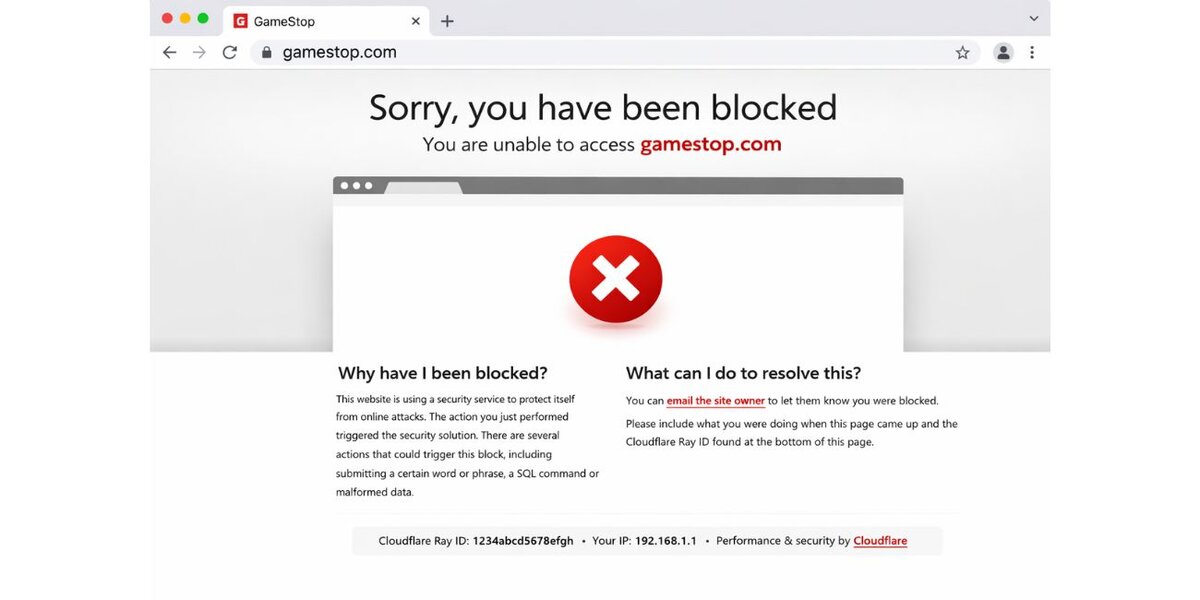
When GameStop blocks access, its website security system stops your connection before the page loads. This often happens when the firewall or Cloudflare protection detects unusual traffic from your IP address. The system may think your connection looks automated, risky, or abnormal. Sometimes VPN usage, repeated refresh attempts, or corrupted browser cookies trigger the block.
The protection works automatically and monitors network behavior, login sessions, and traffic patterns. In most cases, the block is temporary and meant to prevent bots, spam, or suspicious activity.
You usually see this block as an access denied page, a CAPTCHA verification loop, or a firewall security message before the GameStop homepage loads.
Common Causes of GameStop Access Block
This issue can appear for several technical reasons. Most of them relate to your browser settings or network configuration rather than your GameStop account.
- VPN or proxy server masking your real IP address
- Suspicious or shared IP flagged by firewall systems
- Corrupted browser cache or stored cookies
- Too many rapid page refresh attempts
- ISP routing behavior that looks unusual
- Incorrect DNS server settings
- Browser extensions interfering with site scripts
How to Fix GameStop Blocking Access?
Fixing this problem depends on your network and browser settings. In most cases, simple troubleshooting clears the block quickly. Start with the first fix and move down the list if needed.
Fix #1: Disable VPN or Proxy
GameStop’s firewall may block masked IP addresses because VPN and proxy services hide real network details.
Follow the steps below to easily disable VPN or proxy settings.
- Open Windows Network Settings
- Go to VPN section
- Disconnect any active VPN connection
- Click Proxy settings
- Turn off manual proxy
After disabling these, refresh the GameStop website and check if access returns.
Fix #2: Clear Browser Cache and Cookies
Corrupted cookies sometimes confuse the website security system. Try these simple steps to quickly clear browser data.
- Open Google Chrome or your current browser
- Click Settings
- Select Privacy and Security
- Choose Clear browsing data
- Select Cookies and Cached files
- Click Clear Data
Restart the browser and open GameStop again.
Fix #3: Restart Your Router
Sometimes your IP address gets flagged. Restarting the router can assign a new dynamic IP address from your ISP.
Here are the following steps which help you to refresh your IP address.
- Turn off your router
- Wait for 3 to 5 minutes
- Turn the router back on
- Reconnect your device to Wi-Fi
- Open GameStop again
A new IP often clears temporary blocks.
Fix #4: Flush DNS Settings
Incorrect DNS records can route traffic in a way that triggers security checks. The following steps will show you how to flush DNS properly.
- Open Command Prompt as Administrator
- Type ipconfig /flushdns
- Press Enter
- Restart your computer
- Open the browser again
This refreshes your DNS server configuration.
Fix #5: Try Incognito Mode or Another Browser
Browser extensions sometimes interfere with scripts and security checks. Open an Incognito window in Google Chrome or try Mozilla Firefox or Microsoft Edge. If the website loads normally, an extension may be causing the issue. Disable extensions one by one to find the problem.
Fix #6: Switch to a Different Network
Sometimes your ISP routing behavior triggers automated protection. You can perform the following steps to switch networks.
- Disconnect from Wi-Fi
- Turn on mobile data hotspot
- Connect your device to mobile network
- Open GameStop
If it works, your home network may be temporarily flagged.
Fix #7: Contact GameStop Support
If none of the above solutions work, the block may require manual review.
Visit the official GameStop Support page and submit a request. Provide details such as your IP address, browser type, and the exact error message shown. Support teams can review and remove certain security restrictions when necessary.
Prevention Tips to Avoid Future Blocks
Prevention helps reduce repeated access issues and keeps browsing smooth.
- Avoid using VPN on retail websites
- Do not refresh pages repeatedly
- Keep your browser updated
- Clear cookies occasionally
- Avoid suspicious browser extensions
- Maintain stable Wi-Fi connection
- Do not log in from multiple IP addresses at the same time
Conclusion
In short, GameStop blocks access when its security system detects unusual traffic, masked IP addresses, DNS issues, or browser conflicts. Most blocks are temporary and related to firewall filters, VPN detection, or corrupted cookies rather than account problems.
Try each fix step by step and see what works for your network setup. If the issue continues, contact official GameStop Support for further help. If this guide helped you, share it with others and leave a comment about which solution solved your issue.

