

During Windows setup, a device may stop and show Intune Autopilot error 80180014. That moment feels frustrating, especially when you expect the device to finish enrollment into Microsoft Intune and connect to Microsoft Entra ID without trouble. The setup process pauses and the device refuses to join the organization.
This error usually appears when Windows tries to enroll the device into mobile device management (MDM) during Windows Autopilot deployment. Something blocks the enrollment request. It may be a tenant policy, a device restriction, or an issue with the device record inside Microsoft Endpoint Manager. This guide explains what the error means, why it happens, and how IT admins can fix it so the device enrolls correctly.
What Is Intune Autopilot Error 80180014?
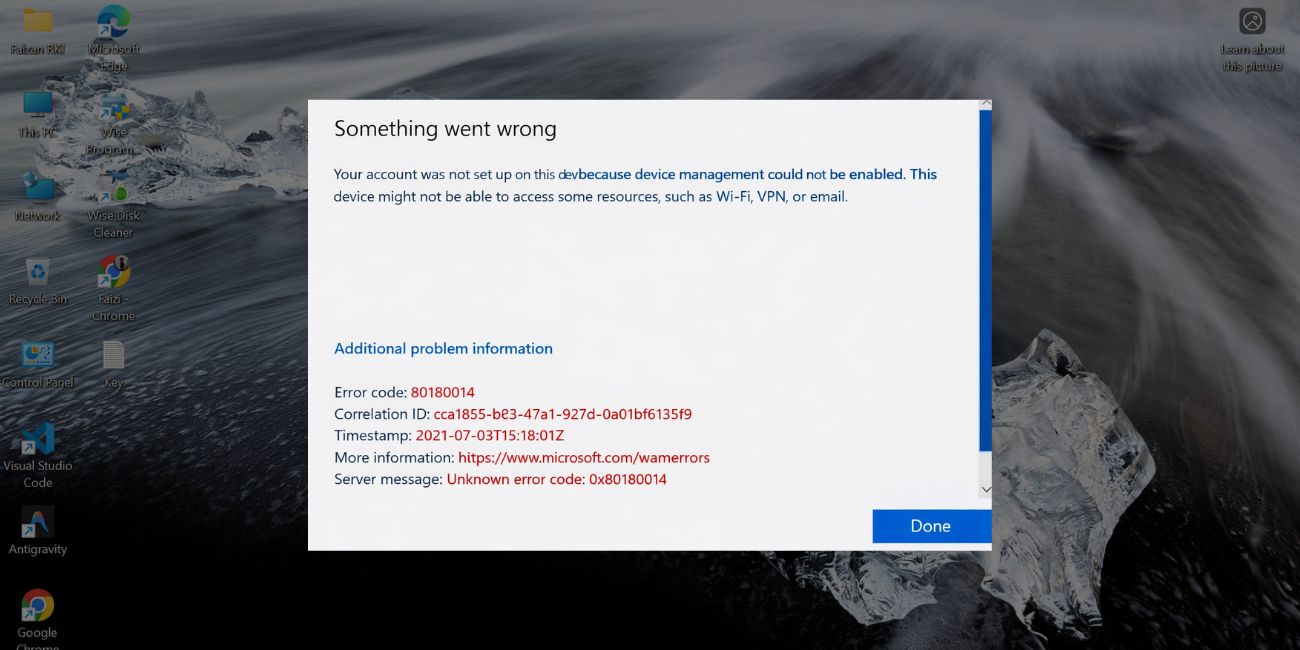
Error 80180014 appears when a Windows device fails during MDM enrollment through Microsoft Intune. The system attempts to connect the device to the organization’s tenant, verify user permissions, and apply device management policies. During that process Windows communicates with Microsoft Entra ID, the Intune service, and the tenant’s enrollment configuration. If any of those conditions fail, Windows stops the enrollment process and shows the error code.
In many cases the failure happens because of device enrollment restrictions, missing Intune licenses, or a device that already exists inside the tenant with an old record.
Windows Autopilot depends on correct identity configuration, deployment profiles, and policy assignments. When these pieces do not match the deployment scenario, the device cannot complete the Autopilot provisioning flow.
Common Causes of Intune Autopilot Error 80180014
This error usually relates to policy settings or identity configuration. A small restriction in the tenant can stop enrollment entirely.
Common causes include:
- Device enrollment restriction policy blocking Windows enrollment
- Personally owned Windows devices disabled in the tenant policy
- MDM enrollment settings not configured for the user group
- Missing Microsoft Intune license assigned to the user
- Incorrect MDM user scope configuration
- A reused device that still exists as an old Intune device record
- Misaligned Windows Autopilot deployment profile
These problems normally appear in environments where organizations manage devices through Microsoft Endpoint Manager or Intune admin center.
How to Fix Intune Autopilot Error 80180014 in Windows?
The correct fix depends on the configuration of the Intune tenant. IT administrators should check policies, licensing, and device records before retrying the enrollment.
Fix #1 – Review Device Enrollment Restrictions
Enrollment restriction policies can block certain device types or ownership categories. If the policy blocks Windows devices, Autopilot enrollment fails.
Follow the steps below to review enrollment restrictions.
- Open Microsoft Intune Admin Center
- Go to Devices
- Select Enrollment restrictions
- Check the device type restrictions policy
- Confirm that Windows enrollment is allowed
When Windows enrollment is allowed, devices can join Intune through Autopilot.
Fix #2 – Allow Personally Owned Windows Devices
Some organizations block personally owned devices to enforce strict corporate security policies. If a device is classified as personal, Intune may refuse enrollment.
To adjust this setting:
- Open Intune Admin Center
- Go to Devices
- Select Enrollment restrictions
- Edit the restriction policy
- Enable personally owned Windows devices if required
Once allowed, the device can continue the enrollment process.
Fix #3 – Confirm the User Has an Intune License
A user must have a valid Microsoft Intune license before enrolling a device. Without that license the enrollment service rejects the request.
Follow these steps.
- Open Microsoft 365 Admin Center
- Select Users
- Choose the affected user account
- Check Licenses and Apps
- Confirm the Intune or Microsoft Endpoint Manager license is assigned
After assigning the license, wait a few minutes and retry enrollment.
Fix #4 – Check MDM User Scope Settings
Automatic device enrollment relies on the MDM user scope configuration inside the tenant. If the user is not included in the scope, the device cannot enroll.
Perform the following steps.
- Open Microsoft Entra Admin Center
- Go to Mobility (MDM and MAM)
- Select Microsoft Intune
- Review the MDM user scope
- Ensure the affected user group is included
This setting allows Windows devices to enroll automatically during setup.
Fix #5 – Remove the Old Intune Device Record
A common cause of error 80180014 appears when a device is reused without deleting its previous record. Intune sees the device as already enrolled and blocks the new registration.
To fix this situation:
- Open Intune Admin Center
- Go to Devices
- Search for the device name or hardware ID
- Delete the existing device record
- Sync the Autopilot device list
After removing the record, the device can enroll again.
Fix #6 – Reassign the Autopilot Deployment Profile
Windows Autopilot relies on deployment profiles that define how the device should be configured. If the profile assignment is missing or incorrect, enrollment can fail.
Follow these steps.
- Open Intune Admin Center
- Navigate to Devices
- Select Windows Autopilot devices
- Choose the device
- Assign the correct deployment profile
Wait for synchronization before retrying the deployment.
Fix #7 – Retry Enrollment During Windows Setup
After adjusting policies or licenses, the device may need to repeat the enrollment process.
Try the following steps.
- Restart the device
- Begin Windows OOBE setup
- Connect to the internet
- Sign in with the work or school account
- Continue the Autopilot enrollment process
Windows will attempt the device join again.
Fix #8 – Review Logs and Escalate if Needed
If the error still appears, administrators should review Windows event logs and Intune troubleshooting logs. These logs provide details about enrollment failures, policy conflicts, or identity issues.
Logs can help identify whether the problem comes from tenant configuration, device identity, or Autopilot provisioning services. When the issue cannot be resolved internally, administrators may contact Microsoft support with the logs and device details.
Prevention Tips to Avoid Error 80180014
Preventing enrollment problems saves time during large device deployments. A few checks can reduce Autopilot failures.
Consider these practices:
- verify Intune licenses before assigning devices
- review device enrollment restriction policies regularly
- confirm MDM user scope settings for new users
- remove unused device records before redeployment
- assign the correct Autopilot deployment profile
- test enrollment with a single device before mass rollout
- document device ownership rules such as corporate or personal
These habits help keep device onboarding smooth during Windows deployments.
Conclusion
Intune Autopilot error 80180014 usually appears when a device cannot complete MDM enrollment during Windows setup. The problem often relates to enrollment restrictions, missing licenses, incorrect MDM scope settings, or a reused device record inside the Intune tenant. Because Autopilot depends on identity services, policy configuration, and deployment profiles, a small mismatch can block the process.
Administrators should review enrollment restrictions, verify Intune licensing, confirm MDM user scope settings, and remove outdated device records before retrying the deployment. Most organizations resolve the issue after correcting these configuration settings. If the problem continues, reviewing system logs or contacting Microsoft support may help locate the root cause.
If this guide helped you resolve the error, share your experience in the comments. Your solution could help another admin fix the same Autopilot issue faster.

