

You open Outlook, type a sender name or subject line, and nothing useful shows up. Weird and annoying, especially when you need one email right now. Outlook search not working can happen in classic Outlook, new Outlook, Outlook for Microsoft 365, Outlook on Windows, Outlook for Mac, or Outlook Web. Sometimes it shows no results. Sometimes it shows old emails but misses new ones.
This guide explains what the issue means, why it happens, how to fix it, and how to stop it from coming back.
Why Does Outlook Search May Not Work?
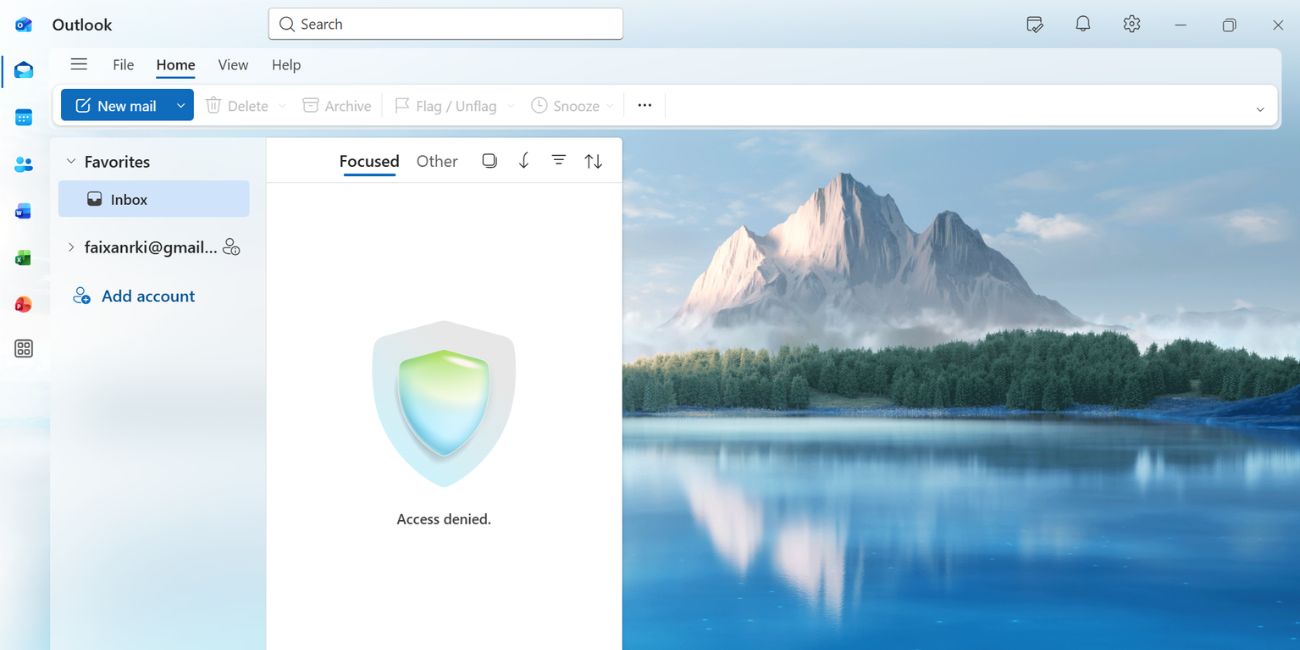
Outlook search not working means Outlook cannot find your email, contact, attachment, calendar item, or mailbox content the right way. You may type a sender name, subject, file name, or keyword, but Outlook shows no results or only partial results. This can happen when the search scope is wrong, the Windows Search index is not ready, mailbox sync is stuck, or the Outlook profile has some broken stuff inside it. Microsoft says Outlook may return partial or no results when the search catalog is not complete.
You usually notice it inside the Outlook search box, Inbox, Sent Items, Archive, shared mailbox, or calendar search. Some users also see messages like “No results” or “Search results may be incomplete.”
Main Common Causes of Why Outlook Search Does Not Work
This issue can happen because of Outlook settings, Windows indexing, mailbox sync, or a damaged profile. And yes, sometimes Outlook looks fine on the screen but acts totally okayish behind the scenes.
- Wrong search scope can make Outlook search only the current folder instead of all mailboxes.
- Windows Search indexing may be incomplete, paused, slow, stuck, or damaged.
- Microsoft Outlook may not be selected inside Windows Indexing Options.
- An outdated Outlook app, Microsoft 365 Apps build, or Windows version can cause search bugs.
- A damaged Outlook profile or OST file can stop Outlook from reading mailbox data properly.
- COM add-ins can conflict with the search box or make Outlook slow.
- Large mailboxes, archive folders, and shared mailboxes can return incomplete results.
How to Fix Outlook Search Not Working?
Start with the easy things first. Don’t rebuild the index right away unless the simple checks fail. But also don’t ignore indexing, because that small search catalog is what helps Outlook find emails fast.
Fix #1: Check the Outlook Search Scope
Outlook may not be broken. It may just be searching the wrong place. For example, you may search inside Current Folder while the email is sitting in Sent Items, Archive, All Mailboxes, or a shared mailbox. In Outlook, search scope options can include Current Folder, Current Mailbox, All Subfolders, All Mailboxes, and All Outlook Items. Microsoft also mentions that search scope affects what Outlook searches and what results appear.
So click inside the Outlook search box and check the scope near the search area. Switch from Current Folder to Current Mailbox or All Mailboxes, then search again. It feels like a small thing, but I’ve seen this one waste a lot of time.
Fix #2: Restart Outlook and Your Computer
Restarting Outlook sounds basic, but it is still the first decent move. Outlook search, Windows Search, mailbox sync, and Microsoft 365 account sessions can get stuck in the background. Close Outlook fully, restart your computer, then open Outlook again and search for one clear thing like a sender name or subject line.
And don’t just press the X and think it is closed. Check that Outlook is not still running in the taskbar or Task Manager. Sometimes the app is half-closed, which is a very Outlook kind of problem.
Fix #3: Update Outlook and Windows
Old Outlook builds and pending Windows updates can cause search problems. Updates often fix bugs in Microsoft 365 Apps, Windows Search, Office files, and Outlook desktop behavior. Because of that, updating both Outlook and Windows is a smart early fix.
Follow the steps below to update Outlook and Windows before changing deeper settings.
- Open Outlook.
- Click File.
- Select Office Account.
- Choose Update Options.
- Click Update Now if you see it.
- Open Windows Settings.
- Go to Windows Update.
- Install any pending updates.
- Restart your computer.
- Open Outlook and test search again.
If you use new Outlook, also check Microsoft Store updates if your app came from there. Not always needed, but it is worth a quick look.
Fix #4: Check Outlook Indexing Status
Outlook search may show missing or incomplete results when indexing is still running. The index is like a small book list for your emails. If Outlook has not finished building that list, search may miss emails that are clearly inside your mailbox. Microsoft says incomplete indexing can cause partial or no search results.
You can perform the following steps to check if Outlook is still indexing your mailbox.
- Open Outlook.
- Click inside the search box.
- Go to the Search tab.
- Click Search Tools.
- Select Indexing Status.
- Check if Outlook says items are still being indexed.
- Wait if the number keeps going down.
- If the number looks stuck, move to the next fix.
A little waiting is okay here. But if the number does not move for a long time, then yeah, something is probably stuck.
Fix #5: Make Sure Outlook Is Included in Windows Indexing
Outlook search may fail if Microsoft Outlook is not included in Windows Indexing Options. Windows keeps an index so it can find files and Outlook data faster. Microsoft’s Outlook search guide says Microsoft Outlook should appear under the indexed locations when checking Indexing Options.
Try these simple steps to check whether Windows is indexing Outlook properly.
- Close Outlook.
- Open the Windows Start menu.
- Type Indexing Options.
- Open Indexing Options.
- Look under included locations.
- Check if Microsoft Outlook appears there.
- Click Modify if Outlook is missing.
- Select Microsoft Outlook.
- Click OK.
- Restart Outlook and search again.
If Outlook was missing from the index, search may not fix itself instantly. Give Windows some time to build the search data again. It is boring, but that is the way to go.
Fix #6: Rebuild the Outlook Search Index
If the search index is damaged or stuck, Outlook can show no results even when the email is right there. Rebuilding the index makes Windows create a fresh search catalog. Microsoft recommends rebuilding the Instant Search catalog when Outlook search cannot find expected items.
The following steps will show you how to rebuild the Outlook search index properly.
- Close Outlook.
- Open the Windows Start menu.
- Type Indexing Options.
- Open Indexing Options.
- Click Advanced.
- Open the Index Settings tab.
- Click Rebuild.
- Confirm the rebuild.
- Wait while Windows indexes Outlook again.
- Open Outlook later and test search.
One thing though. Search can get worse for a short time while the index rebuilds. That is normal. So don’t panic if Outlook feels slow for a bit.
Fix #7: Check the Windows Search Service
Classic Outlook on Windows depends on the Windows Search service for desktop search. If that service is stopped or disabled, Outlook search may return nothing, act slow, or miss recent emails. Windows Search indexing is also used to help Windows find data faster on the device.
Perform the following steps carefully to check the Windows Search service.
- Press Windows + R.
- Type services.msc.
- Press Enter.
- Find Windows Search.
- Double-click Windows Search.
- Set Startup type to Automatic.
- Click Start if the service is stopped.
- Click Apply.
- Click OK.
- Restart Outlook and test search.
This part feels a bit techy, but it is still manageable. Just don’t change random services while you are there.
Fix #8: Repair Outlook Profile or Create a New Profile
If search still does not work, the Outlook profile or local mailbox data may be damaged. A new profile lets Outlook rebuild the account setup and mailbox cache. Your server-side emails usually stay safe because Microsoft 365 and Exchange mailboxes store mail on the mail server, not only inside the local profile.
These are the exact steps you need to follow to create a fresh Outlook profile.
- Close Outlook.
- Open Control Panel.
- Search for Mail.
- Click Mail or Mail Microsoft Outlook.
- Select Show Profiles.
- Click Add.
- Type a new profile name.
- Add your email account again.
- Choose the new profile when Outlook starts.
- Let the mailbox sync finish.
- Test Outlook search again.
This is more of a last fix, not the first one. But when a profile gets weird, making a new one can be cleaner than fighting the old setup for hours.
Extra Note for Outlook on Mac
Outlook for Mac search works a little differently because macOS uses Spotlight indexing. If Outlook for Mac shows “No Results,” Microsoft says Spotlight indexing may not be complete after a new profile, new account, or imported data. It also says the profile name should not contain special characters like a slash.
So on Mac, wait for indexing to finish first. If the issue stays, check the Outlook profile name and try Microsoft’s OutlookSearchRepair utility. Mac search problems are their own weird little thing, so don’t use every Windows fix on Mac.
Prevention Tips to Avoid Outlook Search Problems in the Future
Preventing Outlook search issues is mostly about keeping Outlook, Windows Search, and mailbox data healthy. You don’t need to babysit Outlook every day. Just keep the basic stuff clean and don’t let the mailbox turn into a giant messy drawer.
- Keep Outlook and Windows updated regularly.
- Let indexing finish before judging search results.
- Avoid shutting down the computer while Outlook is syncing a large mailbox.
- Keep Microsoft Outlook included in Windows Indexing Options.
- Disable old or unused Outlook add-ins.
- Keep mailbox folders organized if your Inbox is very large.
- Use Outlook Web to check if the issue is only on your computer.
- Give new profiles and imported mailboxes time to finish indexing.
Conclusion
In short, Outlook search not working usually means Outlook cannot read or return mailbox results correctly. The issue may come from the wrong search scope, incomplete indexing, Windows Search service, old Outlook files, add-ins, mailbox sync, or a damaged Outlook profile. Most users should start with simple fixes like checking the scope and restarting before rebuilding the index. And yes, it is annoying, but it is usually fixable.
Start with search scope, restart, updates, and indexing status. If search still fails, rebuild the search index or create a fresh Outlook profile. If this helped, share it with someone who uses Outlook every day, or comment with the exact search problem you’re seeing.

