

When you open YouTube and see error code 15, it feels annoying because the video player stops loading or the page refuses to open. It breaks the flow and makes it hard to watch anything. In this guide, you’ll learn what YouTube error 15 means, why it appears on Chrome, Android, iPhone, Smart TVs, or desktops, and how to fix it without stress.
What Is YouTube Error Code 15?
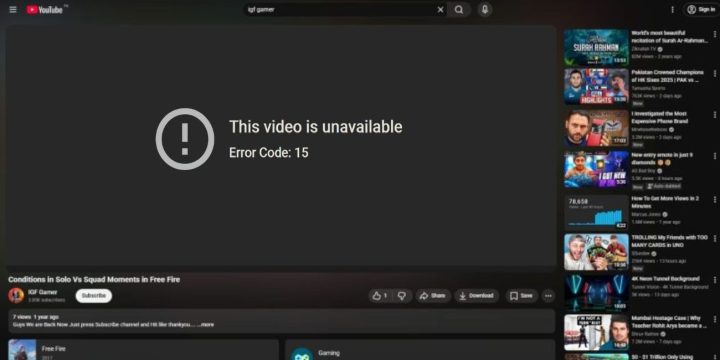
YouTube error code 15 is a network or browser issue that stops the YouTube player from connecting to Google servers. It usually happens when something blocks your device from loading the video player or the page scripts. You may see this error on the YouTube app, the YouTube website, or even on Smart TVs that depend on the same Google connection.
The message shows up in different places. Some people see it on Chrome or Firefox when the homepage fails to load. Others get it on the YouTube app on Android or iPhone after tapping a video. Smart TV users may see it when trying to open the app. The YouTube system stops and waits until the issue is fixed.
Common Causes of YouTube Error Code 15
This error can show up for different reasons. The cause depends on your network, device, or browser settings. These are the most common issues that trigger YouTube error code 15:
- Weak or unstable Wi Fi connection between your device and your router
- Corrupted browser cache or cookies inside Chrome, Edge, Safari, or Firefox
- Wrong DNS settings that block the connection to Google servers
- VPN or proxy that stops YouTube from loading videos
- Outdated YouTube app or older browser versions
- Firewall or antivirus blocking YouTube scripts or ports
- Disabled JavaScript or broken browser extensions
How to Fix YouTube Error Code 15?
YouTube works in many environments, so the fix can change depending on your device. Most of the time, the steps below will clear the error. Try each one and check YouTube after.
Fix #1: Restart Your Router
A router restart refreshes your internet link and clears old network paths that stop YouTube from loading.
Here are the following steps which help you restart your router:
- Turn off the router.
- Unplug it.
- Wait 30 seconds.
- Plug it in.
- Let the lights come back.
- Restart your device.
- Open YouTube again.
Fix #2: Clear Browser Cache and Cookies
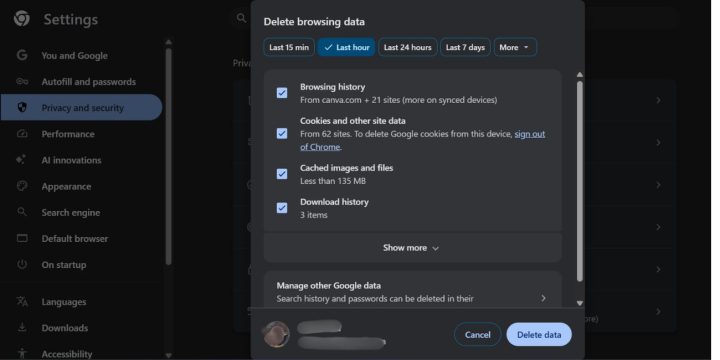
Corrupted browser cache can block the YouTube player or break scripts. Clearing it wipes out damaged data.
Follow the steps below to easily clear your browser cache:
- Open your browser.
- Go to settings.
- Find Privacy or History.
- Click Clear browsing data.
- Remove cache and cookies.
- Restart the browser.
- Try YouTube.
Fix #3: Disable Extensions or Ad Blockers
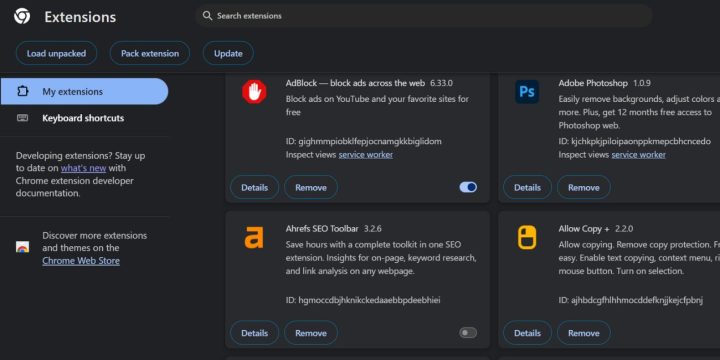
Some ad blockers and extensions block YouTube scripts. When that happens, the player stops working and shows error 15.
To fix this, turn off your extensions one by one until YouTube starts working again. No steps needed here.
Fix #4: Check JavaScript Settings
YouTube needs JavaScript. If JavaScript is turned off, nothing loads.
Perform the following steps carefully to check your JavaScript setting:
- Open your browser settings.
- Look for Site settings or Privacy.
- Find JavaScript.
- Make sure it is allowed.
- Restart the browser.
- Try YouTube again.
Fix #5: Update Your Browser or YouTube App
Old app versions or old browsers fail to load YouTube’s new features.
Just update Chrome, Firefox, Safari, Edge, or your YouTube app from the Play Store or App Store. This update usually fixes the issue without extra steps.
Fix #6: Change DNS to Google DNS
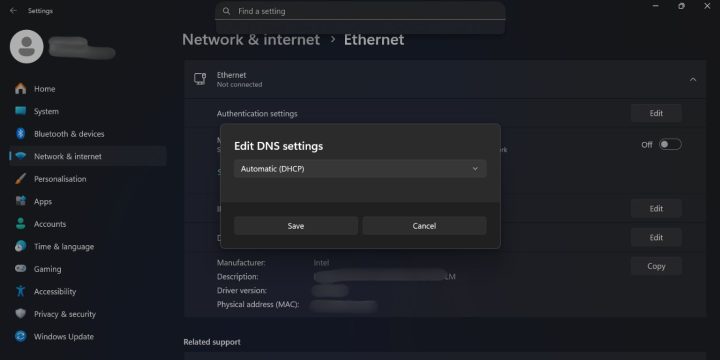
Wrong DNS settings can stop your device from reaching Google servers.
These are the exact steps you need to follow to switch DNS:
- Open network settings.
- Select your Wi Fi or Ethernet connection.
- Choose Manual DNS.
- Type 8.8.8.8 and 8.8.4.4
- Save the settings.
- Restart your device.
- Try YouTube.
Fix #7: Disable Your VPN or Proxy
VPNs and proxies change your IP path. Sometimes they block YouTube or slow it down. Turn off the VPN or proxy and reload the page. That’s all you need here.
Fix #8: Sign Out and Sign Back In To Your Google Account
Your Google session may fail and cause account sync issues. This can block the YouTube player. Sign out from your Google account, restart the browser or app, then sign in again.
Fix #9: Reset Network Settings on Mobile
Android and iPhone sometimes hold old network data. Resetting the network settings clears all of it and helps reconnect to Google servers.
Here’s how you can reset your mobile network in just a few seconds:
- Open phone settings.
- Go to System or General.
- Select Reset.
- Tap Reset network settings.
- Confirm.
- Restart the phone.
- Try YouTube.
Fix #10: Reinstall the YouTube App
App files get corrupted over time. If nothing else works, reinstalling YouTube gives you a clean start. Uninstall the app, restart your device, reinstall it, and open YouTube again.
Prevention Tips to Avoid Errors in Youtube
Keeping error 15 away is easy when your device stays clean and updated. These simple habits help
- Keep your YouTube app and browser updated
- Restart your router once a week
- Avoid heavy ad blockers
- Use stable DNS settings
- Clear old cache often
- Avoid low-signal public Wi Fi
- Keep antivirus rules simple
Conclusion
In short, YouTube error code 15 is a loading and connection issue caused by network problems, browser errors, blocked scripts, or broken app data. Once you know what causes it, fixing it becomes way easier.
Try the fixes in this guide and see which one works for your device. If the problem keeps coming back, check the YouTube Help page or your ISP support. And if you solved it in a different way, feel free to share your fix or leave a comment so others can learn from you.

