

Many parents sign up for Amazon Kids Plus during a free trial, then later decide they don’t need it anymore. Others notice a renewal charge and want to stop it before the next billing cycle. Canceling Amazon Kids Plus is simple once you know where to look. This guide explains how to cancel it on desktop, mobile, or a Fire tablet, and what happens after you cancel.
What Is Amazon Kids Plus?
Amazon Kids Plus is a subscription service that gives kids access to books, videos, games, and educational apps. It works through child profiles and parental controls on Amazon devices. The service renews automatically unless you cancel it.
Because it’s a recurring subscription, many parents prefer to cancel once their child stops using it or before the free trial ends.
When Should You Cancel Amazon Kids Plus?
There’s no single right time, but these situations usually trigger cancellation.
You may want to cancel if:
- The free trial is about to end
- Your child no longer uses Kids Pluscontent
- You want to stop monthly or yearly charges
- You’re switching to another kids service
Canceling early prevents surprise charges later.
How to Cancel Amazon Kids Plus on Desktop
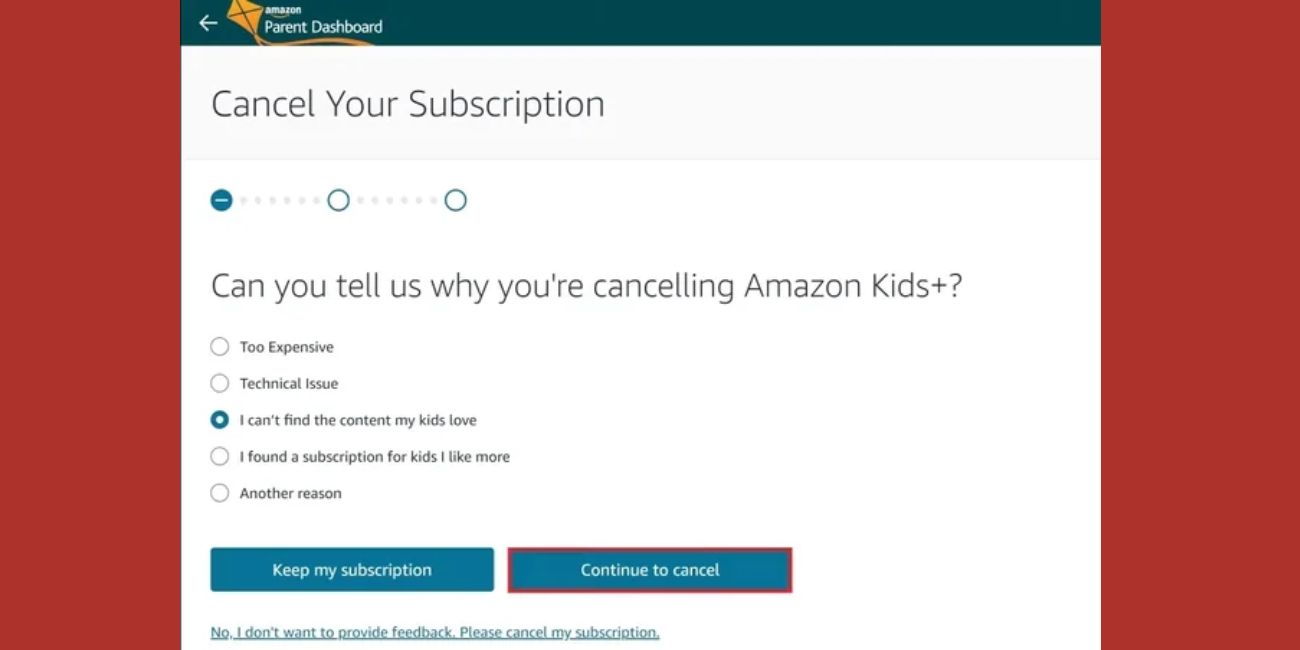
Canceling from a computer is the simplest method and works for all accounts.
Here are the steps you can follow:
- Go to Amazon.com and sign in
- Hover over Account & Lists
- Select Memberships & Subscriptions
- Find Amazon Kids Plus in the list
- Click Cancel Subscription
- Confirm the cancellation
Once confirmed, Amazon updates your subscription status right away.
How to Cancel Amazon Kids Plus on the Amazon Mobile App
You can also cancel using the Amazon app on your phone.
Open the Amazon app and tap the menu icon. Go to Your Account, then find Memberships & Subscriptions. Select Amazon Kids Plus, choose Cancel, and confirm. The layout may look slightly different depending on your device, but the steps are the same.
After canceling, the app usually shows the end date of your access.
How to Cancel Amazon Kids Plus on a Fire Tablet
If you manage Kids Plus through a Fire tablet, the cancellation still goes through your Amazon account.
On the Fire tablet, open Settings and go to Parental Controls or Amazon Kids. From there, look for subscription or account options. Tapping the Kids Plus subscription redirects you to Amazon account management, where you can cancel it.
You may need the parent account password to complete this step.
What Happens After You Cancel Amazon Kids Plus?
After cancellation, Amazon Kids Plus does not end immediately in most cases. You usually keep access until the current billing cycle or free trial ends.
Once that period is over, Kids Plus content is removed from the child profile. You’ll also receive a confirmation email showing the cancellation and end date.
Can You Get a Refund?
Refunds depend on timing. If you cancel during a free trial, you won’t be charged at all. If you already paid for a billing period, Amazon usually allows access until the period ends instead of issuing a refund.
Refunds are not guaranteed and depend on Amazon’s subscription policy.
How to Confirm Amazon Kids Plus Is Canceled
It’s a good idea to double-check after canceling.
You can confirm by:
- Checking Memberships & Subscriptions in your Amazon account
- Looking for a cancellation confirmation email
- Verifying the next renewal date shows as canceled
If Kids Plus no longer shows as active, the cancellation worked.
Conclusion
Canceling Amazon Kids Plus only takes a few minutes once you know where the subscription settings are. Whether you’re ending a free trial or stopping a paid plan, canceling early helps avoid unwanted charges.
After canceling, always confirm the status in your Amazon account. If this guide helped you cancel Amazon Kids Plus, share it with other parents who may be wondering how to do the same.

