

You’re cruising down the highway, jamming out to your favorite tunes, and then—oops! You miss your exit. Why? Because your Google Maps voice directions decided to take a vacation. We’ve all been there, and it’s super frustrating. But hey, don’t toss your phone out the window just yet. Let’s fix it!
TL;DR
If your Google Maps audio isn’t working, start with the basics. Make sure volume is up and Bluetooth is set correctly. Check app permissions and reinstall if needed. A few simple steps should get you back on track—literally!
Step 1: Check the Volume
This one might seem obvious, but you’d be surprised how often it gets overlooked.
- Turn up your media volume — not just the ringer!
- Press the volume buttons and tap the little arrow for more options if needed.
- If you’re using headphones or your car stereo, make sure the audio is routed properly.
Pro tip: Play a song or YouTube video to confirm your sound is working generally.
Step 2: Unmute Voice in Google Maps
It sounds silly, but Google Maps has its own audio settings.
- Open Google Maps.
- Start navigation to any location.
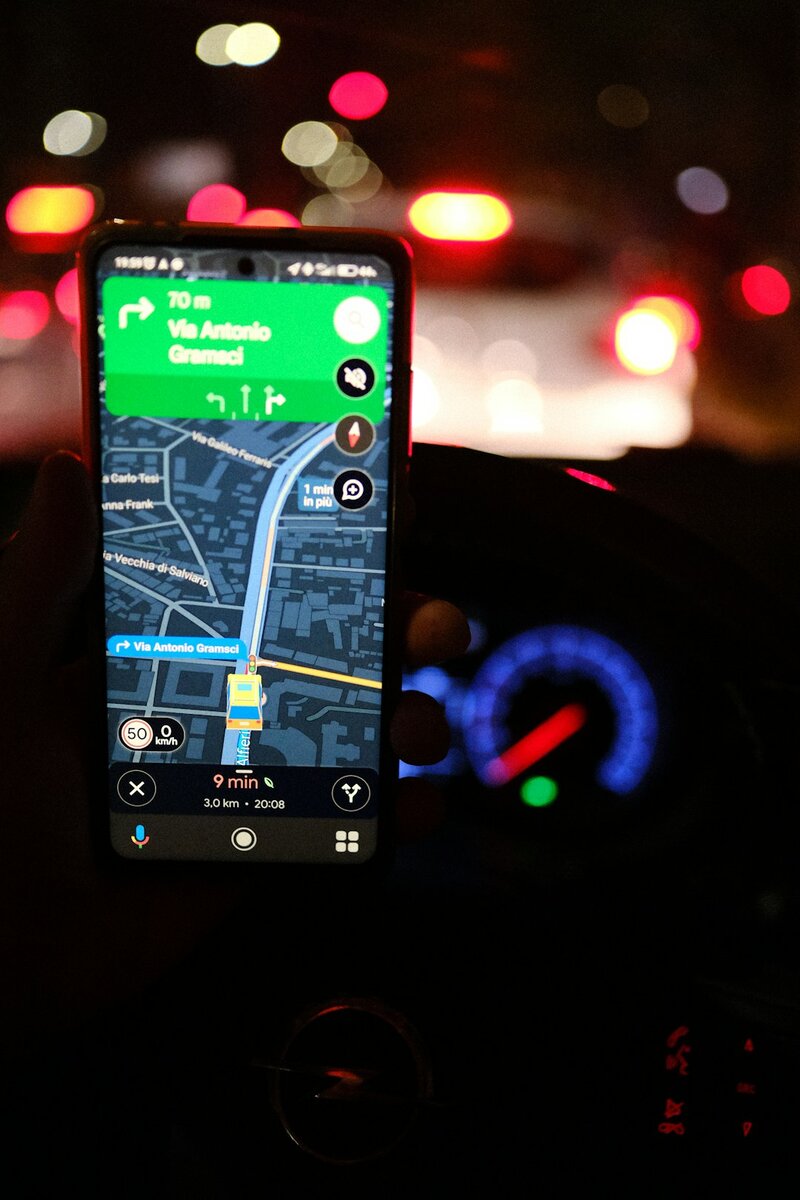
- Tap the sound icon on the right (usually a speaker symbol).
- Make sure it’s set to “Unmuted” or “Alerts Only” (if that’s what you prefer).

Step 3: Check Your Phone’s Bluetooth Settings
If you’re using your car’s Bluetooth, Maps might be playing voice directions through the wrong channel.
- Go to your phone’s Bluetooth settings.
- Tap on your connected car or device.
- Make sure both “Call Audio” and “Media Audio” are turned on.
In some vehicles, navigation audio only plays during calls—strange, but true!
Step 4: Clear Cache in Google Maps
Corrupted app data can jam up the wires. A cache reset can help.
- Go to Settings > Apps > Google Maps.
- Tap Storage, then Clear Cache.
- Not fixed? Try Clear Data. But beware: this resets app settings.
Step 5: Update the App
A buggy old version of the app might be the troublemaker.
- Go to the Google Play Store (Android) or App Store (iPhone).
- Search for Google Maps.
- If you see an Update button—tap it!
Bonus: Update your phone’s software too. Compatibility issues can sneak in with older systems.
Step 6: Check Language and Voice Options
This one’s rare, but worth checking.
- Open Google Maps > Settings > Navigation Settings.
- Tap on Voice selection.
- Choose a standard voice (not “Beta” or “Experimental”).
Sometimes, weird voice files can go silent. Pick something safe and try again.

Step 7: Check App Permissions
No permission, no audio. Let’s fix that.
- Go to Settings > Apps > Google Maps.
- Tap Permissions.
- Make sure it has Microphone and Location access (yep, weirdly related).
Some phones also need apps to be allowed to run in the background. Look for that setting too!
Step 8: Try Without Bluetooth
This is a great way to test if the issue is with your device or your car connection.
- Turn off Bluetooth on your phone.
- Play Google Maps directions through the phone speaker.
If it works—bingo! The problem likely lies in your car’s audio settings. Check manuals or talk to a dealer for help.
Step 9: Reinstall Google Maps
Still no luck? Fresh install time.
- Uninstall the app from your device.
- Restart your phone.
- Reinstall Google Maps from your app store.
This can clear up glitchy behaviors that updates or cache-clearing can’t fix.
Step 10: Use an Alternate Navigation App
If Google Maps just refuses to cooperate, you’ve got options!
- Waze – Also owned by Google, super reliable voice directions.
- Apple Maps – Good choice for iPhone users.
- HERE WeGo – Includes offline options and decent audio cues.
They might not have all the bells and whistles, but they’ll get you there!
Bonus Tips
- Use “Do Not Disturb” smartly: It can silence Maps if you’re not careful. Set exceptions for apps like Maps.
- Battery Saver Mode: This can block background audio. Turn it off before a long trip!
- Use Google Assistant: Say “Hey Google, navigate to [location]” and check if voice works that way!
Wrapping It All Up
Google Maps audio not working doesn’t need to ruin your road trip. With a few simple checks and tweaks, you’re back on track and turning left in 400 feet (with actual sound this time)!
Next time the voice goes silent, remember:
- Check volumes and mute settings.
- Bluetooth quirks are common culprits.
- Sometimes, a fresh start (like reinstalling) works wonders.
Happy navigating—and no more missed turns!

