

Your phone battery should not fall from 80% to 30% before lunch under normal use. When it does, one of the most common causes is not the screen, the charger, or even the age of the battery, but background apps. These are apps that continue working when you are not actively looking at them, often checking for messages, tracking location, syncing files, refreshing feeds, or sending data to remote servers.
TLDR: If your phone battery is dying fast, background apps may be using power while the screen is off or while you are using other apps. Social media, navigation, email, cloud storage, fitness, and messaging apps are frequent contributors. Check your battery usage settings, restrict unnecessary background activity, disable unneeded location access, and keep only essential apps allowed to refresh in the background. If battery drain continues after these steps, the issue may involve poor signal, an outdated app, system bugs, or battery aging.
What Are Background Apps?
Background apps are applications that continue to perform tasks even after you leave them. For example, a messaging app may keep checking for new messages, a weather app may update conditions, and a photo app may upload images to cloud storage. Some of this activity is useful and expected. Without background tasks, you might not receive instant notifications, your backups might not complete, and your smartwatch or fitness tracker might not sync properly.
The problem begins when too many apps are allowed to run too often, or when one app behaves inefficiently. A single poorly optimized app can repeatedly wake the phone, use the processor, access GPS, or maintain an internet connection. Over several hours, that can drain a surprising amount of battery.
Background activity is not automatically bad. It becomes a concern when it is unnecessary, excessive, or poorly controlled.
Why Background Apps Use So Much Battery
Your phone saves energy by putting hardware into low-power states when it is not needed. Background apps can interrupt that process. Every time an app wakes the phone to perform a task, it may use the processor, memory, mobile data, Wi Fi, GPS, Bluetooth, or notification services. These small actions can add up throughout the day.
Common battery-draining background activities include:
- Location tracking: Navigation, delivery, weather, social, and fitness apps may use GPS or nearby network data.
- Push notifications: Messaging, email, shopping, and news apps regularly check for updates.
- Cloud syncing: Photo backups, file storage, and note apps may upload or download data automatically.
- Social media refresh: Feeds, stories, videos, and recommendations may update before you even open the app.
- Background audio or video processes: Streaming apps may continue buffering, downloading, or staying active.
- Health and fitness tracking: Step counters, running apps, sleep trackers, and wearable companion apps often run continuously.
Some apps are designed to be persistent. However, if an app you rarely use appears near the top of your battery usage list, that is a strong sign it is doing more in the background than it should.
How to Check Which Apps Are Draining Your Battery
The most reliable first step is to check your phone’s built-in battery report. This avoids guessing and helps you identify the real source of the problem.
On most iPhones, go to Settings > Battery. You can view battery usage by app over the last 24 hours or several days. Tap an app to see whether usage happened on screen or in the background. If an app shows high background activity, it deserves attention.
On most Android phones, go to Settings > Battery, then look for options such as Battery Usage, App Battery Usage, or Battery Manager. The exact wording varies by manufacturer, but the goal is the same: identify apps using an unusually high percentage of power.
When reviewing battery reports, look for patterns. A maps app using power during a long trip is normal. A shopping app using 15% battery overnight is not. A messaging app may need background access, but a game you have not opened in days should not be consuming meaningful power.
Apps Most Likely to Drain Battery in the Background
Any app can cause battery drain, but some categories are more likely to do so because of what they are designed to do.
- Social media apps: These may refresh feeds, preload videos, track engagement, and send frequent notifications.
- Navigation and location apps: GPS is one of the more power-intensive phone features, especially when used continuously.
- Email apps: Frequent syncing across multiple inboxes can keep the phone active.
- Cloud backup apps: Photos, documents, and videos may upload in the background, especially after travel or events.
- Messaging apps: These often maintain active connections to deliver messages quickly.
- News and shopping apps: Frequent alerts, recommendations, and content refreshes can create unnecessary activity.
- Fitness and wearable apps: Continuous sensor access and Bluetooth syncing can steadily consume energy.
This does not mean you should delete every app in these categories. Instead, decide which apps truly need background access and which can be limited.
How to Stop Background Apps from Draining Your Battery
The best approach is to reduce background activity without disabling features you rely on. Start with the apps using the most battery, then make targeted changes.
1. Restrict Background App Refresh
On iPhone, go to Settings > General > Background App Refresh. You can turn it off entirely or disable it for specific apps. For many apps, disabling background refresh only means content updates when you open the app. Notifications may still work separately.
On Android, go to the app’s battery settings and choose options such as Restricted, Optimized, or Put app to sleep, depending on your device. Restrict apps you do not need running constantly.
2. Limit Location Permissions
Location access is often a major battery drain. Review permissions carefully. Most apps do not need access to your location all the time.
- Use While Using the App instead of Always whenever possible.
- Disable precise location for apps that only need approximate area information.
- Remove location access entirely for apps that do not clearly require it.
Weather apps, social apps, camera apps, and local recommendation apps are common examples where location permissions may be broader than necessary.
3. Reduce Unnecessary Notifications
Notifications do more than light up your screen. They can also cause apps to wake in the background. Turn off notifications for apps that do not require immediate attention, such as promotional shopping alerts, game updates, or nonessential news notifications.
This also has a practical benefit beyond battery life: fewer interruptions and less screen checking throughout the day.
4. Check Sync and Backup Settings
Cloud services can drain battery when uploading large files, especially on mobile data. If your phone battery drops quickly after taking many photos or videos, automatic backup may be responsible.
Consider setting backups to run only on Wi Fi, only while charging, or during specific times. Email accounts can also be adjusted from instant push to less frequent fetch intervals if you do not need real-time delivery.
5. Close or Uninstall Problem Apps
Manually closing apps is not always necessary and can sometimes be counterproductive if you constantly reopen them. Modern iOS and Android systems are designed to manage memory and background activity automatically. However, if an app is frozen, overheating the phone, or showing abnormal battery use, closing it can help temporarily.
If the same app repeatedly drains power despite restrictions, update it. If the issue continues, uninstall and reinstall it. If it still behaves poorly, consider replacing it with a more efficient alternative.
Why Your Battery Drains Overnight
Overnight battery drain is a common sign of background activity. If your phone loses more than about 5% to 10% while idle overnight, something may be waking it repeatedly. Background app refresh, cloud backups, weak cellular signal, Bluetooth accessories, and location tracking are frequent causes.
Poor signal is especially important. When your phone struggles to stay connected to a cellular tower, it increases power output to maintain service. Even if no app is visibly open, messaging, email, and notification services may keep trying to connect. If possible, use Wi Fi calling or airplane mode in areas with very weak signal, especially while sleeping.
Battery Drain After an App or System Update
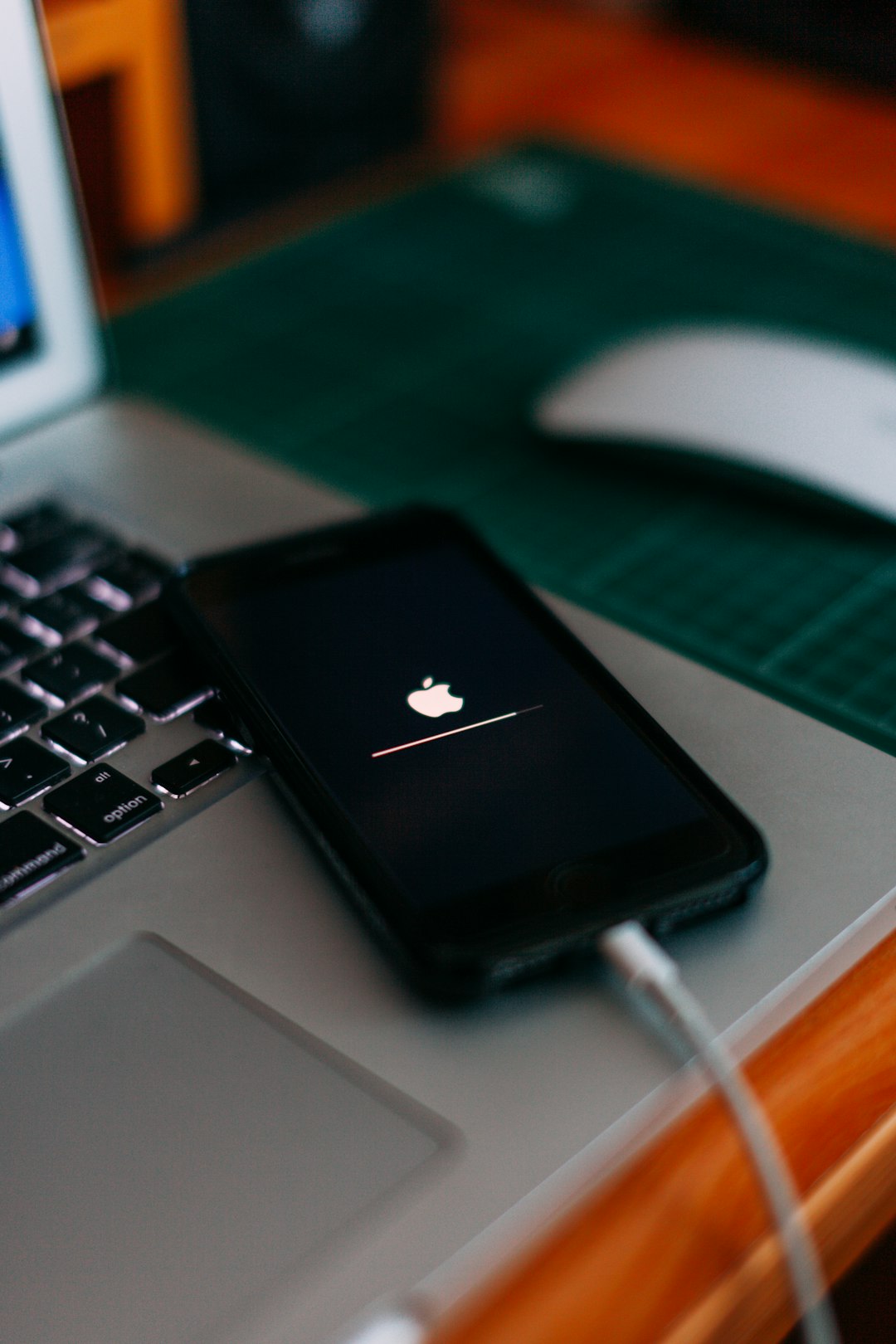
If your battery started dying quickly after an update, do not panic immediately. After major iOS or Android updates, phones may spend extra time indexing files, updating app data, analyzing photos, or refreshing system services. This may cause temporary drain for a day or two.
However, if the problem lasts longer, check for app updates. Developers often release fixes after operating system changes. An outdated app may not interact properly with the new system and can use more battery than expected.
Restarting your phone after updates can also help clear stuck processes. It is a simple step, but it often resolves unexplained battery drain.
When the Battery Itself May Be the Problem
Background apps are common culprits, but they are not the only reason a phone battery dies quickly. Lithium ion batteries naturally degrade over time. After hundreds of charge cycles, they hold less energy and may discharge faster under load.
On iPhone, check Settings > Battery > Battery Health & Charging. On Android, battery health information may be available in device care settings, diagnostics tools, or manufacturer apps. If maximum capacity is significantly reduced, background app management will help, but it will not fully restore original battery life.
Other warning signs include sudden shutdowns, rapid drops from high percentages, swelling, overheating, or the phone only working reliably while plugged in. In those cases, seek professional service and avoid using a swollen or damaged battery.
Practical Daily Habits That Help
You do not need to micromanage every setting. A few sensible habits can make a noticeable difference.
- Review battery usage once a week and investigate unusual apps.
- Keep your operating system and apps updated.
- Allow background access only for apps that truly need it.
- Use Wi Fi when available, especially for backups and large downloads.
- Disable always-on location for nonessential apps.
- Remove apps you no longer use.
- Restart your phone occasionally to clear stuck processes.
Final Thoughts
If your phone battery is dying fast, background apps are one of the first things to investigate. They can quietly use location, data, processing power, and notifications while you are not actively using your phone. The solution is not to disable everything, but to identify which apps are using power unnecessarily and restrict them carefully.
A healthy phone should be able to remain idle for hours without major battery loss. By checking battery reports, limiting background refresh, tightening location permissions, and controlling notifications, you can often restore much better battery life without sacrificing important features. If those steps do not help, the next suspects are weak signal, software bugs, or an aging battery that may need service.

