

Facebook waiting for approval from other device can be confusing when you are only trying to log in. You enter your password and Facebook says it needs approval from another device. But nothing shows up on your phone. Or the old device is not with you anymore.
This usually happens when Facebook does not recognize your new device, browser, location, or login session. It is a security check. Facebook wants to make sure the login is really yours. But sometimes the approval request does not work properly. That is where the problem starts.
You do not need to panic right away. In many cases, the issue is caused by a missing notification, weak internet, expired login request, VPN, old app version, or a device that is no longer trusted. This guide will help you fix the Facebook waiting for approval from other device not working issue in a simple way.
Why Does Facebook Say Waiting for Approval From Other Device?
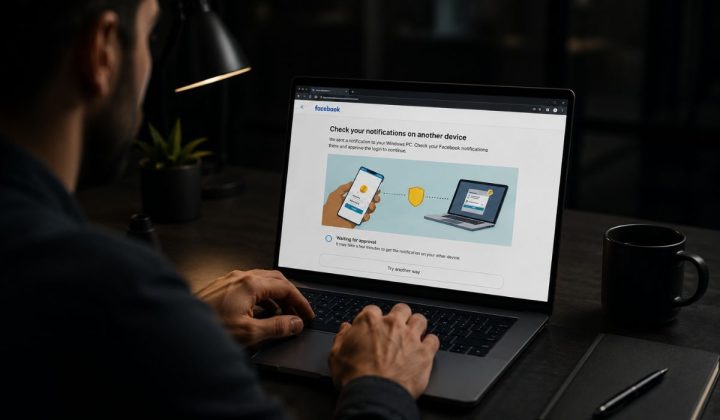
Facebook shows this message when it wants to confirm your login from a device it already trusts. This can be your old phone, tablet, laptop, or a browser where your Facebook account is already logged in. If you are using a new phone or a new browser, Facebook may not trust it yet.
This can also happen if you cleared cookies, used private browsing, changed your location, turned on a VPN, or logged in after a long time. Facebook may treat that login as new or unusual. So it asks for approval before letting you in.
Here are some common reasons:
- You are logging in from a new phone or browser
- Facebook does not recognize the device
- Your trusted device is offline
- The approval notification did not arrive
- You are using private or incognito mode
- Browser cookies were cleared
- VPN changed your location
- Facebook app is outdated
- The login request expired
- Facebook wants another security check
The good thing is that this issue can often be fixed without changing your password. Start with the device where you are already logged in. Then try other login methods if the approval does not appear.
How to Fix Facebook Waiting for Approval From Other Device Not Working
If Facebook waiting for approval from other device is not working, try the fixes below one by one. Start with the simple checks first, then move to other login methods if needed.
1. Check the Device Where You Are Already Logged In
First check the device where your Facebook account is already open. This can be your old phone, another browser, a tablet, or any device where you did not log out. Facebook usually sends the approval request there.
Do not only wait for a push notification on the lock screen. Open the Facebook app directly. Sometimes the notification does not show outside the app, but the login approval can still appear after opening Facebook.
Try this:
- Open Facebook on your trusted device.
- Check the notification bell.
- Look for a login approval or security alert.
- Tap the approval request if it appears.
- Confirm that the login was yours.
If nothing appears, keep the Facebook app open for a minute and refresh it. Also check if the trusted device has internet. The approval request will not arrive properly if that device is offline.
2. Refresh the Login Request and Try Again
Sometimes the login approval request gets stuck. It may expire before you approve it. Or it may fail to reach the other device because the app was not active at that moment.
Close the login screen on the new device and try again. Do not do it too fast again and again. Wait a short time, then request a fresh approval. A new request is better than trying to approve an old one that already expired.
Try these quick checks:
- Refresh the Facebook login page.
- Close and reopen the Facebook app.
- Request approval again.
- Keep the trusted device unlocked.
- Open Facebook on the trusted device before sending the request.
- Check the notification tab inside Facebook.
This is a simple fix, but it works when the first approval request did not load correctly.
3. Check Internet Connection on Both Devices
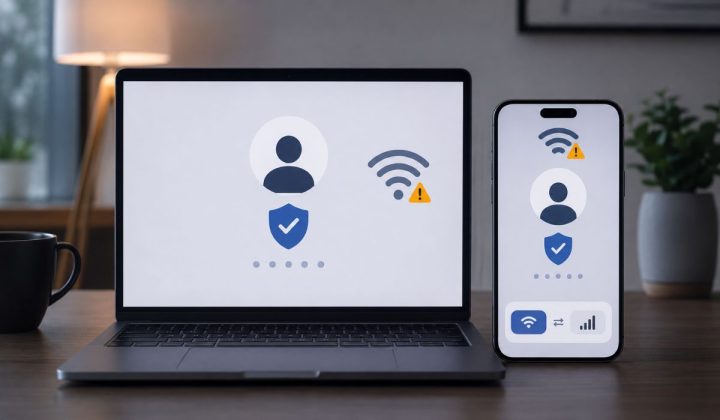
Both devices need a working internet connection. Your new device needs internet to send the login request. Your trusted device needs internet to receive the approval notification. If one side is weak, the process can fail.
Switch between Wi-Fi and mobile data if Facebook is loading slowly. Also check if other apps are working on the trusted device. Sometimes the device appears connected but Facebook does not load properly in the background.
If you are using public Wi-Fi, try mobile data instead. Some public networks block or slow down app notifications. After changing the connection, open Facebook again and send a new login approval request.
4. Open the Facebook App Instead of Waiting for Notification
Many people wait for a phone notification, but it never appears. This does not always mean Facebook did not send anything. The notification may be blocked, delayed, or hidden by phone settings.
Open the Facebook app manually on the device where you are already logged in. Then check the notification tab and any security alert inside the app. Sometimes Facebook shows the login approval only after you open the app.
You can also check your phone notification settings. Make sure Facebook notifications are allowed. If battery saver is on, it may delay background notifications too.
Try this:
- Unlock your trusted phone.
- Open the Facebook app.
- Tap the notification bell.
- Check for login approval or login alert.
- Turn off battery saver for a short time.
- Request approval again from the new device.
This fix is useful when your Facebook account is still logged in somewhere but you are not getting the approval pop-up.
5. Use “Try Another Way” on the Login Screen
If approval from another device is not working, look for the “Try another way” option on the Facebook login screen. The wording may be a little different depending on your device. It may say try another method, send code, or use another verification option.
This option can show other ways to confirm your account. You may see an SMS code, an email code, an authenticator app, recovery codes or another trusted device. Choose the method you can access right now.
Do not skip this screen too quickly. Many users keep waiting for device approval when another option is already available under the login box. If you still have access to your phone number or authenticator app, this can be the easiest way to get in.
If you choose SMS, wait a little. Codes can be delayed. Do not request too many codes at once because old and new codes can get mixed up.
6. Check SMS Code or Authenticator App
If Facebook gives you a code option, use it instead of waiting for another device. This is helpful when your old phone is not available or the approval notification does not show.
For SMS, make sure your phone has a signal. Also check if your SIM is active and able to receive messages. If you recently changed your SIM or phone number, the code may not reach you.
If you use an authenticator app, open the app and check the current Facebook code. Authenticator codes change after a short time, so enter the latest one. If the code fails, wait for the next code and try again carefully.
Use recovery codes if you saved them before. These codes are meant for situations where normal login approval or 2FA does not work.
7. Turn Off VPN and Avoid Incognito Mode
VPN can make Facebook think your login is coming from a different place. If you normally log in from one country or city and suddenly appear in another, Facebook may ask for additional approval. That is normal for account safety.
Turn off your VPN and try logging in again. Also avoid private or incognito mode during this process. Private browsing does not save normal cookies in the same way, so Facebook may not recognize that browser later.
Use your normal browser if possible. If you had used Facebook on that browser before, it may be easier for Facebook to recognize it. Also avoid switching locations during login. Keep things simple until you get back into your account.
8. Update Facebook App and Clear App Cache
An old Facebook app can also cause login approval problems. The request may not show properly if the app is outdated or not working well in the background. So update the Facebook app first.
- On Android, you can also clear the Facebook app cache. This does not usually delete your account, but it can remove temporary app files that cause bugs. Go to your phone settings, open apps, choose Facebook and clear cache.
- On iPhone, there is no simple clear cache button like Android. You can update the app, restart your iPhone, or reinstall Facebook if the app keeps acting strange. Only reinstall if you are sure you still have a way to log back in.
After updating or clearing cache, open Facebook on the trusted device. Then request login approval again from the new device.
9. Check Authorized Logins After You Get Access
This step is for after you get back into your account. Once you are logged in, check your trusted devices and authorized logins. This can help prevent the same problem next time.
Go to Facebook settings and look for Password and security or Accounts Center. Then check where your account is logged in. Remove unknown devices. Keep your real device logged in if it is safe.
You should also update your recovery options. Make sure your email and phone number are correct. If you use two-factor authentication, save recovery codes in a safe place.
Quick things to check after access:
- Remove devices you do not recognize
- Keep your main phone number updated
- Keep your email updated
- Save recovery codes
- Turn on login alerts
- Add an authenticator app if available
This will make future login approvals less painful.
10. Recover Your Facebook Account If You Lost the Old Device
If you do not have access to the old device, use Facebook account recovery. This can happen if your phone was lost, broken, reset, or sold. It can also happen if you are logged out everywhere.
Go to the Facebook login page and choose the account recovery option. Use your email, phone number, or name to find your account. Facebook may ask you to confirm your identity, use an old password, enter a code, or complete another security step.
Do not use random tools or websites that claim to bypass Facebook approval. That is risky and can make your account less safe. Use only Facebook’s own recovery process.
If you saved recovery codes earlier, this is the time to use them. If not, follow the recovery steps slowly and give the correct information. Account recovery can take time, but it is safer than trying unsafe shortcuts.
11. Wait If Facebook Shows a Security Hold
Sometimes Facebook may tell you to wait before trying again. This can happen after too many failed login attempts or after a security check. If Facebook gives a waiting time on screen, follow it.
Do not keep trying again every few minutes. That can make the system more suspicious and may delay access more. Wait for the time shown, then try again from a normal device and normal internet connection.
When you try again, turn off VPN, avoid incognito mode and use a device you have used before. This gives Facebook a cleaner login signal.
What If You Do Not Receive Any Approval Notification?
If you do not receive any approval notification, the trusted device may be offline or the notification may be blocked. It can also happen if the login request expired before reaching the device.
Open Facebook manually on the trusted device. Check the notification tab inside the app. Also check phone notification settings and make sure Facebook is allowed to send alerts.
Try these checks:
- Open Facebook on the trusted device
- Check the notification bell
- Turn off battery saver for a short time
- Make sure Facebook notifications are allowed
- Restart the trusted device
- Request a fresh login approval
- Try another verification method if available
If nothing shows up after all this, use “Try another way” on the login screen. That may let you use SMS, email, authenticator app, or recovery codes.
How to Avoid This Facebook Approval Issue Again
You cannot fully stop Facebook security checks. They are there to protect your account. But you can reduce the chance of getting stuck again.
Keep your recovery details updated. Your email and phone number should be active. Do not leave your account connected only to an old number or old device. That creates problems when Facebook asks for approval later.
Also keep at least one safe device logged in if possible. Save recovery codes if Facebook gives them. Review logged-in devices often and remove anything you do not recognize.
Here are some simple tips:
- Keep your phone number updated
- Keep your email updated
- Save recovery codes safely
- Keep one trusted device logged in
- Avoid private browsing for regular Facebook login
- Do not use VPN during login if approval fails
- Review logged-in devices from time to time
- Remove unknown devices
These steps are small, but they can save you from a lot of stress later.
Final Thoughts
Facebook is waiting for approval from another device. This usually happens when Facebook does not recognise your login, or the approval request does not reach your trusted device. It can be caused by a new device, a VPN, private browsing, an expired request, an app bug, or a missing notification.
Start with the device where you are already logged in. Open Facebook manually, check notifications and request approval again. If that does not work, use another login method like SMS, authenticator app, recovery codes, or account recovery.
If you lost the old device, do not try unsafe bypass methods. Use Facebook’s recovery options and update your trusted devices after getting back in.

