

Trying to launch ARC Raiders and getting the ARM R0002 error can ruin the mood fast. You sit down to play, everything looks fine, then the game refuses to connect.
This error matters because it blocks the game at a basic level. You may get stuck on the login screen, fail to join matchmaking, or get pushed back to the menu again and again. This guide explains what the ARM R0002 error means, why it happens, how to fix it step by step, and what habits help prevent it later so you don’t keep running into the same wall.
What Is ARC Raiders ARM R0002 Error?
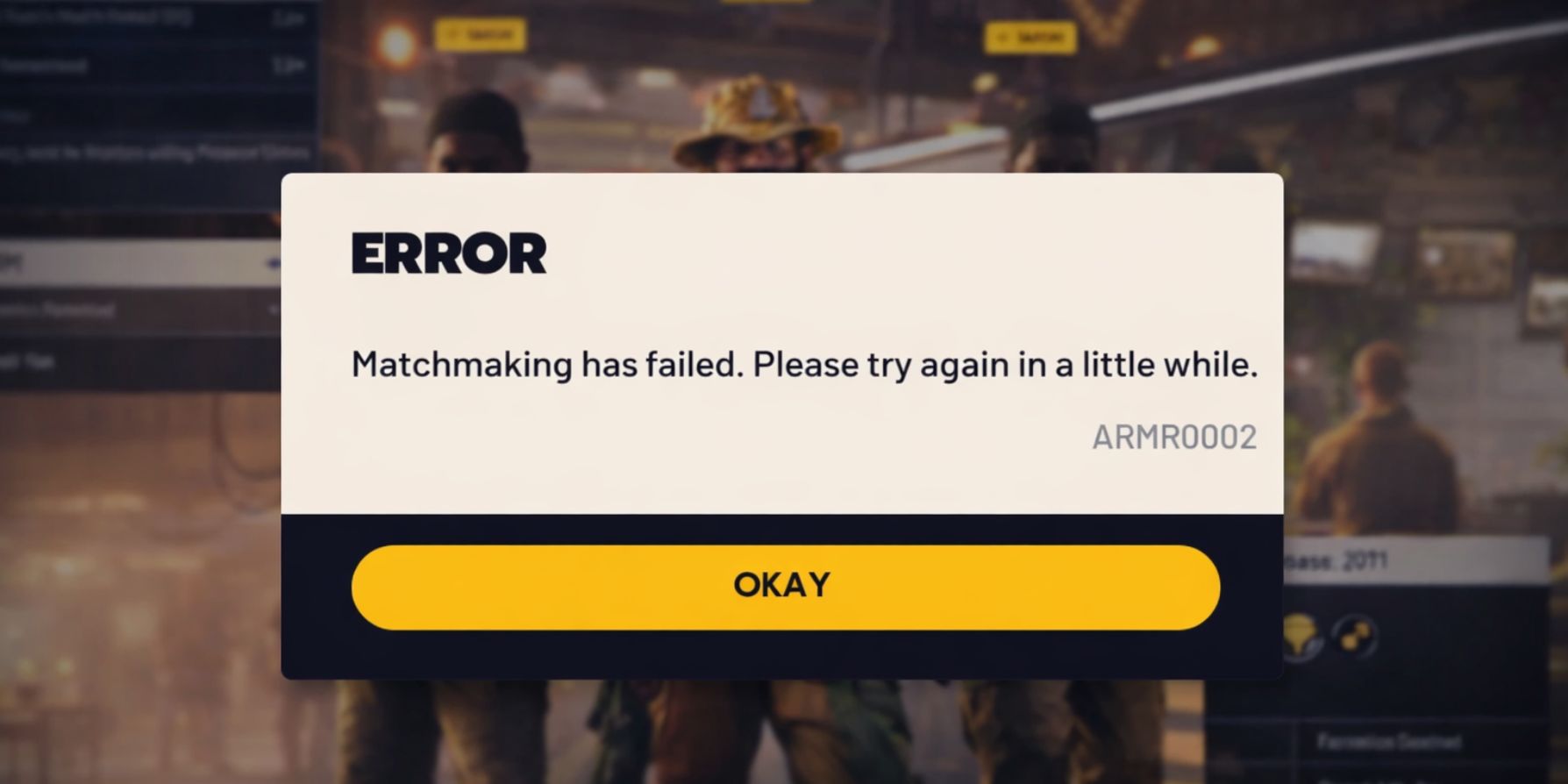
The ARC Raiders ARM R0002 error points to a failed connection between your game and the services it needs to run online. When this happens, the game can’t confirm your session, player data, or matchmaking request.
Most players see this error during startup or right after pressing the login button. It often appears as a connection failure message or an endless loading screen. The issue usually affects PC players using platforms like Steam or Epic Games, and it ties directly to how ARC Raiders communicates with its backend servers.
Common Causes of ARC Raiders ARM R0002 Error
This error can happen for several reasons, and not all of them come from your side. Network settings, system tools, and server availability all play a role.
- ARC Raiders servers are offline or under maintenance
- Internet connection drops or becomes unstable
- Firewall or antivirus blocks game traffic
- VPN or proxy changes your network route
- Anti-cheat service fails to start
- Corrupted cache or config files
- DNS or network adapter issues
How to Fix ARC Raiders ARM R0002 Error?
In most cases, this error comes from network or permission problems. Sometimes it’s quick to fix, sometimes it takes a bit of checking. Go through the fixes below in order. Stop once the game starts working again.
Fix #1: Check ARC Raiders Server Status
This error often appears when the game servers are not available. If the servers are down, your system cannot connect no matter how good your internet is.
Here are the following steps which help you to check server status.
- Open a web browser
- Visit the official ARC Raiders social channels or status page
- Look for maintenance or outage notices
- Check recent player reports
- Wait and try again later if servers are offline
Once the servers are back online, the error usually clears on its own.
Fix #2: Restart Game, Launcher, and System
Sometimes the game or launcher gets stuck while trying to connect. A full restart clears temporary bugs and resets background services that handle login and network requests.
Restarting your system also refreshes your internet connection and system memory. After restarting, launch the game normally and check if the error still appears.
Fix #3: Disable VPN or Proxy
VPNs can change how your connection reaches the game servers. Because of this, the server may refuse the connection or fail to verify your session.
Follow the steps below to easily disable VPN or proxy services.
- Open your VPN or proxy application
- Disconnect from the active server
- Fully close the VPN app
- Restart the game launcher
- Launch the game and try again
If the game works after this, the VPN was blocking the connection.
Fix #4: Allow ARC Raiders Through Firewall and Antivirus Services
Security software can block game traffic without showing a clear warning. When this happens, the game cannot reach its online services.
You can perform the following steps to allow the game through security settings.
- Open Windows Security
- Go to Firewall settings
- Allow ARC Raiders and its launcher
- Open antivirus settings
- Restore any blocked game files
After allowing the game, restart it and check the connection.
Fix #5: Verify Game Files
Corrupted or missing files can break the connection process and trigger this error.
Try these simple steps to quickly verify game files.
- Open your game launcher
- Go to your Library
- Select ARC Raiders
- Click Verify or Repair files
- Wait for the process to finish
This replaces damaged files automatically.
Fix #6: Run ARC Raiders as Administrator
Some game services need system-level permission to work correctly. If the game runs without enough access, it may fail to connect. Running the game as administrator allows required services to start properly.
After launching it this way, wait for the login process to complete and check if the error disappears.
Fix #7: Restart Network Devices
Even when the internet seems fine, routers or modems can cause unstable connections. Restarting them rebuilds the network path between your system and the game servers. Turn off your modem and router, wait for half a minute, then turn them back on. Once the connection stabilizes, launch the game again.
Fix #8: Change DNS Settings
DNS issues can prevent your system from locating the game servers correctly. Here’s how you can change DNS in just a few seconds.
- Open Network Settings
- Select your active network adapter
- Set DNS to 8.8.8.8 and 8.8.4.4
- Save the settings
- Restart your computer
Public DNS servers often give more stable results.
Fix #9: Repair Anti-Cheat or Reinstall the Game
If the anti-cheat service fails, the game cannot complete the login process. This usually causes the ARM R0002 error to appear again and again. Repairing the anti-cheat tool or reinstalling the game fixes damaged components.
After reinstalling, launch the game without extra software running and test the connection.
Prevention Tips to Avoid ARC Raiders ARM R0002 Error in the Future
Prevention reduces downtime and frustration later. Small habits help keep things stable.
- Keep ARC Raiders updated
- Avoid VPNs during gameplay
- Restart router weekly
- Keep firewall rules clean
- Use stable DNS servers
- Close background network apps
- Follow updates from Embark Studios
Conclusion
To summarize, the ARM R0002 error appears when ARC Raiders can’t reach its online services. Network issues, server downtime, blocked permissions, or anti-cheat problems are the usual reasons.
Try each fix carefully and most players regain access quickly. If the error keeps returning, official support is the safest next step. If this article helped, share it with others and leave a comment about which fix worked for you.

