

You open your DaVinci Resolve project and suddenly the timeline is full of red Media Offline boxes. Yeah, that looks scary. But most of the time, your edit is not gone. Resolve just cannot find or read the source media it needs for your clips. This can stop editing, color grading, playback, and even export.
In this guide, I’ll explain what DaVinci Resolve Media Offline means, why it happens, how to fix it, and how to avoid the same annoying problem later.
What Does DaVinci Resolve Media Offline Error Mean?
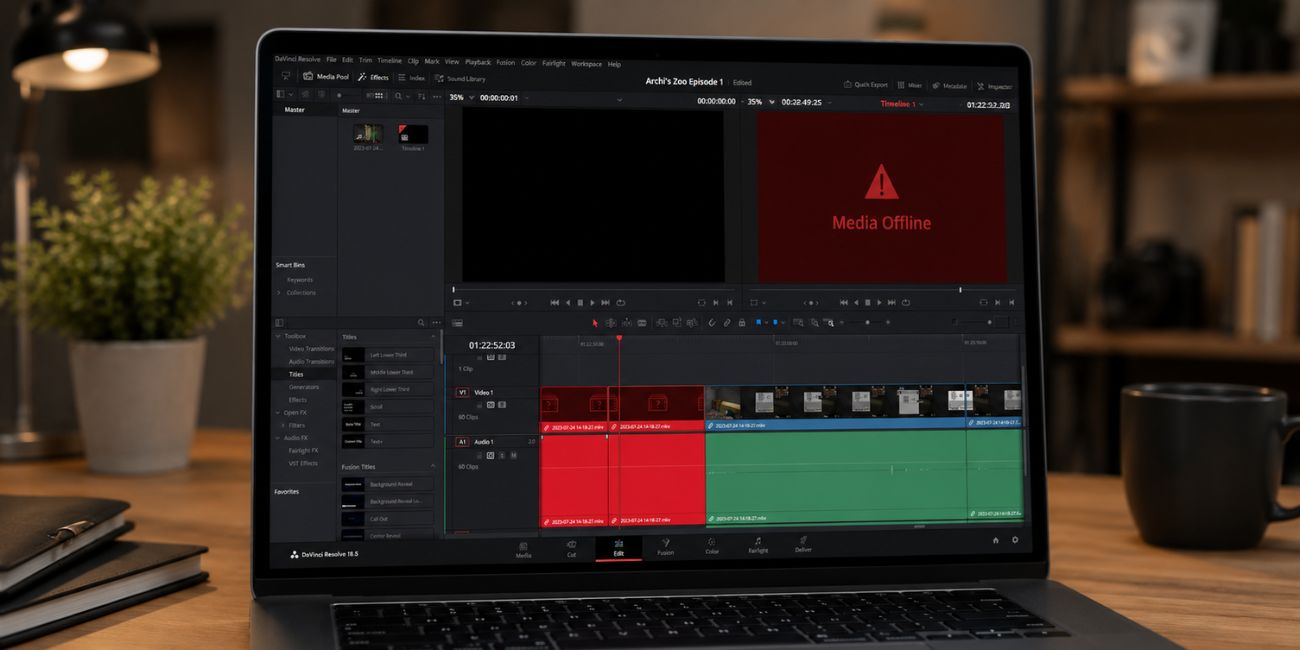
DaVinci Resolve Media Offline means Resolve cannot find, read, or connect to the original media file used in your project. The timeline clip may still be sitting there, but the real video file, audio file, image sequence, proxy file, or optimized media is missing from the place Resolve expects it to be. Sometimes the file path changed. Sometimes the drive is not connected. And sometimes Resolve can see the file but cannot read the codec properly. It is like having a photo frame with no photo inside it. The frame is still there, but the actual picture is missing.
You may see the red Media Offline warning in the Media Pool, timeline, Edit page, Cut page, Color page, Fusion page, or Deliver page. It can show up while editing or even when you try to export the final video.
Common Causes of DaVinci Resolve Media Offline Error
This error usually happens because Resolve lost the file location, cannot read the file, or is looking at the wrong media path. And honestly, one moved folder can make the whole project look broken.
- The original video, audio, or image file was moved to another folder.
- The external hard drive, SSD, SD card, or USB drive is disconnected.
- The folder name, file name, or drive letter changed after importing media.
- Proxy media, optimized media, or render cache files are missing.
- DaVinci Resolve cannot read the codec or file format properly.
- File permissions block Resolve from opening the source media.
- Image sequence frames are missing, renamed, or numbered in the wrong way.
How to Fix DaVinci Resolve Media Offline Error?
Start with the simple stuff first. Most Media Offline errors come from moved files, disconnected drives, or changed folders. But if those look fine, then check proxies, codecs, cache, cloud sync, and file permissions.
Fix #1: Reconnect the Missing Drive or Storage Folder
Many Media Offline errors happen when Resolve cannot access the drive where your original clips are stored. So if your videos are on an external hard drive, SSD, SD card, USB drive, NAS, or cloud folder, connect it again and reopen the project. On Windows, also check if the drive letter changed. On Mac, check if the disk name changed. This is a small thing, but it can break the media link in a very weird way.
Fix #2: Relink Media in the Media Pool
Relinking is usually the main fix when the files still exist but Resolve is looking in the wrong place. Go to the Media Pool, right-click the offline clips, choose relink media or relink selected clips, then point Resolve to the folder where the original source files are stored. If the file names match, Resolve can reconnect them and bring the clips back online. This is often the fastest way to fix red Media Offline screens.
Fix #3: Check If the File Was Renamed, Moved, or Deleted
Resolve links clips by file name and folder location. So if you rename a clip after importing it, move the folder, or delete the file by mistake, the timeline clip can go offline. It feels annoying because the clip still shows in the edit, but Resolve cannot reach the real file behind it.
Follow the steps below to check if your original media file is still in the right place.
- Open the folder where your media was stored.
- Check if the video, audio, or image file is still there.
- Compare the file name with the clip name in Resolve.
- Check if the folder was renamed or moved.
- Restore the original name if you changed it.
- Relink the clip again from the Media Pool.
If you find the file in a new folder, don’t import it again right away. First try to relink it. That keeps your timeline edits, cuts, color grade, and audio work connected to the same clip.
Fix #4: Change Source Folder for Multiple Offline Clips
If many clips went offline together, the whole folder may have moved. Maybe you copied the project to a new drive or changed your folder setup. Instead of relinking every clip one by one, you can point Resolve to the new source folder.
You can perform the following steps to point Resolve to the new media folder.
- Open the Media page.
- Select the offline clips in the Media Pool.
- Right-click the selected clips.
- Choose Change Source Folder if you see it.
- Select the new folder where the clips are stored.
- Confirm the change.
- Check the timeline again.
This fix is really good when you moved a full project folder from one drive to another. And yeah, it saves you from clicking the same thing fifty times.
Fix #5: Check Proxy Media and Optimized Media
Sometimes the original media is fine, but Resolve is trying to use missing proxy media or optimized media. That can make clips act weird during playback. You may also see offline frames if the proxy folder was moved, deleted, or stored on a drive that is not connected.
Try these simple steps to check whether proxy or optimized media is causing the issue.
- Open the Playback menu.
- Look for Proxy Handling.
- Switch from Prefer Proxies to Prefer Camera Originals if needed.
- Check if Proxy Mode is enabled.
- Disable proxy use for testing.
- Delete or regenerate optimized media if it is broken.
- Play the timeline again.
If the original camera files work but the proxies do not, the proxy path is probably the issue. In that case, relink the proxy media or make new proxies. Not fancy, but it gets the project moving again.
Fix #6: Fix Unsupported Codec or File Format Issues
A clip can show Media Offline when DaVinci Resolve cannot decode the file format properly. This can happen with some H.265, HEVC, 10-bit video, MKV files, variable frame rate clips, or phone-recorded videos. The file may play in a normal video player but still act badly inside Resolve. That part is weird, but it happens.
The following steps will help you check if the media format is the real problem.
- Try opening the same file in a video player.
- Import the file into a new Resolve project.
- Test another file from the same camera or phone.
- Convert the problem file to MP4 with H.264 if needed.
- Use a constant frame rate if the clip came from a phone or screen recorder.
- Reimport or relink the converted file.
- Test playback again.
If the converted file works, the original codec or container was likely the problem. For easier editing, MP4 with H.264 is usually safer than a strange phone file or unsupported HEVC clip.
Fix #7: Check File Permissions and Cloud Sync
Resolve may not read your media if the file is locked, still downloading, or blocked by folder permissions. This is common with OneDrive, Google Drive, Dropbox, shared folders, and external drives. And sometimes the file looks like it is on your computer, but it is still only in the cloud. That one catches people a lot.
Perform the following steps carefully to make sure Resolve can access the file.
- Right-click the media file or folder.
- Check file permissions.
- Make sure your user account can read the file.
- If the file is in cloud storage, make it available offline.
- Wait until cloud sync finishes.
- Move the media to a normal local folder if needed.
- Reopen DaVinci Resolve and relink the media.
A local folder is usually more stable for editing than a cloud-only folder. You can still back up to the cloud later, but editing directly from half-synced files can be messy.
Fix #8: Clear Render Cache and Regenerate Missing Cache Files
Render cache and optimized media can get broken after moving projects, changing drives, or clearing folders. Clearing old cache does not remove your original source clips. It only makes Resolve rebuild playback files that help the timeline run smoother.
These are the exact steps you need to follow to clear bad cache files safely.
- Open your project in DaVinci Resolve.
- Go to the Playback menu.
- Choose Delete Render Cache.
- Select unused or all cache files.
- Wait for Resolve to clear the cache.
- Restart DaVinci Resolve.
- Let Resolve rebuild cache if needed.
- Test the timeline again.
If the issue was only bad cache, your source clips should come back or play cleaner after Resolve rebuilds the cache. But if the original file is missing, clearing cache will not fix that. You still need to relink the source media.
Prevention Tips to Avoid DaVinci Resolve Media Offline Error
Preventing Media Offline errors is mostly about keeping your project files and source media in one clear place. You don’t need a super advanced system. Just keep your folders neat so Resolve does not lose track of your clips. I know folder cleanup sounds boring, but it saves projects.
- Keep all project media inside one main project folder.
- Avoid renaming video files after importing them into Resolve.
- Do not move source media to another drive without relinking it.
- Use the same external drive name or drive letter when possible.
- Copy SD card media to a local folder before editing.
- Keep proxy media and original camera files organized.
- Back up project files and media folders before big changes.
Conclusion
In short, DaVinci Resolve Media Offline means Resolve cannot connect to the file it needs for your project. The issue may come from a missing drive, moved folder, renamed file, broken proxy, unsupported codec, file permission, or bad cache. Most of the time, your edit is still there. Resolve just needs help finding or reading the source media again. Annoying, yes, but not always a disaster.
Start with reconnecting the drive and relinking media in the Media Pool. If that does not work, check file names, proxies, codecs, permissions, and cache. If this guide helped, share it with another editor or leave a comment with where your Media Offline error showed up.

