

You try installing Soldier of Fortune II: Double Helix, and everything seems fine. The progress bar reaches the end, then suddenly the installer stops and shows an I/O error message.
That moment feels confusing. This guide explains what the error means, why it appears during installation, and what you can do to fix it so the SOF2 setup process finishes properly.
What Is the SOF2 Installation I/O Error?
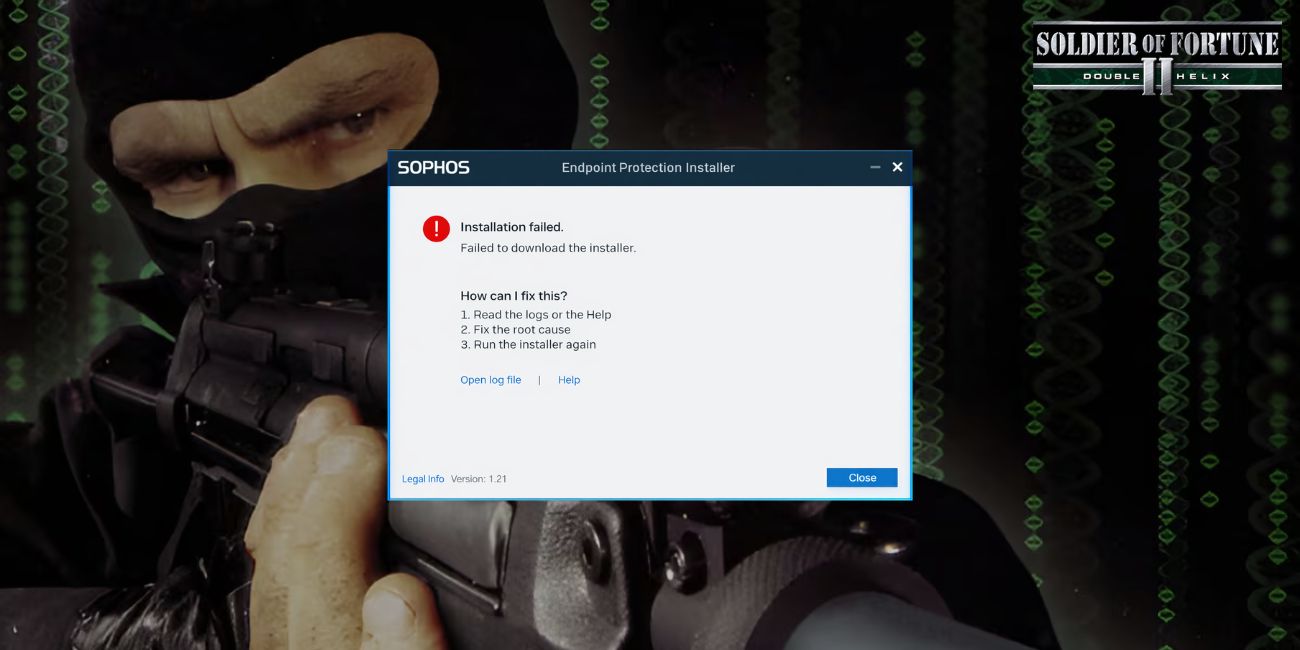
An I/O error, also called an Input Output error, appears when a system cannot read or write data between a storage device and the operating system. During the Soldier of Fortune II installation, the setup wizard copies game files from the game disc, CD drive, or installation folder to your computer’s storage. The process depends on several components working together. The Windows file system, the hard drive or SSD, the optical disc drive, and the installer must all communicate correctly.
When one part fails to read or transfer the data, the installation stops and the system reports an I/O error.
Players usually see the message near the final stage of installation. At this point the SOF2 setup wizard tries to copy large game files to the Windows program directory, and the process fails if the system cannot access the required data.
Common Causes of the SOF2 Installation I/O Error
Several technical issues can trigger this error. Some come from the installation media, while others come from the Windows system or storage hardware.
Common causes include:
- Scratched or damaged Soldier of Fortune II game disc
- Faulty CD or DVD drive unable to read disc sectors
- Corrupted game installation files
- Hard drive read or write failure
- Missing administrator permissions in Windows
- Outdated storage controller drivers
- Corruption inside the NTFS file system
Even small disc scratches or unstable storage drivers can interrupt the file copy stage of the installer.
How to Fix SOF2 Installation I/O Error
Fixing the error often means checking both the installation disc and the computer storage system. The game installer reads thousands of files during setup, so even one unreadable sector can cause the process to stop. The following solutions help identify the problem and restore a normal installation process.
Fix #1 Clean the Game Disc
The optical game disc must be clean so the CD drive laser can read data properly.
Follow these steps to clean the disc safely.
- Remove the SOF2 game disc from the drive.
- Use a soft microfiber cloth.
- Wipe from the center outward, not in circles.
- Remove dust, fingerprints, or smudges.
- Insert the disc again and restart installation.
Even small dust particles can create disc read errors.
Fix #2 Copy Installation Files to the Hard Drive
Sometimes the disc drive struggles to read files repeatedly. Copying the files once can prevent the installer from re-reading damaged sectors.
Try these simple steps to copy the files.
- Insert the Soldier of Fortune II CD.
- Open Windows File Explorer.
- Select all files on the disc.
- Copy them to a new folder on your hard drive.
- Run setup.exe from that folder.
This method lets the installer run directly from your storage device.
Fix #3 Run the Installer as Administrator
Windows security settings sometimes block file creation inside system folders. Running the installer with administrator privileges allows the setup program to write files properly.
Follow these steps.
- Locate the SOF2 setup file.
- Right click the installer.
- Select Run as administrator.
- Allow Windows to start the setup wizard.
- Continue the installation process.
The installer now receives permission to create folders and write game files.
Fix #4 Check the Hard Drive for Errors
Storage errors inside the Windows file system can interrupt installation tasks. The built in CHKDSK disk check tool scans the drive and repairs file system problems.
You can perform the following steps.
- Open Command Prompt as administrator.
- Type
chkdsk /f. - Press Enter.
- Restart the computer when prompted.
- Let Windows scan the disk.
The scan repairs damaged sectors or corrupted file entries.
Fix #5 Update Storage Drivers
The storage controller driver manages communication between the operating system and your hard drive or SSD. Old drivers may cause read and write errors.
Follow the steps below.
- Open Device Manager in Windows.
- Expand the Disk Drives section.
- Right click your storage device.
- Select Update driver.
- Allow Windows to search for updates.
Updated drivers can improve data transfer stability.
Fix #6 Use Compatibility Mode
Older games like Soldier of Fortune II, developed by Raven Software and published by Activision, originally ran on older versions of Windows. Compatibility mode helps modern systems handle older installers.
Try these steps.
- Right click the installer file.
- Select Properties.
- Open the Compatibility tab.
- Choose Windows XP compatibility mode.
- Apply the changes and run the installer again.
Compatibility settings help the installer interact correctly with modern systems like Windows 10 or Windows 11.
Fix #7 Install the Game from an ISO Image
Creating an ISO image of the game disc helps avoid disc read errors because the installer accesses files from your hard drive instead of the optical drive.
Steps to try.
- Use a tool such as PowerISO, WinCDEmu, or Daemon Tools.
- Create an ISO image from the game disc.
- Mount the ISO using a virtual drive.
- Open the mounted drive.
- Run the installation from there.
This method often works when the physical disc has minor read issues.
Fix #8 Try Another CD or DVD Drive
Sometimes the problem is simply a failing optical drive. Older drives struggle to read aging discs.
Connecting a different external USB DVD drive or installing the game on another computer can confirm whether the drive is the source of the error.
Prevention Tips to Avoid I/O Installation Errors
Preventing installation problems often comes down to maintaining both the game media and the computer storage system. Many classic PC games use optical discs, and those discs degrade over time.
Here are some practical tips:
- Store game discs inside protective cases
- Clean discs before installation
- Keep Windows drivers updated
- Check your hard drive health regularly
- Avoid interrupting installations midway
- Create backup ISO images of old game discs
- Keep your computer free from file system errors
These habits help protect your data and reduce installation failures.
Conclusion
The SOF2 installation I/O error usually appears when the system cannot read game files from the disc or cannot write them to the storage device. Disc scratches, faulty optical drives, storage errors, outdated drivers, or Windows permission issues can all interrupt the installation process. Because the setup program depends on stable data transfer, even a small hardware or file system problem can stop the installer.
Most players fix the issue by cleaning the disc, copying installation files to the hard drive, updating drivers, or installing the game from an ISO image. If none of the fixes work, checking the hardware such as the CD drive or hard drive may be necessary.
If this guide helped you install Soldier of Fortune II, share it with other players who may face the same issue. You can also leave a comment and describe which solution worked for you.

