

If you are planning to upgrade your gaming PC to Windows 11 and you have an NVIDIA GeForce GTX 1660 Super, the good news is simple: yes, the GTX 1660 Super is compatible with Windows 11. This mid-range Turing-based graphics card remains a capable 1080p performer, and NVIDIA provides Windows 11 drivers for it. However, GPU compatibility is only one part of the story, because Windows 11 also has requirements related to your processor, TPM, Secure Boot, RAM, and storage.
TLDR: The GTX 1660 Super works with Windows 11 and is fully supported by NVIDIA drivers. It can still deliver excellent 1080p gaming performance, especially in esports and well-optimized AAA games. The bigger question is whether the rest of your PC meets Windows 11 requirements, particularly TPM 2.0, Secure Boot, and a supported CPU. If your system is compatible, upgrading should be smooth and performance should be very similar to Windows 10.
Is the GTX 1660 Super Officially Compatible With Windows 11?
The NVIDIA GeForce GTX 1660 Super is compatible with Windows 11. It supports DirectX 12, uses modern NVIDIA Game Ready drivers, and has no issue running on Microsoft’s latest consumer operating system. Although the card does not include newer RTX features such as dedicated ray tracing cores or DLSS support, those features are not required for Windows 11 compatibility.
Windows 11 requires a graphics card that is compatible with DirectX 12 or later and has a WDDM 2.0 driver. The GTX 1660 Super meets these requirements comfortably. In fact, it exceeds the minimum graphics requirements by a large margin, making it suitable not only for basic desktop use but also for gaming, streaming, content creation, and everyday productivity.
For users coming from Windows 10, the experience should feel familiar. NVIDIA’s Windows 11 drivers support the GTX 1660 Super through the same GeForce driver package used for many modern GTX and RTX cards. You can install drivers through GeForce Experience or download them manually from NVIDIA’s website.

Windows 11 Requirements: Your GPU Is Not the Only Concern
While the GTX 1660 Super is compatible, your entire PC must satisfy Windows 11’s system requirements. Many users mistakenly focus only on the graphics card, but Windows 11’s most common upgrade blockers are related to the motherboard, CPU, and security settings.
Here are the main Windows 11 requirements you should check:
- Processor: A compatible 64-bit CPU, generally Intel 8th generation or newer, AMD Ryzen 2000 series or newer, or equivalent supported chips.
- RAM: At least 4 GB, although 8 GB or 16 GB is strongly recommended for gaming and multitasking.
- Storage: At least 64 GB of available storage, though an SSD is highly recommended.
- Firmware: UEFI with Secure Boot capability.
- TPM: Trusted Platform Module 2.0 support, either as a physical chip or firmware TPM such as Intel PTT or AMD fTPM.
- Graphics: DirectX 12 compatible GPU with WDDM 2.0 driver.
- Display: 720p display greater than 9 inches diagonally, with 8 bits per color channel.
If you are using a GTX 1660 Super, there is a good chance your PC is from the Windows 10 era and may already have UEFI and TPM support. However, some systems have TPM or Secure Boot disabled in BIOS. If Microsoft’s PC Health Check app says your system is not compatible, do not assume your hardware is too old immediately. Sometimes compatibility simply requires enabling the right firmware settings.
How to Check Compatibility Before Upgrading
Before installing Windows 11, it is wise to verify your system configuration. The simplest method is to use Microsoft’s PC Health Check tool. This utility scans your computer and tells you whether it meets the official Windows 11 requirements. If something is missing, it usually identifies the exact issue.
You can also check manually:
- Press Windows + R, type dxdiag, and press Enter.
- Open the Display tab and confirm that your GTX 1660 Super is detected.
- Check the driver model and DirectX version.
- Press Windows + R, type tpm.msc, and press Enter to check TPM status.
- Open System Information by typing msinfo32 in the Start menu.
- Look for BIOS Mode and Secure Boot State.
If BIOS Mode shows UEFI and TPM 2.0 is ready for use, you are likely in good shape. If Secure Boot is off, you may be able to enable it in your motherboard firmware. Be careful when changing boot settings, especially if your Windows installation uses an older MBR partition style instead of GPT.
GTX 1660 Super Driver Support on Windows 11
NVIDIA continues to support the GTX 1660 Super with Windows 11 drivers. The card belongs to the Turing generation, even though it is branded as GTX rather than RTX. This means it benefits from a relatively modern architecture, efficient performance, and good driver maturity.
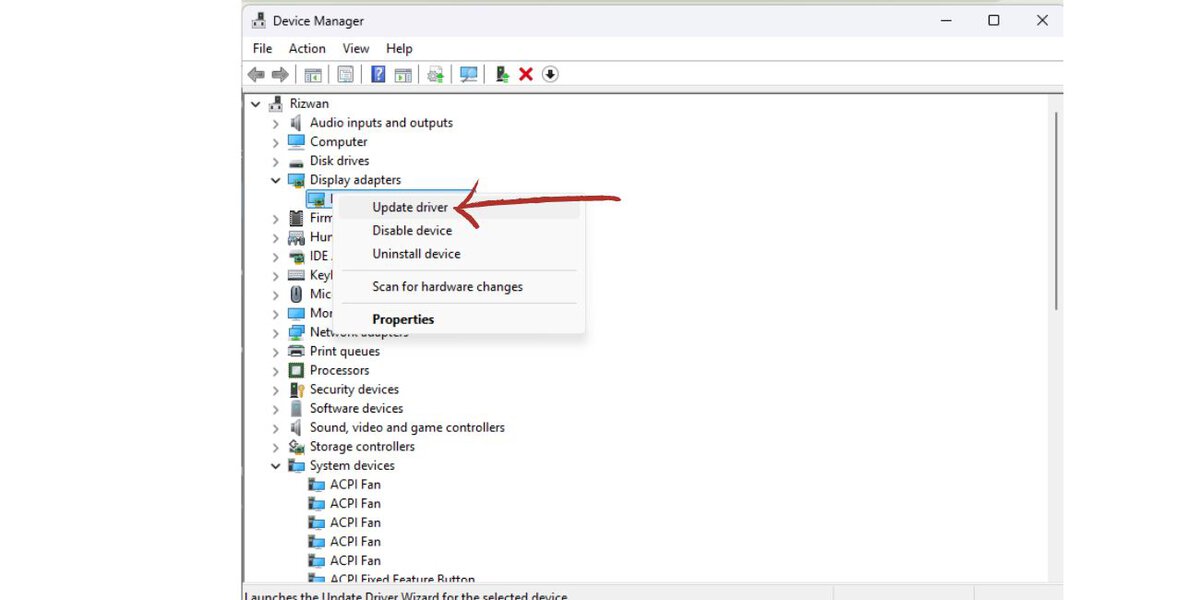
For the best experience, install the latest NVIDIA Game Ready Driver or Studio Driver, depending on your use case. Game Ready Drivers are ideal for gaming because they often include optimizations for new titles. Studio Drivers are better suited for users who prioritize stability in creative applications like video editing, 3D rendering, and design software.
After upgrading to Windows 11, you may want to perform a clean driver installation if you experience stuttering, black screens, or odd display behavior. During the NVIDIA driver installation, choose Custom Installation and then select Perform a clean installation. This resets NVIDIA settings and removes older driver profiles that might conflict with the new OS environment.
Gaming Performance: Windows 11 vs Windows 10
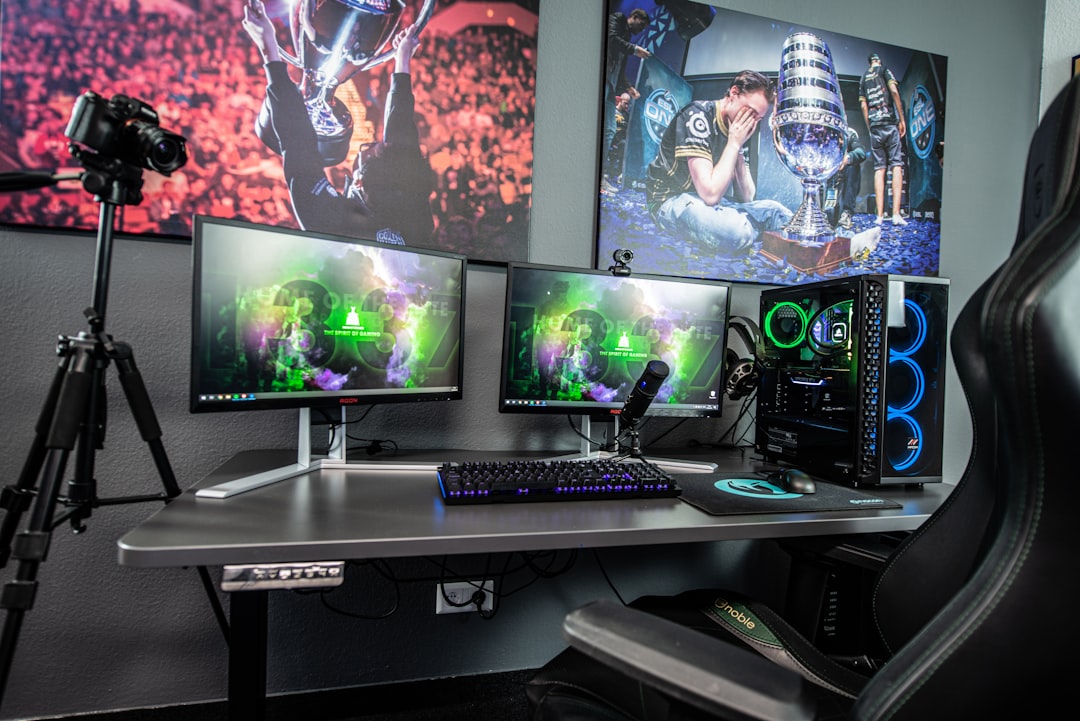
In most games, the GTX 1660 Super performs very similarly on Windows 11 and Windows 10. Differences are usually small, often within a few frames per second. In some titles, Windows 11 can be slightly faster due to newer scheduling improvements or updated drivers. In others, Windows 10 may have a tiny advantage. For practical gaming, the experience is generally comparable.
The GTX 1660 Super remains a very capable 1080p gaming GPU. It is especially strong in esports and competitive games such as Fortnite, Valorant, Counter-Strike 2, Rocket League, Apex Legends, and Overwatch 2. In many of these games, it can deliver high frame rates at medium to high settings, depending on the CPU and RAM configuration.
For AAA games, expectations should be realistic. The GTX 1660 Super has 6 GB of GDDR6 VRAM, which is still usable but can be limiting in newer games with high-resolution textures. At 1080p, medium to high settings usually work well. Ultra settings may cause frame drops in demanding modern titles, especially if the game requires more than 6 GB of VRAM.
Because the GTX 1660 Super does not support DLSS, it cannot use NVIDIA’s AI upscaling technology available on RTX cards. However, some games support FSR or XeSS, which may work on GTX hardware and help improve frame rates. These upscaling options can be useful when trying to maintain smooth gameplay in newer titles.
Expected Performance by Use Case
Here is a general idea of what you can expect from the GTX 1660 Super on Windows 11:
- Everyday use: Excellent performance for browsing, media playback, office work, and multitasking.
- 1080p esports gaming: Very good performance, often capable of high refresh rate gameplay with optimized settings.
- 1080p AAA gaming: Good performance at medium to high settings, depending on the game.
- 1440p gaming: Possible in lighter games, but demanding titles may require lower settings.
- Ray tracing: Not recommended, as the GTX 1660 Super lacks dedicated RT cores.
- Streaming: Good, thanks to NVIDIA’s NVENC encoder, especially for 1080p streaming.
- Video editing: Solid for beginner to intermediate workloads, though VRAM can be a limit in heavier projects.
Windows 11 Gaming Features and the GTX 1660 Super
Windows 11 includes several gaming-focused features, but not all of them dramatically change the experience on a GTX 1660 Super system. Auto HDR, for example, can improve the look of some older games if you have an HDR-capable monitor. The GPU can display HDR content, but the quality of the experience depends heavily on your monitor.
DirectStorage is another Windows 11 feature designed to reduce loading times by allowing games to load assets more efficiently from fast NVMe SSDs. However, benefits depend on game support and storage hardware. A GTX 1660 Super system with a SATA hard drive will not see the same advantage as a system using a fast NVMe SSD.
Windows 11 also has improved Xbox app integration, Game Pass support, and updated gaming settings. These features do not require an RTX GPU, so GTX 1660 Super owners can still benefit from the broader gaming ecosystem.
Common Issues and Fixes After Upgrading
Most GTX 1660 Super users will have no major trouble after upgrading to Windows 11, but a few issues can occur. Fortunately, they are usually easy to fix.
- Low FPS after upgrade: Update your NVIDIA driver, check power settings, and make sure your monitor is connected to the graphics card, not the motherboard.
- Stuttering in games: Disable unnecessary startup apps, update chipset drivers, and check whether Windows is installing background updates.
- Wrong refresh rate: Go to Display Settings and confirm your monitor is set to its highest supported refresh rate.
- Black screen after driver install: Boot into Safe Mode and use Display Driver Uninstaller before reinstalling the latest NVIDIA driver.
- Game crashes: Verify game files, remove unstable overclocks, and monitor GPU temperatures.
It is also worth updating your motherboard chipset drivers after moving to Windows 11. Chipset drivers can affect USB behavior, CPU scheduling, storage performance, and system stability. For AMD Ryzen systems especially, installing the latest chipset package is a smart step.
Should You Upgrade to Windows 11 With a GTX 1660 Super?
If your PC meets the official Windows 11 requirements, upgrading is generally a good idea. The GTX 1660 Super is not a barrier, and performance should be stable with current NVIDIA drivers. Windows 11 has matured significantly since launch, and many early gaming-related issues have been improved through updates.
That said, if your current Windows 10 installation is extremely stable and you rely on older software or hardware, there is no urgent need to rush unless you want Windows 11 features or longer-term support. Windows 10 remains usable for now, but Windows 11 is the forward-looking platform for gaming, productivity, and security updates.
For gamers, the most important upgrade factors are not the GTX 1660 Super itself but the surrounding hardware. A strong CPU, 16 GB of RAM, and an SSD will make a bigger difference to the Windows 11 experience than replacing the GPU just for compatibility reasons.
Final Verdict
The GTX 1660 Super is fully compatible with Windows 11 and remains a solid graphics card for 1080p gaming. It supports the required graphics standards, receives NVIDIA driver updates, and works well with modern Windows gaming features. While it lacks ray tracing cores and DLSS, those limitations do not affect basic Windows 11 compatibility.
Before upgrading, check your CPU, TPM 2.0, Secure Boot, RAM, and storage configuration. If those requirements are satisfied, you can move to Windows 11 with confidence. For most users, a GTX 1660 Super system will feel responsive, stable, and capable, especially when paired with updated drivers and a clean system setup.

