

Seeing a Google emergency warning in Gmail can stop you for a moment. The message often says “critical security alert” or “suspicious activity in your account.” Sometimes it also shows that you were signed out of a device like Windows or Android.
This guide explains what the Gmail emergency warning means, why Google sends it, and what steps help protect your Google Account. Everything here is based on how Google security systems work, not guesses.
What Is a Google Emergency Security Warning?

A Google emergency security warning is an automated alert from Google Account security systems. Google sends this warning when account activity does not match normal sign-in behavior.
The alert usually appears in Gmail and on the Google Account security page. It is linked to account protection, not email content. Google uses this warning to prevent unauthorized access to services like Gmail, Google Drive, Google Photos, and saved passwords.
This alert does not always mean your account was hacked. It means Google detected a risk signal and acted to reduce possible damage.
Why Gmail Shows “Suspicious Activity Detected”
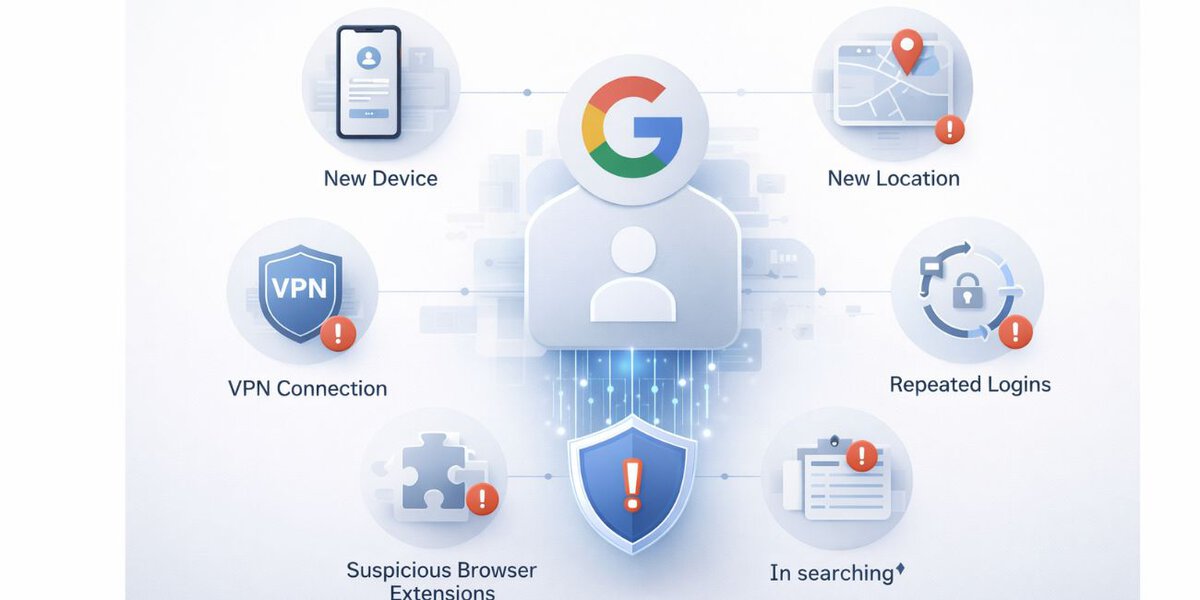
Google checks many signals when someone signs in or uses an account. When those signals change suddenly, Gmail may show a warning.
Common causes include:
- Signing in from a new Windows computer, phone, or tablet
- Logging in from a different country or region
- Using a VPN, proxy, or shared network
- Several wrong password attempts in a short time
- Browser extensions or software that behaves like malware
Google compares current activity with past behavior. When the pattern looks unusual, Gmail triggers a security response.
What Does “You Were Signed Out of This Device” Mean?
When Google signs you out of a device, it is a safety action. Google blocks the session where the suspicious activity came from to stop further access.
This can happen even if you were the one logging in. A network change, IP switch, or VPN connection can cause it. Google prefers to stop access first and ask for verification later.
Being signed out does not mean your account is permanently locked.
How to Tell If the Gmail Security Warning Is Real
Scam emails often copy Google designs, so checking authenticity matters.
A real Google security warning usually:
- Appears in your Google Account security activity
- Uses Google domains only
- Does not ask for passwords by email
- Matches alerts shown across Gmail and account settings
A fake message often:
- Pushes urgent clicks or threats
- Links to non-Google websites
- Asks for passwords or recovery codes
- Appears only in email, not in account activity
If unsure, open a new browser tab and go directly to your Google Account security page instead of clicking links.
What to Do After You See the Warning
Take action calmly. These steps reduce risk quickly.
- Change your Google Account password to a strong, unique one.
- Review recent sign-in activity and check devices and locations.
- Run the Google Security Checkup to review protection settings.
- Turn on 2-Step Verification if it is not enabled.
- Scan your device for malware using trusted security software.
- Remove unknown browser extensions.
Each step helps Google confirm that you are the account owner.
What Happens If You Ignore the Warning?
Ignoring a Gmail emergency warning increases account risk. Google may limit access to protect your data. In some cases, sign-in may be blocked until identity checks finish.
Your Gmail, Google Drive, and other Google services share the same account security. One weak point can affect all connected data.
Taking action early helps avoid recovery problems later.
How to Reduce Future Gmail Security Alerts
You cannot prevent every alert, but you can lower how often they appear.
Helpful habits include:
- Using one strong password only for your Google Account
- Keeping recovery email and phone number updated
- Avoiding unknown browser add-ons
- Keeping Windows, Android, and browsers updated
- Signing out from shared or public devices
- Checking account activity once in a while
These habits match how Google expects accounts to behave.
When to Contact Google Support
Contact Google support if:
- You see sign-ins you do not recognize
- You cannot access your account after recovery steps
- Security prompts repeat without resolution
- Recovery options fail
Use official Google help pages only. Third-party recovery services cannot access Google systems and may put your account at more risk.
Final Thoughts
A Google emergency warning in Gmail exists to protect your account. It is triggered by real security signals, not random errors.
Do not panic when you see it. Review your activity, secure your account, and follow Google’s steps. In most cases, access returns once checks are complete.
If this article helped, share it with others who may be confused by the same Gmail warning. You can also leave a comment and explain what alert you saw and how you fixed it.

