

YouTube playback speed is one of those small settings you only notice when it stops working. You open a video, try to watch it at 1.5x or 2x, and suddenly the speed option is missing. Or maybe the option is there, but the video keeps playing at normal speed.
This can happen on the YouTube app, desktop browser, smart TV, YouTube Shorts, live streams, or videos embedded on other websites. So the problem is not always your account. Sometimes it is the video type, sometimes it is your app, and sometimes the device just does not show the same controls.
This guide covers the common reasons why you can’t change playback speed on YouTube, and the fixes you can try one by one. Start with the easy checks first, because most of the time, this is just a small YouTube player glitch or device issue.
Why Does YouTube Playback Speed Not Work?
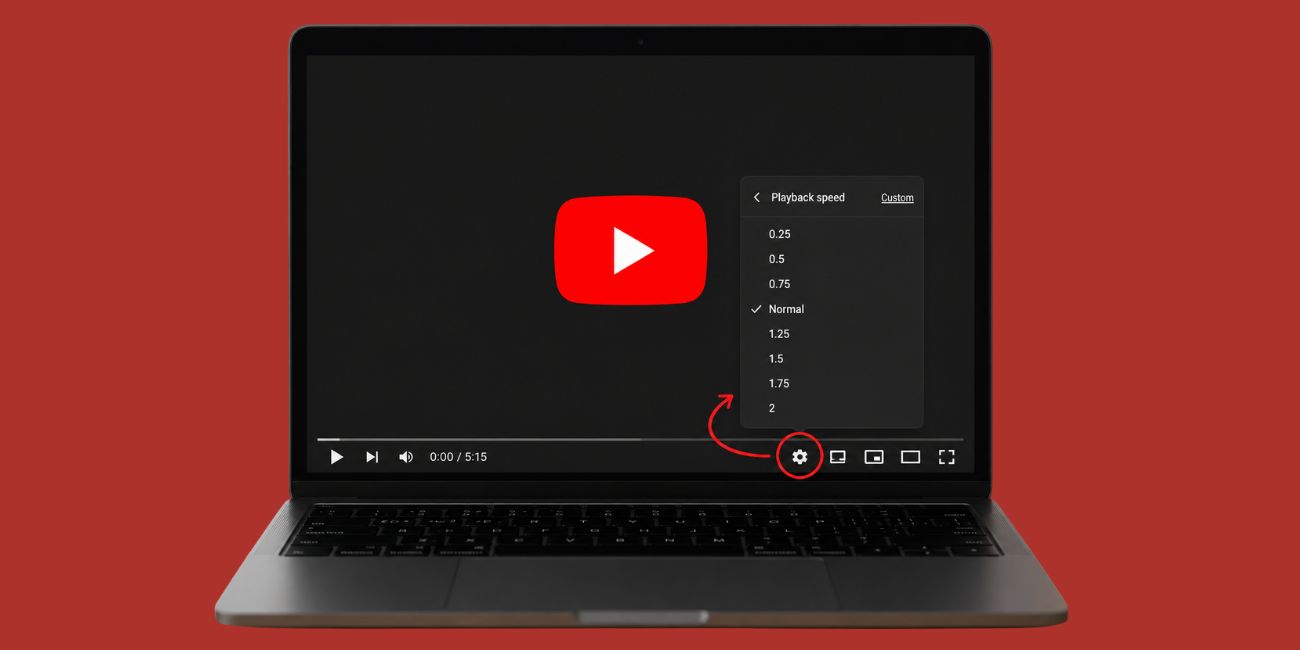
YouTube playback speed may stop working because the player is not loading properly, the video type has limited controls, or your app or browser has a problem. It can also happen when an extension changes how YouTube works in your browser. On TVs, the reason is often even simpler: the YouTube TV app may not support the same speed controls you see on phone or desktop.
Common causes include:
- You are watching a YouTube Short, live stream, premiere, or embedded video.
- The playback speed setting is hidden inside another menu.
- The YouTube app is outdated or glitching.
- Browser cache or cookies are causing player problems.
- A browser extension is blocking or changing YouTube controls.
- The smart TV app has limited playback options.
- YouTube has a temporary player bug.
- Your device has old software, low storage, or app data issues.
The quickest way to narrow it down is simple. Test a normal long YouTube video first. If speed works there, the first video or player type is probably the issue.
How to Fix YouTube Playback Speed Not Working
If YouTube playback speed is not working, then follow the fixes below in order. Some will fit desktop users, some will fit mobile users and some are mainly for TV users.
1. Check If the Video Type Supports Playback Speed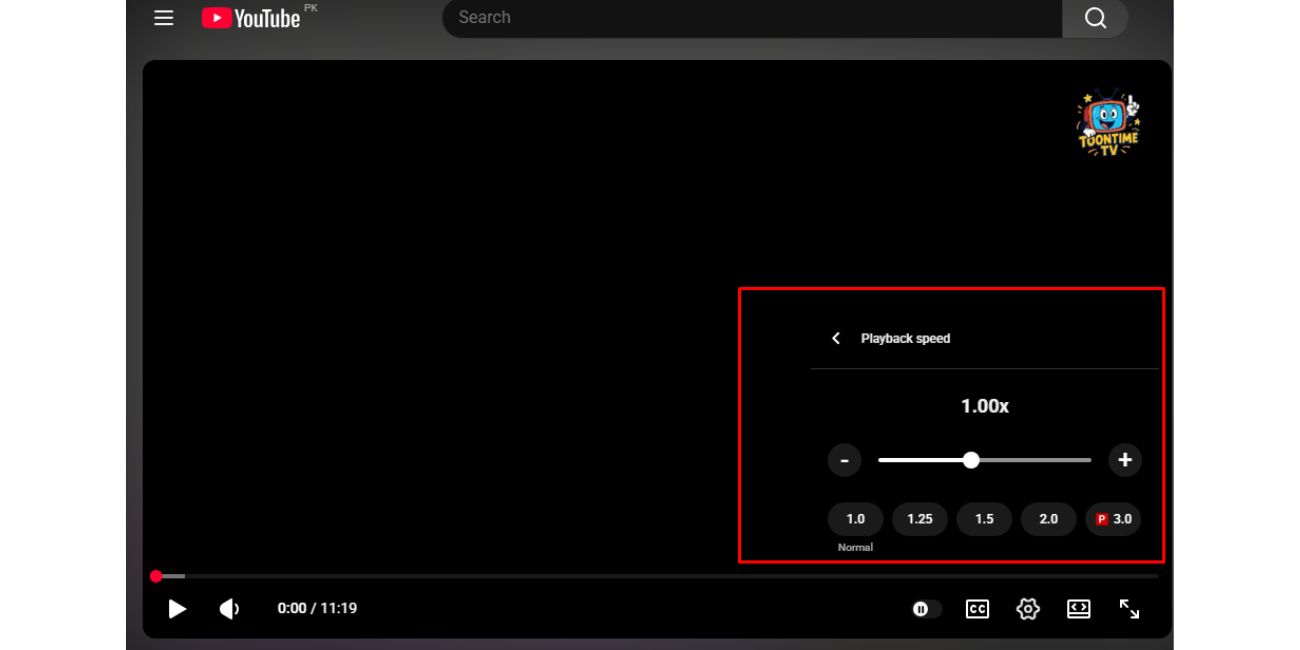
Normal YouTube videos usually support playback speed. These are the regular long-form videos you open from search, subscriptions, channel pages, or recommendations. In these videos, you should normally see speed options such as 0.5x, normal, 1.25x, 1.5x, and 2x.
YouTube Shorts can behave differently. Live streams can also be limited because the video is happening in real time. Embedded YouTube videos on other websites may show fewer controls too, depending on how the player was added.
So test this first. Open a normal long-form YouTube video and try changing the speed there. If it works, your YouTube app or browser is probably fine. The issue is likely with Shorts, a live stream, or that specific player.
2. Open the Playback Speed Setting the Right Way
Sometimes the speed option is not gone. It is just inside the player settings, and YouTube menus can look a little different on phone, desktop, and TV.
On a desktop, open the video and click the gear icon in the YouTube player. Choose Playback speed, then select the desired speed. You can also use keyboard shortcuts on many desktop videos. Press > to speed up and < to slow down.
In the YouTube mobile app, tap the video once to display the controls. Then tap the gear icon or settings menu. Look for the playback speed and choose your speed from the list. On some app versions, you may need to open an extra settings menu before you see it.
If you are using a mobile browser, the menu can feel different again. In that case, try opening the same video in the YouTube app. If the app shows the speed setting, the mobile browser player may be the limited one.
3. Refresh the Video or Restart the YouTube App
A simple refresh can fix more than people expect. Sometimes the YouTube player loads without all controls, or it accepts your speed change but does not apply it. It is annoying, but it happens.
If you are on desktop, refresh the page and try again. If you are on mobile, close the YouTube app fully, then open it again. Do not just switch apps and come back. Close it properly, then reopen the same video and check playback speed again.
This fix is small, but it is worth trying before changing deeper settings.
4. Update the YouTube App or Browser
An old YouTube app can cause playback problems. Same with an old browser. YouTube changes its video player often, so older app versions can sometimes act strangely.
Check these updates:
- Update the YouTube app from Google Play Store or the App Store.
- Update your browser if you use YouTube on desktop.
- Restart your phone, computer, or tablet after updating.
- Test the same video again after the update.
If playback speed was missing because of a bug, an update may fix it. If the issue started right after an update, then it may be a temporary app bug. In that case, the later fixes below can still help.
5. Clear YouTube Cache and Browser Cookies
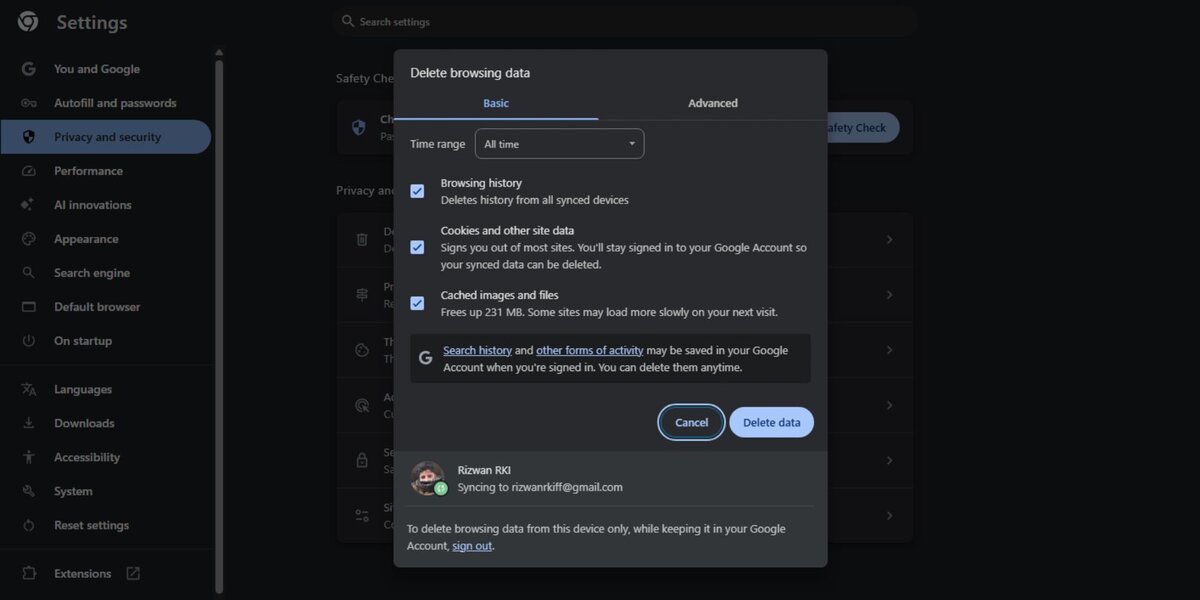
Cache is saved data that helps apps and websites load faster. Most of the time it is helpful. But sometimes old saved files cause weird problems, like missing menus, stuck speed controls, or videos not playing correctly.
On Android, go to your phone settings, open the YouTube app settings, then clear cache. Do not clear full app data unless you are okay with signing in and setting things up again. Cache is the safer first step.
On desktop, clear browser cache and cookies for YouTube or for the browser. After that, close the browser and open it again. If you use Safari, Chrome, Firefox, or Edge, the exact menu is different, but the idea is the same.
On iPhone, there is no simple YouTube app cache button like Android. If the app keeps acting badly, reinstalling YouTube may be easier.
6. Disable Browser Extensions That Affect YouTube
If YouTube playback speed is not working in Chrome, Firefox, Edge, or Safari, browser extensions could be the reason. Ad blockers, script blockers, download tools, and video speed controller extensions can all affect the YouTube player.
A good test is to open YouTube in incognito or private mode. Then play a normal YouTube video and check the playback speed option. If it works there, one of your normal browser extensions may be causing the issue.
Try this:
- Open YouTube in incognito or private mode.
- Test playback speed on a normal video.
- Disable YouTube-related extensions if it works there.
- Turn extensions back on one by one.
- Refresh YouTube after each change.
This helps you find the exact extension instead of removing everything. Start with extensions that control video, ads, scripts, privacy, or page loading.
7. Test YouTube in Another Browser or Device
This is a useful check because it tells you where the problem lives. If playback speed works in another browser, your first browser is the issue. If it works on your phone but not your TV, the TV app is probably limited or bugged.
Test the same video in another place. Use Chrome if you were using Safari. Try Firefox if you were using Edge. Or open the video on your phone if it failed on desktop.
If the same video fails everywhere, it may be the video type or YouTube itself. If only one device has the issue, focus on that device. That saves time and stops you from changing settings that are not related.
8. Check Smart TV or Streaming Device Limitations
YouTube on smart TV does not always work like YouTube on desktop or phone. Some TV apps show playback speed, some hide it, and some do not support it well. This can happen on Android TV, Roku, Fire TV, Apple TV, game consoles, and built-in smart TV apps.
If speed control is missing on TV, update the YouTube app first. Then restart the TV or streaming device. Also check the same video on your phone or computer. If speed works there, the issue is not the video.
You can also try casting from your phone. In some cases, using the phone as the controller gives you better playback options than using the TV app directly. It is not perfect for everyone, but it is an easy workaround.
9. Sign Out, Sign Back In, or Reinstall the App
Try this after the easier fixes. Signing out and signing back in can reset small account or app glitches. It may help if playback speed is missing only when you are logged into your account.
If you are using the YouTube app, reinstalling can also help. This removes the app and gives you a clean version. Before doing that, make sure you know your Google account login details, so you can sign back in.
Also check your device storage. If your phone or TV has very low storage, apps can act strangely. Freeing up some space may help YouTube run better.
10. Wait If YouTube Has a Temporary Bug
Sometimes the problem is not on your side. YouTube can have temporary bugs, especially after app updates or player changes. If many people are seeing the same playback speed issue, there may not be a perfect fix right away.
In that case, use another device or browser for now. You can also try YouTube on desktop if the mobile app is bugging out. If the issue is from YouTube’s side, it may start working again after a later update or server-side fix.
How to Avoid YouTube Playback Speed Problems Again
You cannot prevent every YouTube glitch, but you can reduce the chances. Keep the app and browser updated, and do not overload your browser with too many extensions that change video playback. If you often watch lectures, tutorials, podcasts, or long videos at 1.5x or 2x, desktop YouTube is usually the most reliable option.
Some simple habits help:
- Keep the YouTube app updated.
- Remove browser extensions you do not use.
- Clear browser cache when YouTube starts acting weird.
- Keep some free storage on your phone or TV.
- Use normal YouTube videos when speed control matters.
- Test important videos on desktop if the TV app has limited controls.
The main thing is not to panic when the option disappears. Check the video type and device first. A lot of times, the setting is not broken everywhere.
Final Thoughts
If you can’t change playback speed on YouTube, start with the simplest checks. Test a normal video, open the speed menu again, refresh the page, and restart the app. After that, move to updates, cache, browser extensions, and device testing.
Most of the time, the issue is not serious. It is usually a video type limitation, app glitch, browser problem, or smart TV control limit. Which device is causing the issue for you – phone, desktop, Shorts, or smart TV?

